AI is changing how music gets made, and not every change is welcome. Opinions run strong, and so do the fears: if AI takes over the creative part, what’s left for composers? Who owns the music it makes, and what was it trained on?
These are fair worries, and we take them seriously. Used with care, and for the right work, AI can be a tool that serves the composer, not the other way around. That idea shaped every decision we made when we brought AI into Flat:
- It helps, you write. AI in Flat answers your questions and takes on repetitive work. The creative decisions stay with you.
- AI acts only on your request. Nothing runs on its own, and you can undo what it did.
- AI is optional in Flat. Every AI feature in Flat is optional, and you can turn it off at any time.
- Your scores aren't training data. Flat does not train AI on your scores, and the AI providers behind the notation assistant don't use API data to train their models.
- The Community stays human. Scores made with generative AI can't be published there.
Our goal is to give you more time for the music by helping with the work around it.
With that in mind, we’ve been working on these AI tools:
- The notation assistant (beta): ask questions about your score and hand it edits like chord symbols or dynamics.
- Flat to ChatGPT and Claude Integration: your AI app can find your Flat scores and save new ones to your library.
- AI Quantize: the notes you record with Live MIDI land on the beat.
- AI features settings: choose which AI features you use, or turn them off.
Let's take a look at what's new!
Contents
- The notation assistant (beta)
- Flat in ChatGPT and Claude
- AI Quantize in Live MIDI
- Choose which AI features you use
- The Community stays for music people write themselves
The notation assistant (beta)
The notation assistant is an AI assistant built into the Flat editor that reads the score you have open. It sits on the left side of the editor, right next to your music. Ask it what key a passage is in, whether a part fits an instrument’s range, or how the harmony moves. When you ask for an edit, it uses the same tools you use in the editor, so chord symbols, dynamics or a transposed passage go into your score as regular notation. You spend less time on repetitive work, get answers without leaving your score, and decide which changes stay.
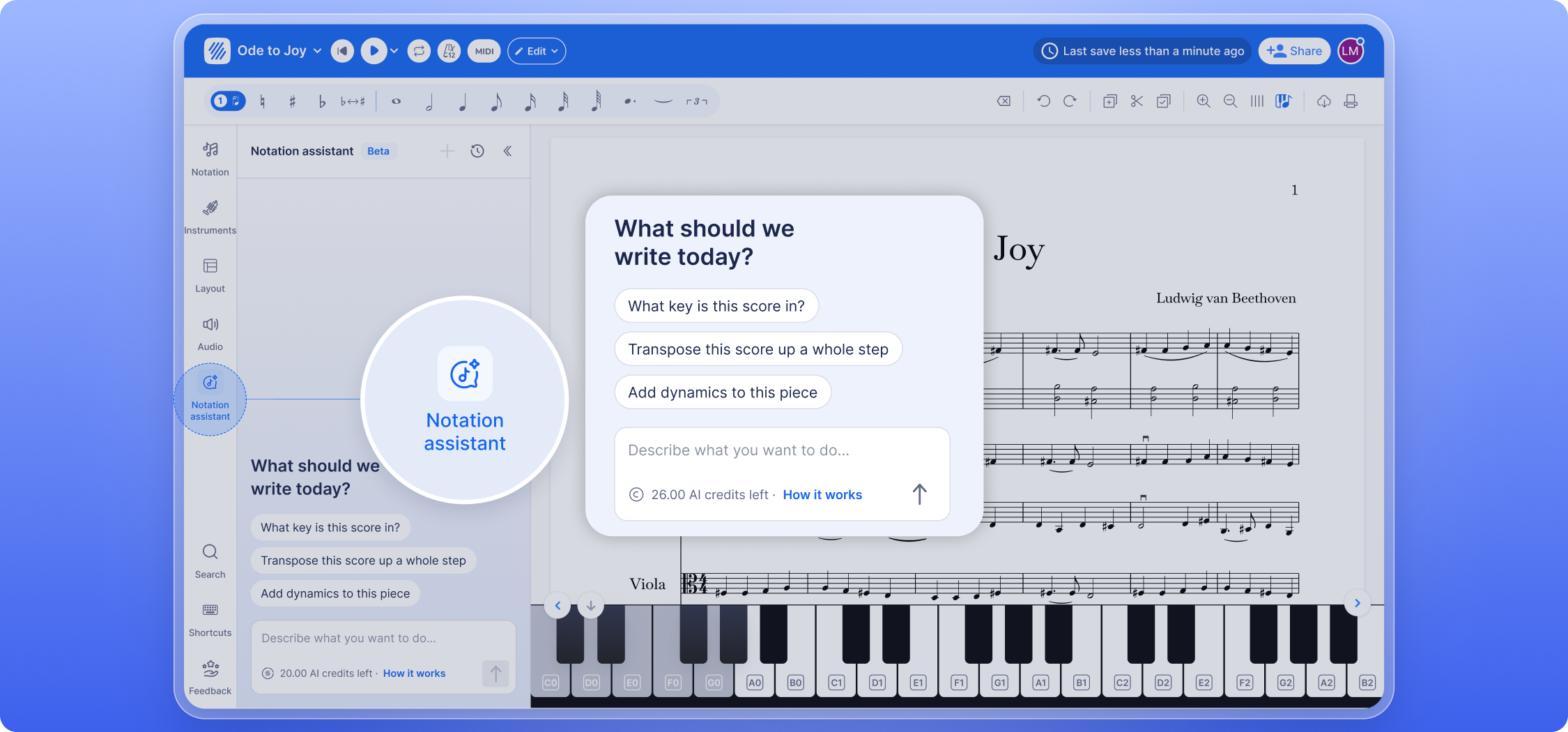
With this AI assistance you can:
- Ask about your score. Ask what key it's in, how the harmony moves, whether the flute part is playable, or which notes a clarinet part sounds at concert pitch. When the answer mentions a measure (1), click it to jump to that measure in your score.
- Hand off repetitive edits. Ask it to add chord symbols, dynamics, articulations or hairpins over a passage, or to copy, transpose or simplify a few bars for a player's level.
- Sketch a part. Ask for "a walking bass in the left hand, bars 21 to 24" and it writes the notes into your score. You can then edit them like any other notes.
- Undo a reply. Click Undo (2) under the assistant's latest reply to remove everything that reply changed. This works until you edit the score yourself. Before the assistant deletes bars, parts, staves or voices, or rewrites many notes, it shows you what will change and waits for your OK.
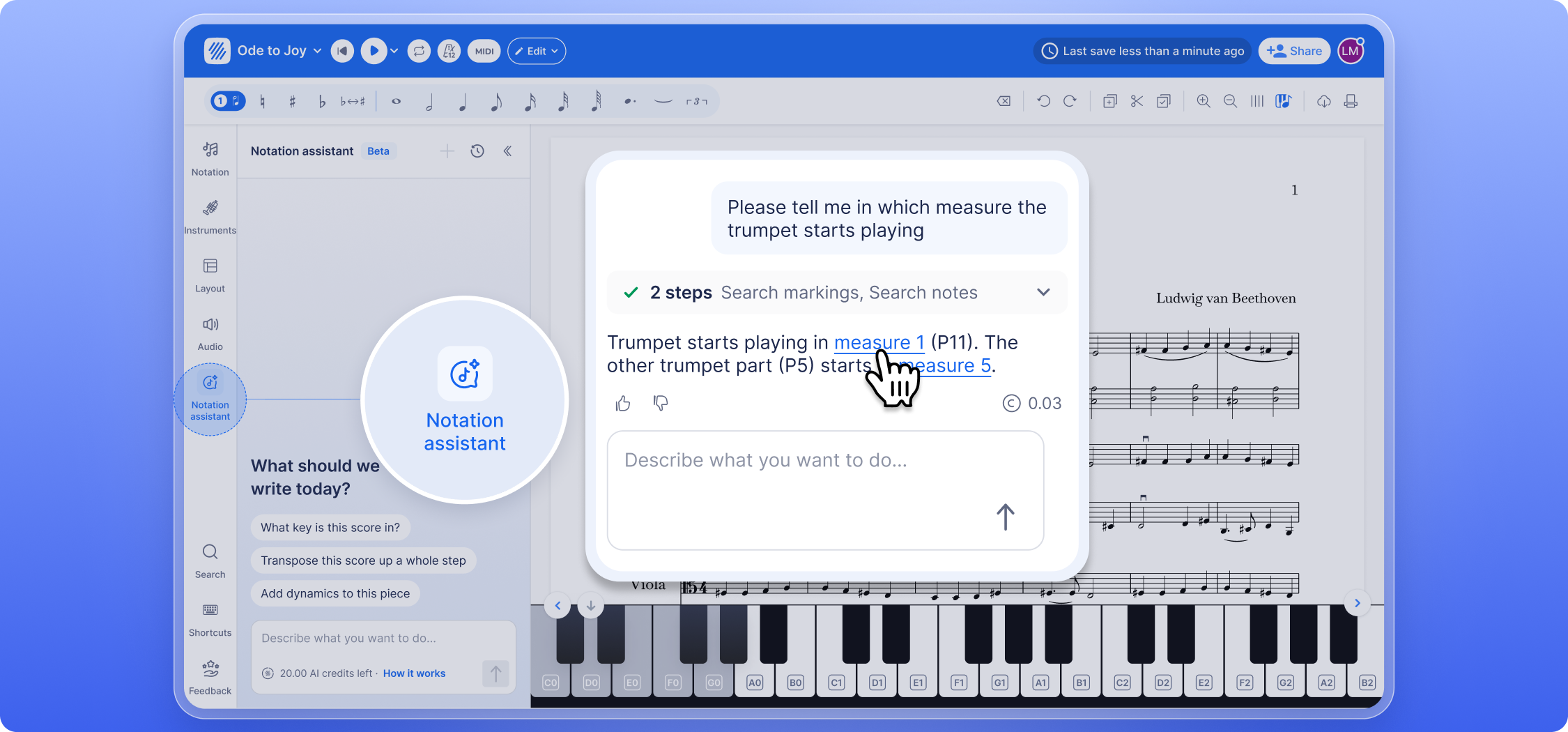
The assistant is in beta, so check its answers and the notes it writes. Rate each reply with the thumbs up or thumbs down under it. We read every rating.
The notation assistant is included with Flat Power and works in your browser on a computer. Each message you send uses AI credits. Flat Power gives you credits every month, and you can buy credit packs if you need more. How do AI credits work? explains how many credits each message uses.
Don’t see the assistant on the left side of your editor? Join the beta to turn it on. Joining also switches you to the new editor layout. Once you’re in, our guide to the notation assistant has example requests to get you started.
Flat in ChatGPT and Claude
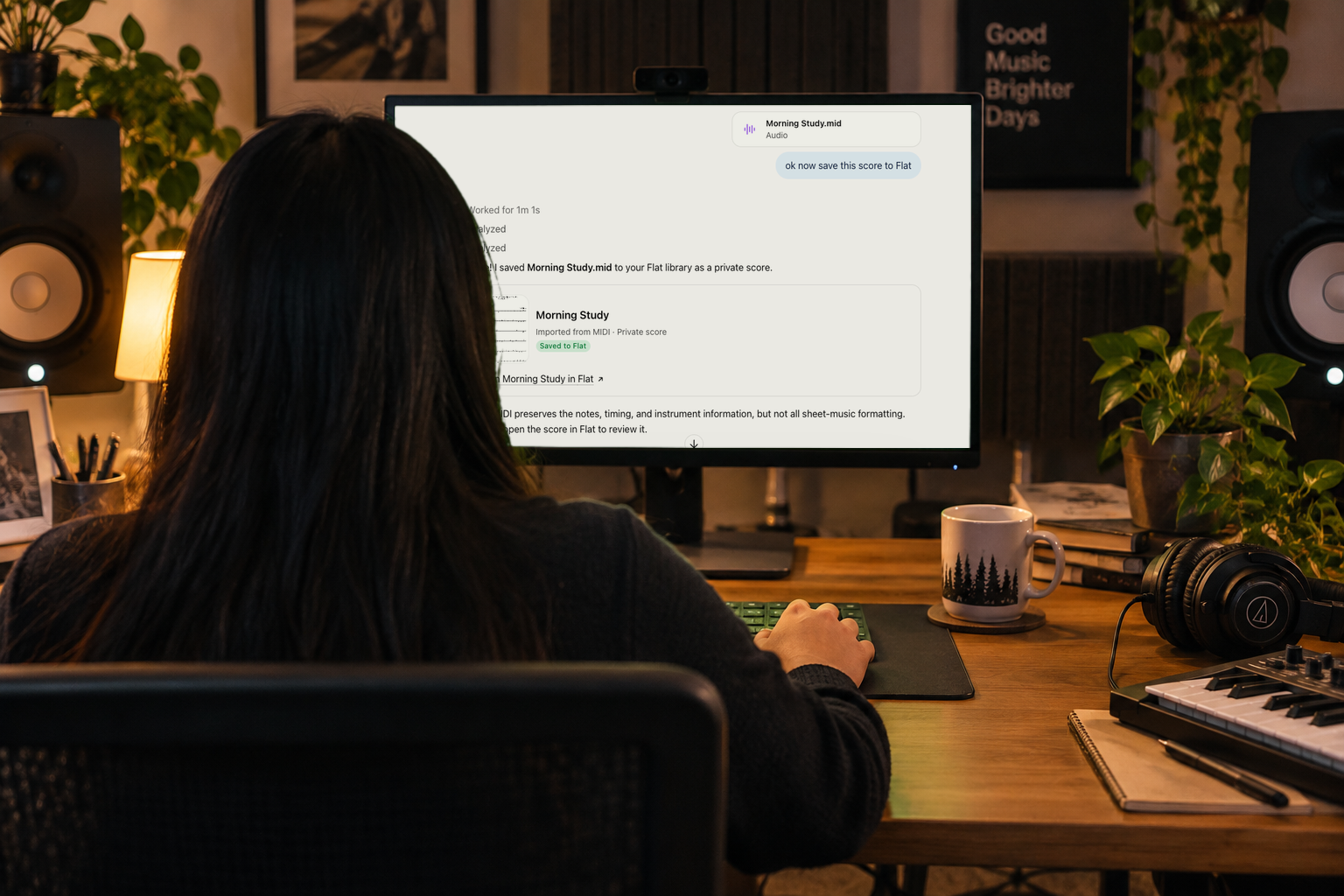
If you use ChatGPT or Claude, you can now connect it to your Flat account. Ask it for a melody, a lead sheet or a short piano piece and to save it to Flat, and the score appears in your Flat library. Then open it in Flat to listen to it and edit it.
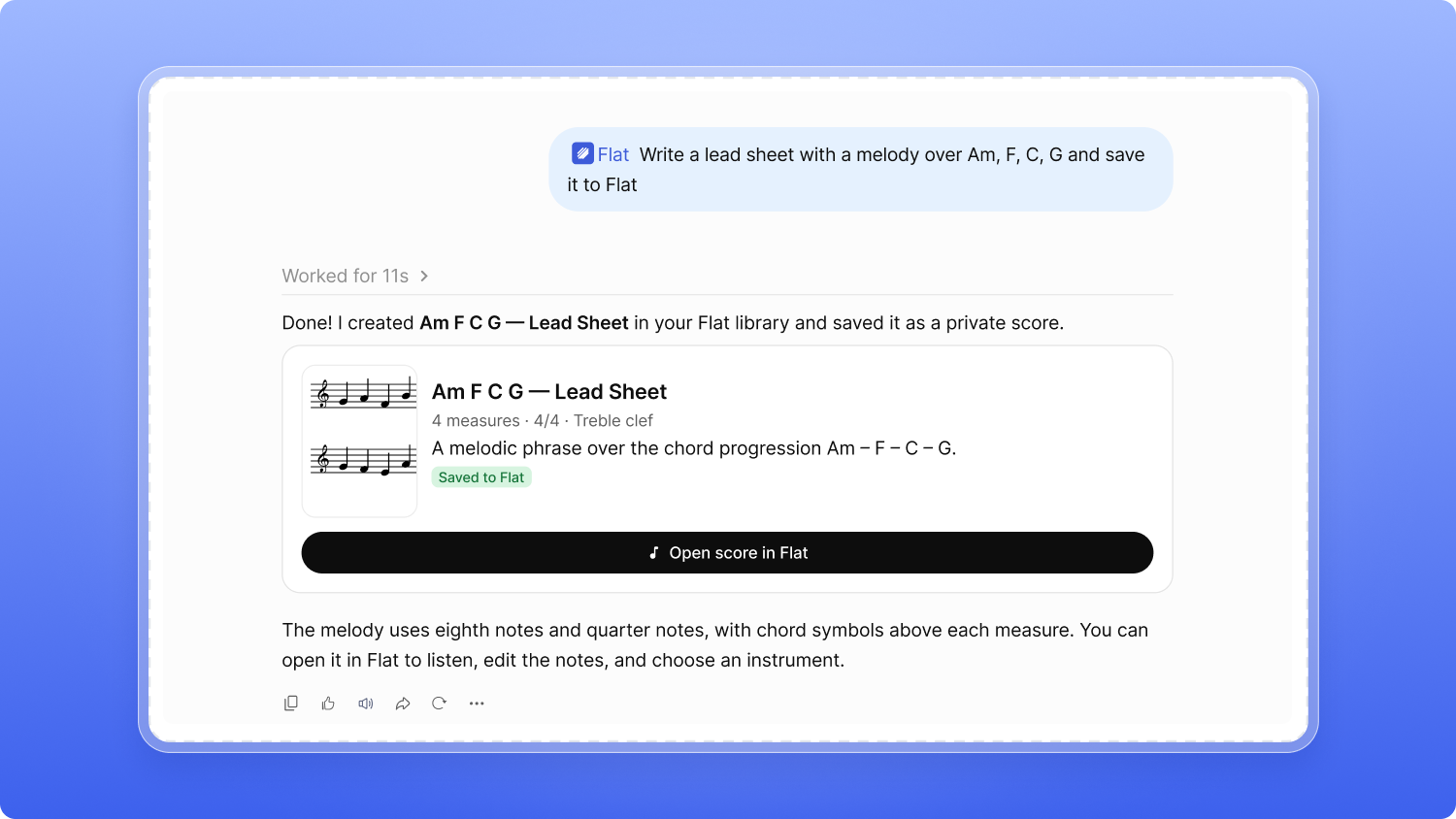
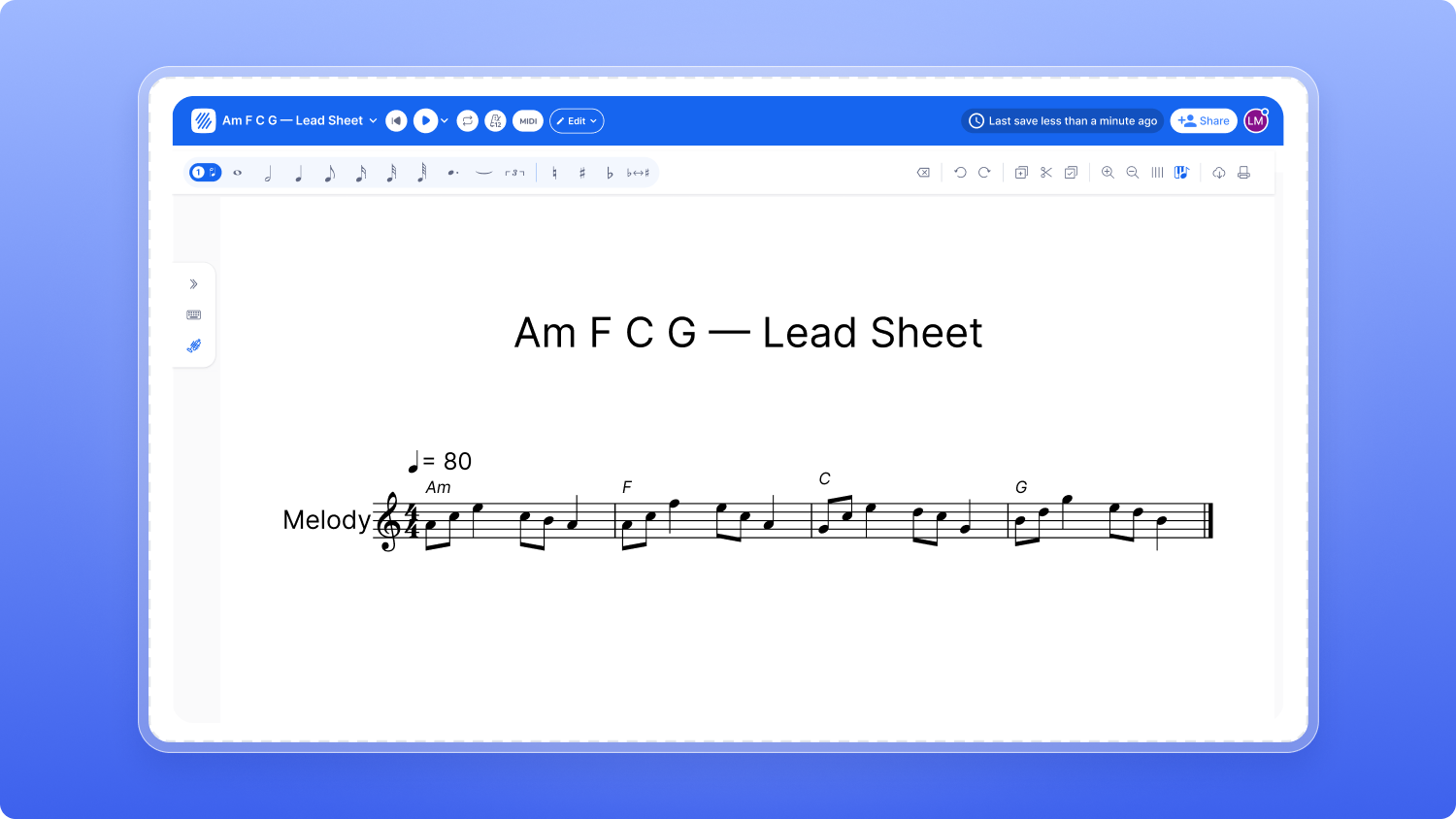
Ask ChatGPT for a lead sheet over Am, F, C, G and it saves the score to Flat (left). Open it in the Flat editor to play and edit it (right).
Your AI app can:
- Create a score from scratch. Try: "Write a four-bar flute melody in D major and save it to Flat."
- Create a new version of one of your scores, like a transposed or arranged copy. It's saved as a new score, and your original doesn't change. Try: "Make a B♭ clarinet version of my flute melody and save it to Flat as a new score."
- Import music you already have. Attach a MIDI file, or paste ABC or MusicXML, and ask it to save it to Flat.
- Find your scores by title, composer or instruments, and tell you what's in them.
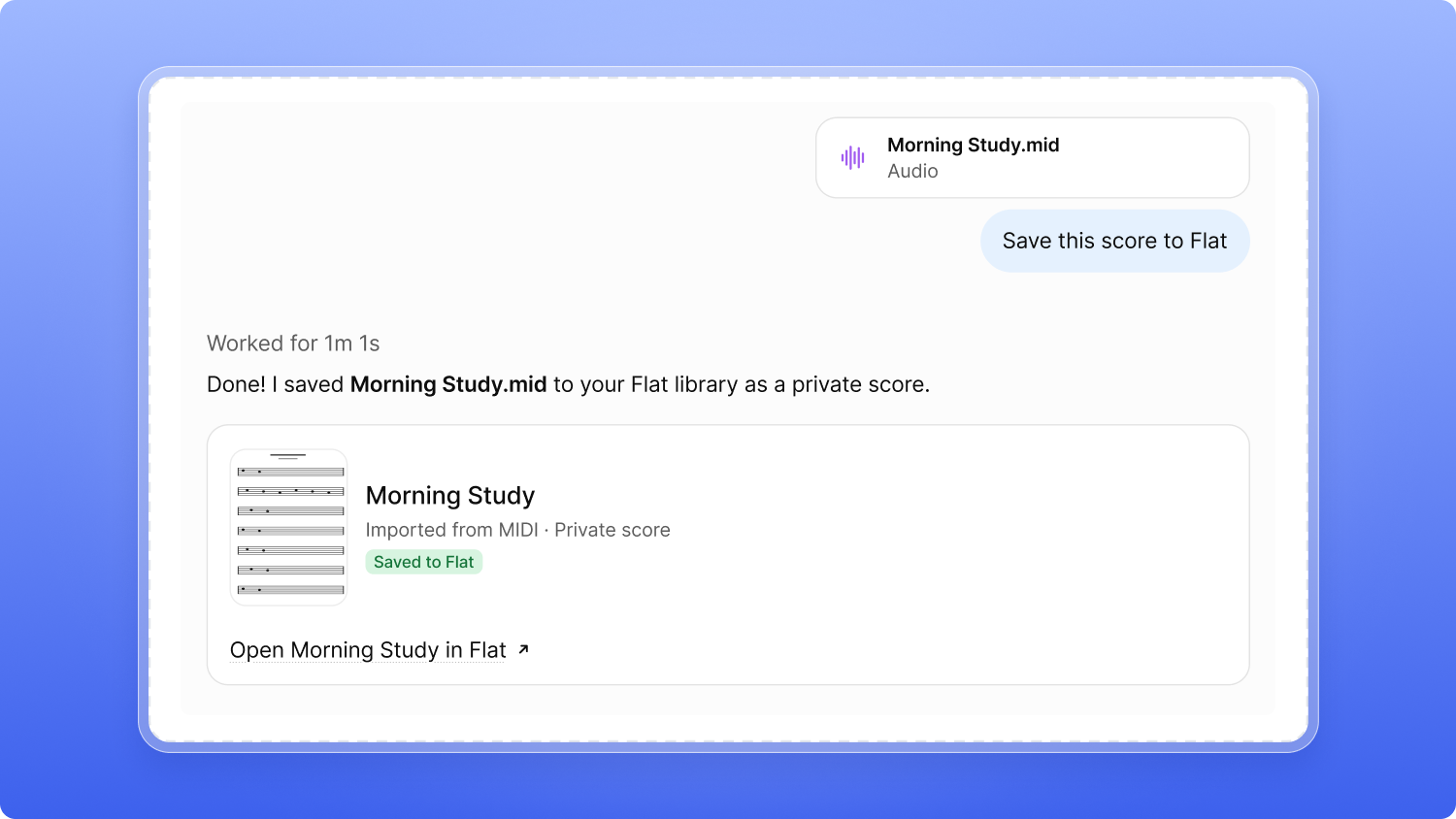
Here is a score we created this way, before any edits. I asked ChatGPT: "Write a 12 bar melody in B♯ major for violin in 80 bpm, with ascending lines, rhythmic variation, and a closing cadence."
Your AI app can read your scores and create new ones, but it can't edit, delete, publish or share the scores you already have. The music it writes comes from ChatGPT or Claude, not from Flat, so treat it as a first draft: listen to it and fix what doesn't sound right.
Connecting an AI app is part of Flat Power and doesn't use Flat AI credits. Follow the guide for yours: Connect Flat to ChatGPT, Connect Flat to Claude or other MCP-compatible apps.
AI Quantize in Live MIDI
In October we launched Live MIDI, so you can record from your MIDI keyboard into your score. Until now, Flat placed your notes by moving each one to the closest line of a grid you chose, such as 1/8 or 1/16. AI Quantize works out the rhythm you meant instead.
Click AI quantize in the review screen, and Flat reads your whole take and places your notes on the beat, on the right staff and in the right bar.
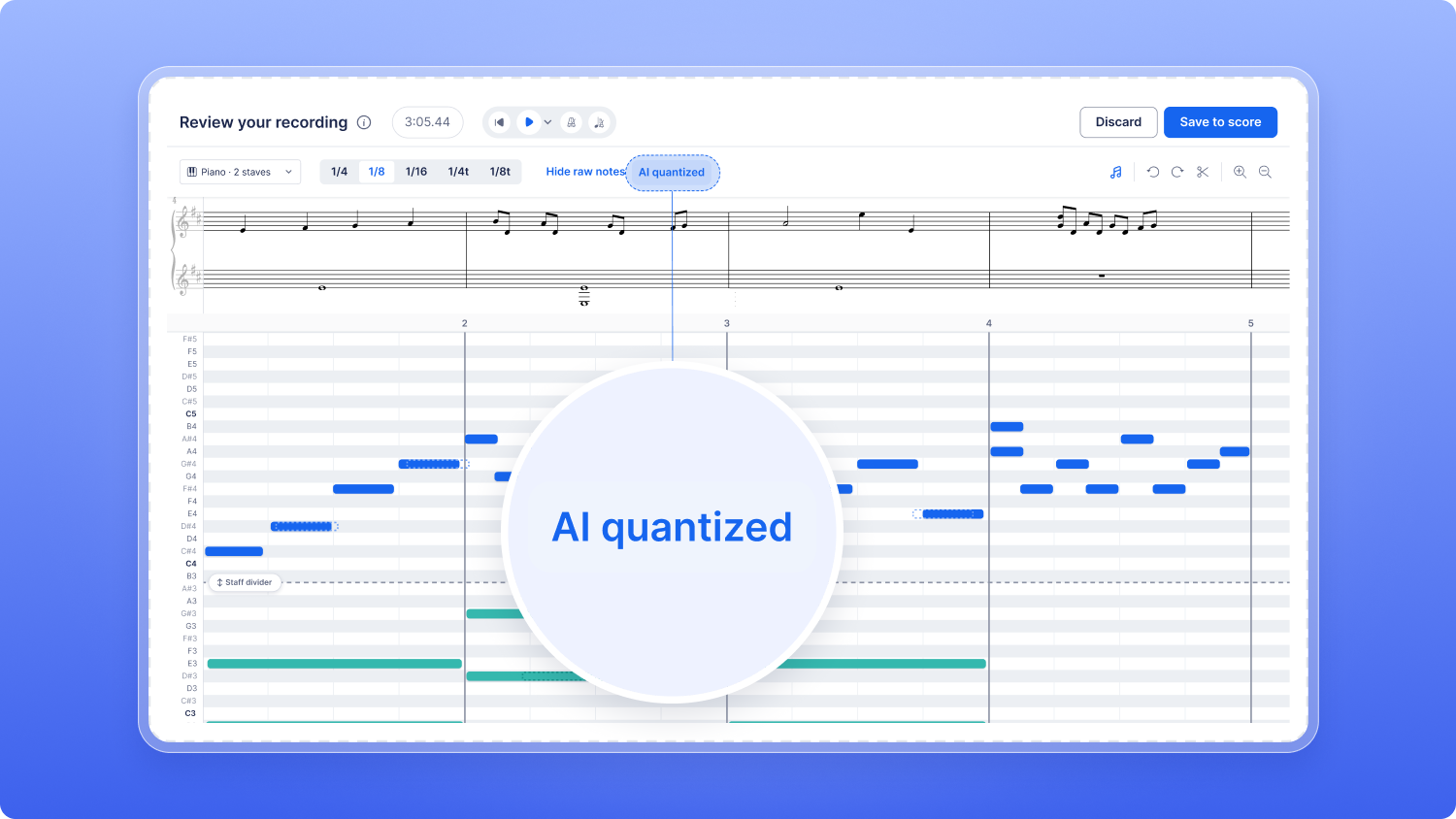
- Check before you save. Look over the result in the preview. You can switch back to a grid, undo, or edit any note.
- Your hand edits stay. Notes you moved by hand keep their place.
- Turn on the metronome for the best result. AI Quantize uses its beat to place your notes. Without it, AI Quantize works out the beat from your playing.
AI Quantize runs on your own device with a small model we trained ourselves on public-domain and CC0 scores. It wasn't trained on Flat users' scores, imports or takes, and it uses no AI credits. Our guide to how AI Quantize works has the details.
Choose which AI features you use
Open the new AI features page in your account settings and choose one of three options:
| Option | What it does |
|---|---|
| All AI features | Everything stays on. This is the default. |
| No generative AI | Turns off the notation assistant and AI apps such as ChatGPT and Claude. PDF and photo import and AI Quantize stay on. |
| No AI | Turns off everything above, plus PDF and photo import and AI Quantize. |
If you turn features off, your connected AI apps are paused, not removed. Your AI credits and past assistant conversations are kept. Our guide to choosing which AI features you use explains what each option turns off.
The Community stays for music people write themselves
Scores written or edited with the notation assistant, created by an AI app through the Flat connector, or imported from a file made by an AI tool such as ChatGPT can't be published to the Community. They stay in your library, and you can still share them with a link and work on them with your collaborators. Our guide to publishing to the Community has the details.
Our AI in Flat page lists every AI feature and whether it's generative.
That's AI in Flat for now. Open Flat, ask the notation assistant to add chord symbols over a melody you're writing, or record a few bars with Live MIDI and try AI quantize. And if you'd rather not use AI, choose No generative AI or No AI in your settings.
These features are new and we're still shaping them, so we'd like to hear what helps, what doesn't, and what worries you. Write to us at hello@flat.io. Thank you for composing with Flat!
FAQ
Which plan do I need for the notation assistant?
The notation assistant is part of Flat Power and uses the AI credits included in your subscription. You can buy credit packs for more.
Where can I use the notation assistant?
On the Flat website, on a computer. If you don't see it on the left side of the editor, join the beta from the help center, which also switches you to the new editor layout.
Will the notation assistant change my score without asking?
No. It acts only when you ask. Before it deletes bars, parts, staves or voices, or rewrites many notes, it shows you what will change and waits for your OK. You can also click Undo under its latest reply to remove everything that reply changed, until you edit the score yourself.
Does Flat train AI on my scores?
No. Flat does not use your scores or the files you import to train AI models.
Can I turn AI off in Flat?
Yes. On the AI features page of your account settings, choose No generative AI to turn off the notation assistant and AI apps, or No AI to also turn off PDF and photo import and AI Quantize.
Can I publish a score made with AI to the Community?
No. Scores written or edited with the notation assistant, created by an AI app through the Flat connector, or imported from a file made by an AI tool can't be published to the Community. You can still keep them in your library, share them with a link and work on them with collaborators.
Do I need Flat Power to connect ChatGPT or Claude?
Yes. Connecting an AI app to Flat is part of Flat Power and doesn't use Flat AI credits.