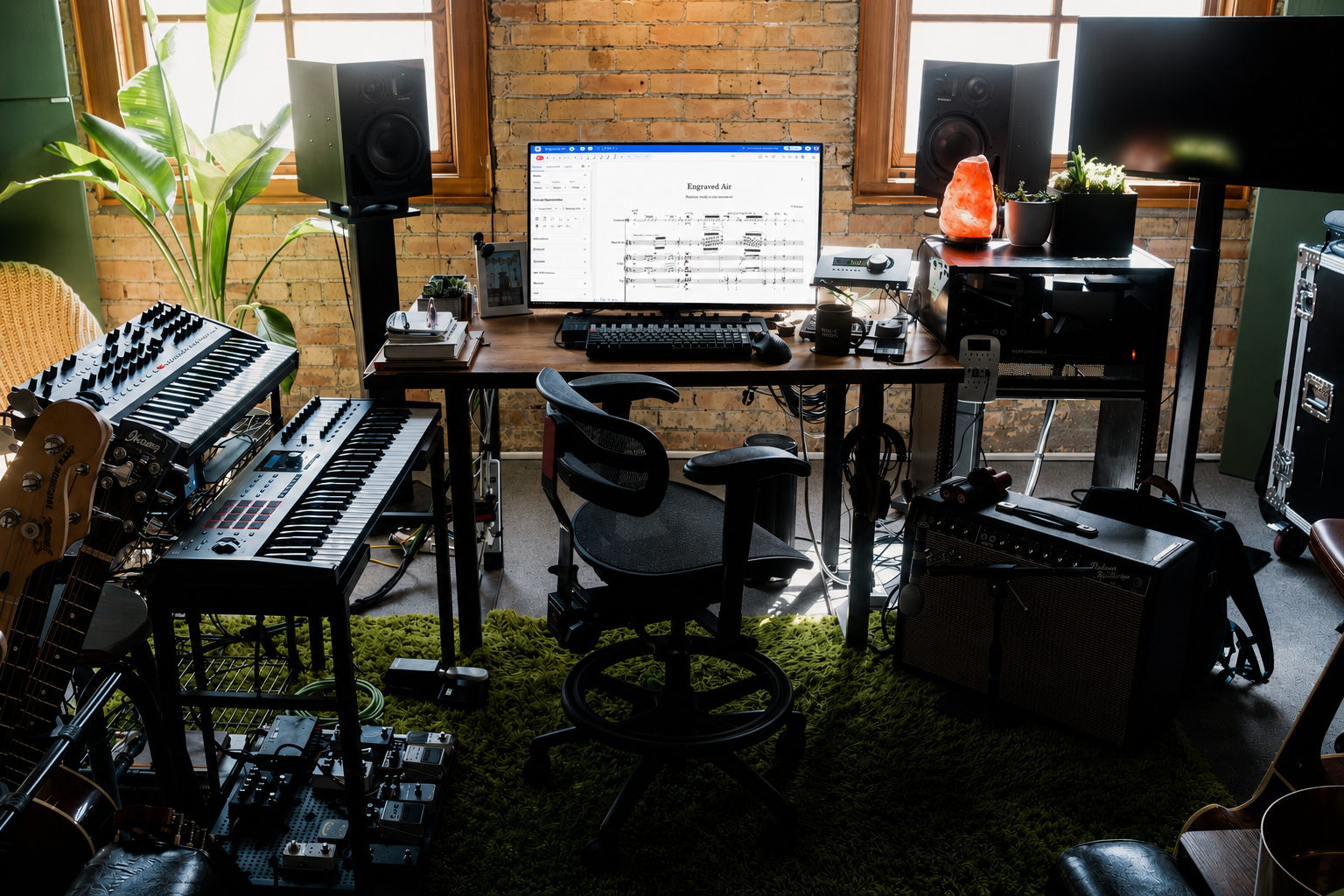
A sheet music maker is a tool that lets you write, hear, and share musical notation without needing a pen, a printer, or a music degree. Whether you're a composer drafting your first piece, a teacher building exercises for students, or a performer arranging a cover, the right tool turns a slow, error-prone process into something fast and enjoyable.
Writing music by hand still has its charm, but a digital sheet music maker offers clear advantages:
✔️ Saves hours of copying, erasing, and reformatting
✔️ Plays back what you write so you catch mistakes by ear
✔️ Makes sharing and collaboration easier across devices
✔️ Protects your work with cloud backup
In this guide, we'll cover what a sheet music maker actually does, what to look for when choosing one, and how to write your first score for free in Flat. We'll close with a FAQ that answers the questions most people ask before they get started. 🎶
What is a sheet music maker?
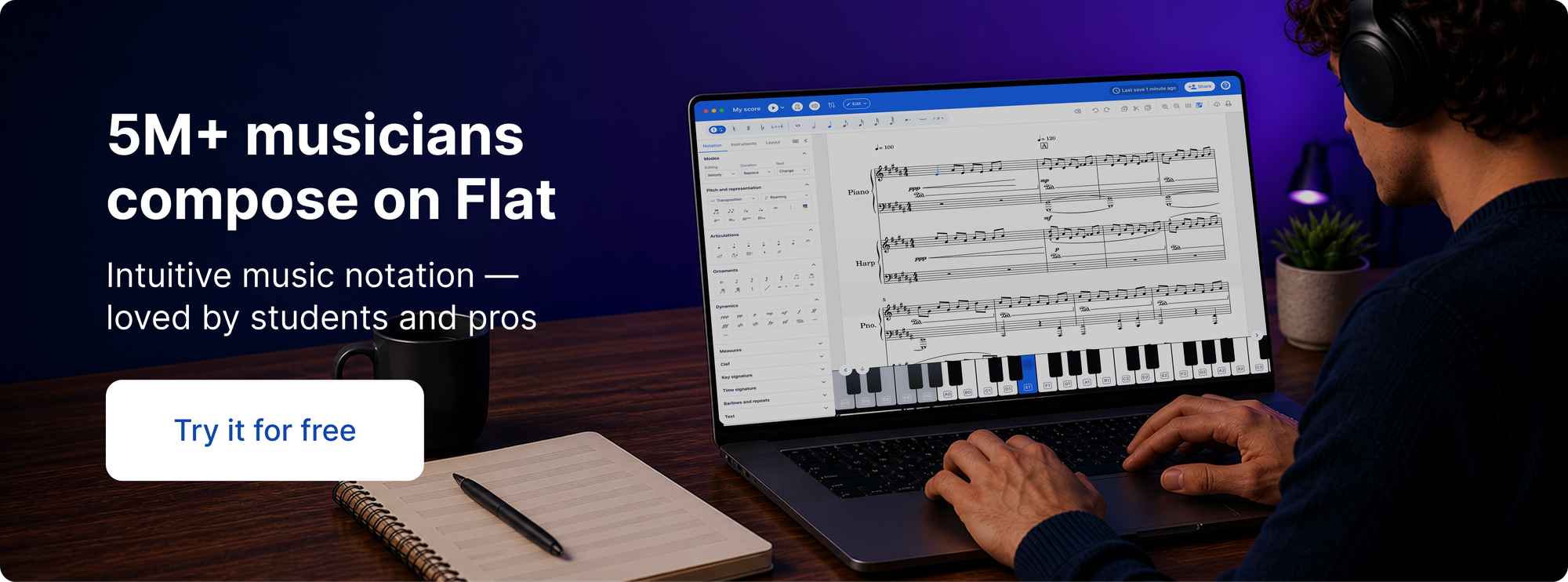
A sheet music maker is software that lets you create musical notation: placing notes on a staff, setting rhythms, adding dynamics and articulations, and producing a score you can print, share, or export as audio. The category covers everything from simple melody editors to professional engraving suites used in film scoring and publishing.
What separates a modern sheet music maker from older notation software is the combination of notation and playback. You write a score, press play, and hear it immediately. That feedback loop makes composition faster and proofreading easier. You catch rhythmic errors, wrong notes, and awkward voicings by listening rather than by squinting at the page.
Sheet music maker, writer, generator, or creator: are they the same?
You'll see these tools called a lot of things: sheet music maker, sheet music writer, music sheet maker, sheet music generator, sheet music creator, or just a score maker. For the most part they all describe the same thing: software that lets you write musical notation and turn it into a playable, shareable score.
There are small shades of meaning. A "generator" can imply automatic output, like creating exercises or filling in an accompaniment, while a "writer" or "maker" suggests you enter the notes yourself. In practice a good tool does both. Flat lets you write every note by hand and also speeds up the repetitive parts, so it works whether you think of it as a maker, a writer, or a creator.
If you searched for any of those terms and landed here, you're in the right place. The rest of this guide applies no matter what you call it.
What to look for in a sheet music maker
Not every tool fits every use case. Here are the questions worth asking before you commit to one:
1. Does it run in a browser or require installation?
Desktop software often has more feature depth, but browser-based tools win on accessibility. You can work from any device, share scores with a link, and skip version management entirely. If you switch between a laptop at home and a school computer, or want collaborators to access your scores without installing anything, browser-based is the obvious choice.
2. Can you export to PDF, audio, and MusicXML?
PDF is the standard for printing and sharing. Audio export (MP3 or WAV) lets you send a playback recording to someone who doesn't have notation software. And MusicXML is the interchange format between notation apps. If you ever need to move a score between tools or send it to a publisher, MusicXML import and export are essential.
3. How is the playback quality?
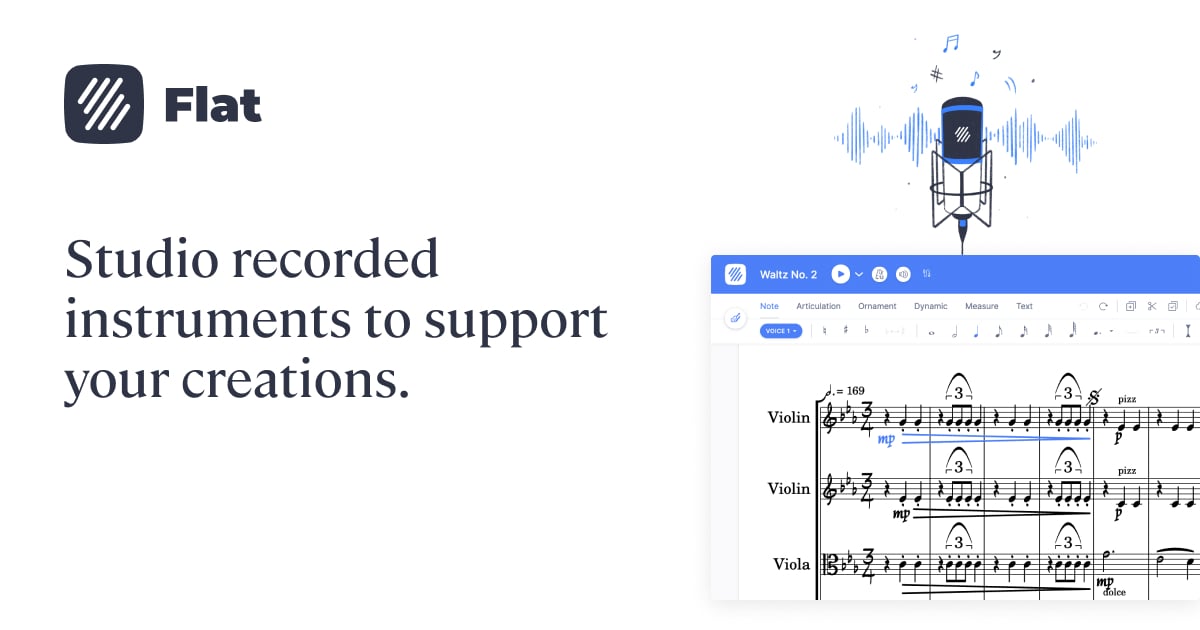
Playback used to be an afterthought. It isn't anymore. A modern sheet music maker should produce audio that's usable for proofing and sharing with collaborators, not just a rough MIDI sketch with tinny piano sounds.
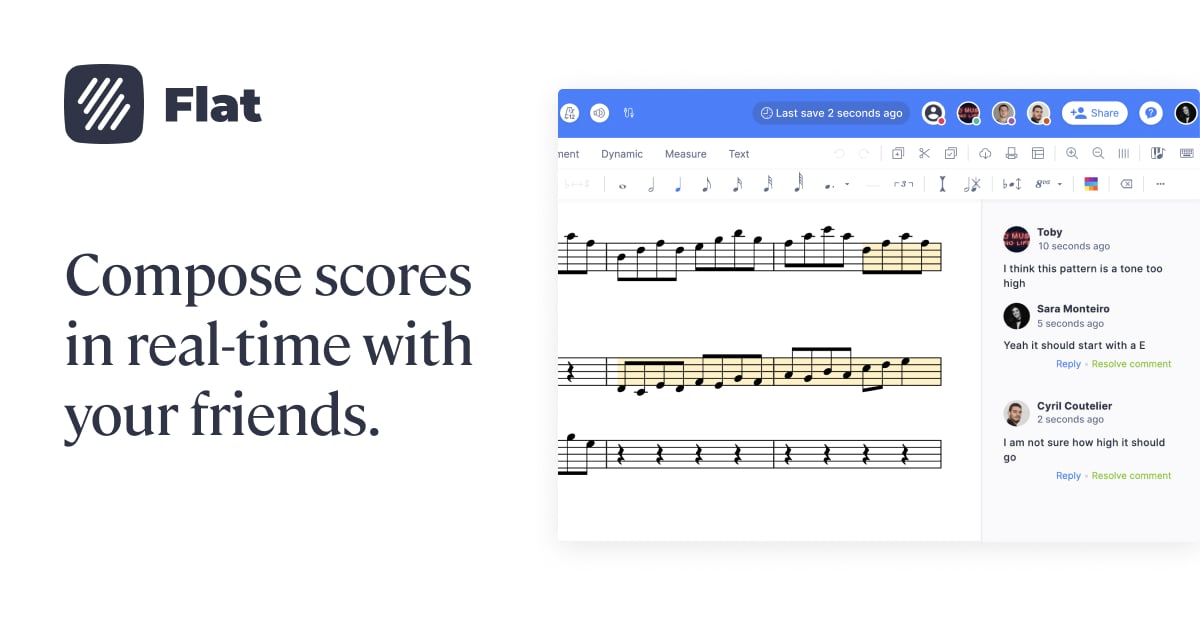
4. Can multiple people edit at the same time?
If you work with others, a co-composer, an arranger, a teacher, or an ensemble, real-time collaboration cuts friction dramatically. No more emailing files back and forth or merging changes by hand. Everyone sees updates as they happen.

5. Does it transpose for you?
If you write for transposing instruments or for singers with different vocal ranges, a built-in transposition tool saves you from rewriting parts by hand and from the inevitable copying mistakes that come with it.
6. What does it actually cost?
Notation software prices range from free to several hundred dollars. Before paying, check whether the free tier covers what you actually need. For many composers, students, and teachers, a good free plan is enough to get started.
How to create sheet music in Flat: step by step
Flat is an online sheet music maker that runs entirely in your browser, so you can write sheet music online for free with no download, no install, and no waiting. Here's how a basic score comes together:
1. Start a new score. Open flat.io, sign in or create a free account, and click create a score. You'll be prompted to choose your instruments. Add one or more from the list, with 30 instruments included on the free plan and 150+ on Flat Power.
2. Set the key and time signature. By default, a new score is in C major and 4/4. To change the key, click the greyed key signature placeholder at the start of the staff and pick a new one. To change the time signature, click the existing time signature symbol or use the Measure toolbar. Both can be changed at any point in the score later.
3. Enter notes. Use the letter keys A through G on your keyboard to enter pitches. The number keys 1 through 7 set the duration, where 1 is a whole note, 2 a half note, 3 a quarter, and so on down to a 64th note. You can also click directly on the staff with your mouse, or use a connected MIDI device.
4. Add chords, dynamics, and articulations. Select a note and add articulations like staccato, accent, or tenuto, dynamics from ppp through fff (plus sfz), or chord symbols above the staff with Ctrl + K. Flat also has dedicated Workflow Modes for Articulations (Ctrl + 2), Dynamics (Ctrl + 3), and Ornaments (Ctrl + 4) that remap your number keys to those tools so you can do a full pass without touching the mouse.
5. Listen back. Press play (or hit space) to hear what you've written. Flat's playback honors your dynamics and articulations. To speed up or slow down playback for proofing, click the down arrow next to the play button and use the "+" and "−" buttons.
6. Share or export. When the score is ready, hit export to download a PDF, MP3, WAV, MusicXML, or MIDI file. You can also share a private link that lets anyone open and play the score in their browser without a Flat account. Note that exports and prints on the free plan include a "Score created with the free version of Flat" watermark; Flat Power removes it.
Writing for multiple instruments
Flat handles multi-instrument scores, from a piano-and-voice duo to a full orchestral piece. Each instrument gets its own staff, and the transposition tool lets you transpose parts for instruments in different keys without rewriting by hand. Individual part exports (each instrument as a separate PDF) are a Flat Power feature.

Bonus features: interface and support
While not strictly musical, a clean interface and responsive support make a real difference once you're using the tool every day.
✨ A clean, intuitive design saves time and frustration. You want to focus on writing music, not on figuring out where the staccato button hides.
✨ Reliable customer support matters when something goes wrong mid-deadline. At Flat, users tell us:
💬 "Your support staff is fantastic and answers quickly!"
💬 "The customer service is excellent compared to other providers."
These details seem small until you need them.
Frequently asked questions
Is Flat free?
Yes, Flat has a free plan. It includes 30 instruments, up to 15 scores in your library, real-time collaboration, MIDI transcription, offline composing, and MusicXML and MIDI import. Exports and prints on the free plan include a "Score created with the free version of Flat" watermark. Flat Power adds unlimited scores, 150+ instruments including HQ studio sounds, exports without the watermark, individual part exports, customizable layouts and shortcuts, advanced playback (part volume and reverb), score history, and priority support.
Do I need to know music theory to use a sheet music maker?
Not necessarily. You can enter notes by clicking on the staff or pressing letter keys, and the software handles the layout. That said, knowing the basics (key signatures, time signatures, note values) will help you write music that sounds the way you want it to. If you want a refresher, Flat's music theory articles are a good place to start.
Can I import a MusicXML file from another notation app?
Yes. Flat imports MusicXML and MIDI files, which are the standard interchange formats used by Sibelius, Finale, MuseScore, Noteflight, and most other notation software. Flat also accepts MuseScore (.mscz) and Guitar Pro files on a best-effort basis. Open Flat, go to My Library, click Create score, and choose Import file.
Can I print my sheet music?
Yes. Export your score as a PDF and print it from any printer, or use the print option directly inside Flat. On the free plan, prints and exports include a "Score created with the free version of Flat" watermark; Flat Power removes it. Individual part printing is a Flat Power feature.
Can multiple people work on the same score?
Yes. Add other Flat users as collaborators in your score's sharing settings and you can all edit at the same time, with changes appearing in real time. You can also generate a private sharing link that gives anyone read-only access to view and play the score in their browser. Real-time collaboration is available on the free plan.
Does it work on a phone or tablet?
Yes. Flat runs in any modern browser, so you can write or review scores on a phone, tablet, or computer. There are also dedicated mobile apps for iOS and Android with touch piano, guitar fretboard, and drum pad input.
Is a sheet music maker the same as a sheet music writer or generator?
Mostly yes. Sheet music maker, sheet music writer, sheet music generator, and score maker all refer to software for creating musical notation, and the names are used interchangeably. Flat works as all of them: you write notes yourself and it handles layout, playback, and exports.
Can I make music notes online for free?
Yes. Flat's free plan lets you create scores in your browser with no download. You get 30 instruments, real-time collaboration, and MusicXML and MIDI import, with a watermark on exports that Flat Power removes.
Final thoughts
The best sheet music maker is the one that helps you write quality music without slowing you down. Look for software that:
✔️ Covers the essentials (note input, key and time signatures, dynamics)
✔️ Plays back what you write so you can proof by ear
✔️ Exports to PDF, MP3, and MusicXML
✔️ Supports collaboration and transposition
✔️ Has a clean interface and helpful support
🎵 Ready to write your first score? Try Flat free in your browser. No download required.