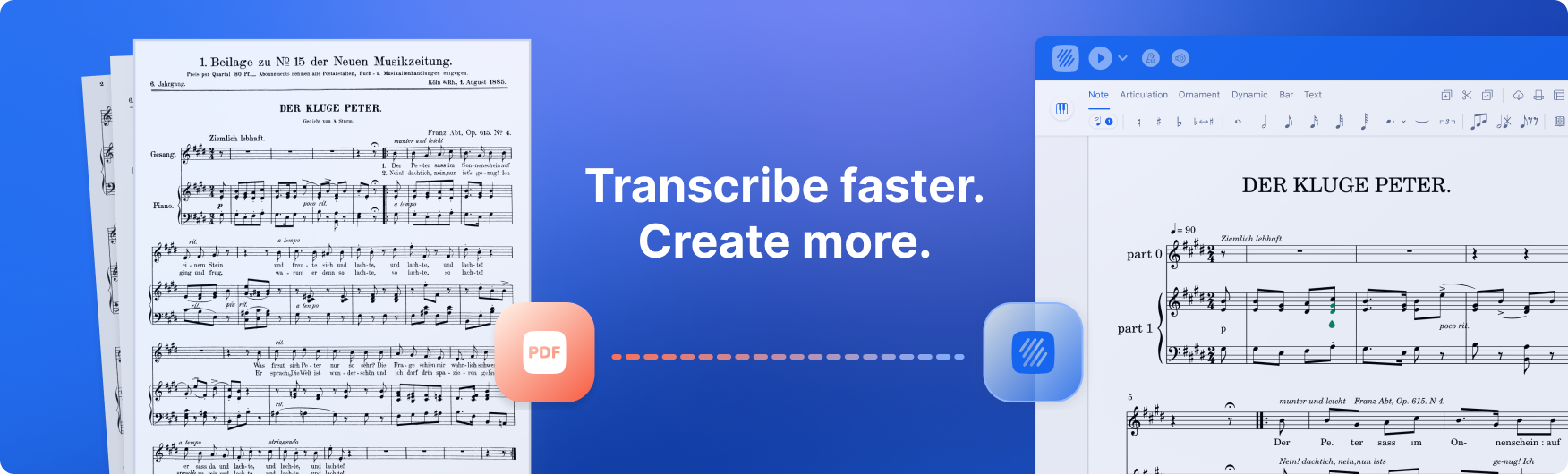
One of the most anticipated features is finally here: you can now import PDF sheet music into Flat and turn it into editable scores.
If you already work with sheet music in PDF format — printed parts, scanned scores, or existing files — PDF Import makes it easier to bring that music into Flat and keep working. Instead of recreating a score note by note or switching tools, you can move straight to editing, arranging, transposing, or composing.
PDF Import adds a new way to work with existing music inside Flat. It reduces the extra steps often involved when starting from a PDF and keeps your workflow focused in one place.
PDF Import is now available on Flat Web, iOS and Android!
Whether you’re adapting a score, studying a piece, or reshaping material for a new project, PDF Import saves time and helps you work directly from the music you already have.
Let's discover this feature!
Importing your scores into Flat to make them editable
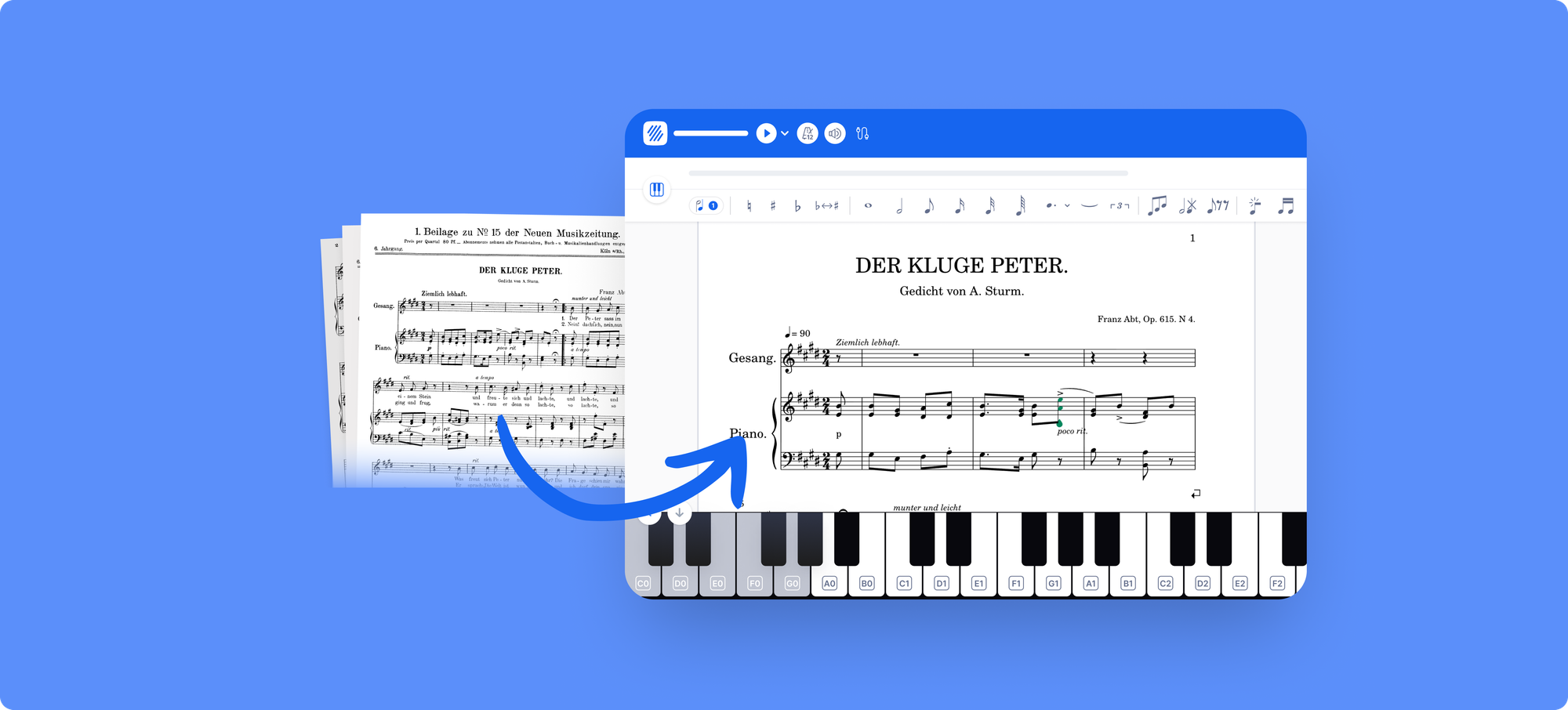
Importing a PDF into Flat is straightforward. Upload your file, and Flat converts it into an editable score using our current import system. The result opens directly in the Editor, ready for you to edit, arrange, or adapt to your project.
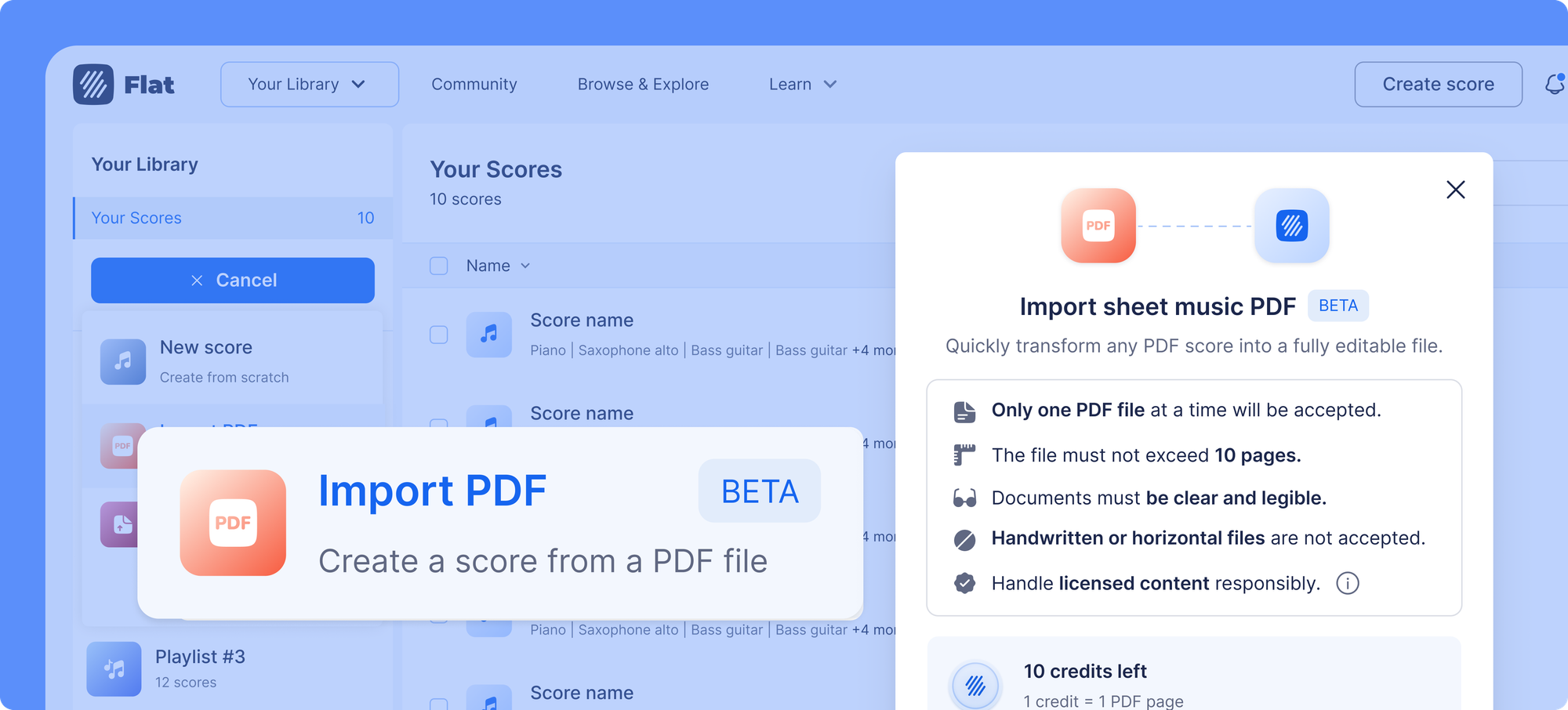
PDF Import works directly from your score library and is available to all users, both free and subscribed, on web and mobile.
What you get:
- An editable score you can work on right away
- No need to recreate the music note by note
- The same Flat editor you already know
How it works:
- Go to your score library
- Click New Score → Import PDF
- Upload your file
- Your PDF is converted into an editable score, ready to use
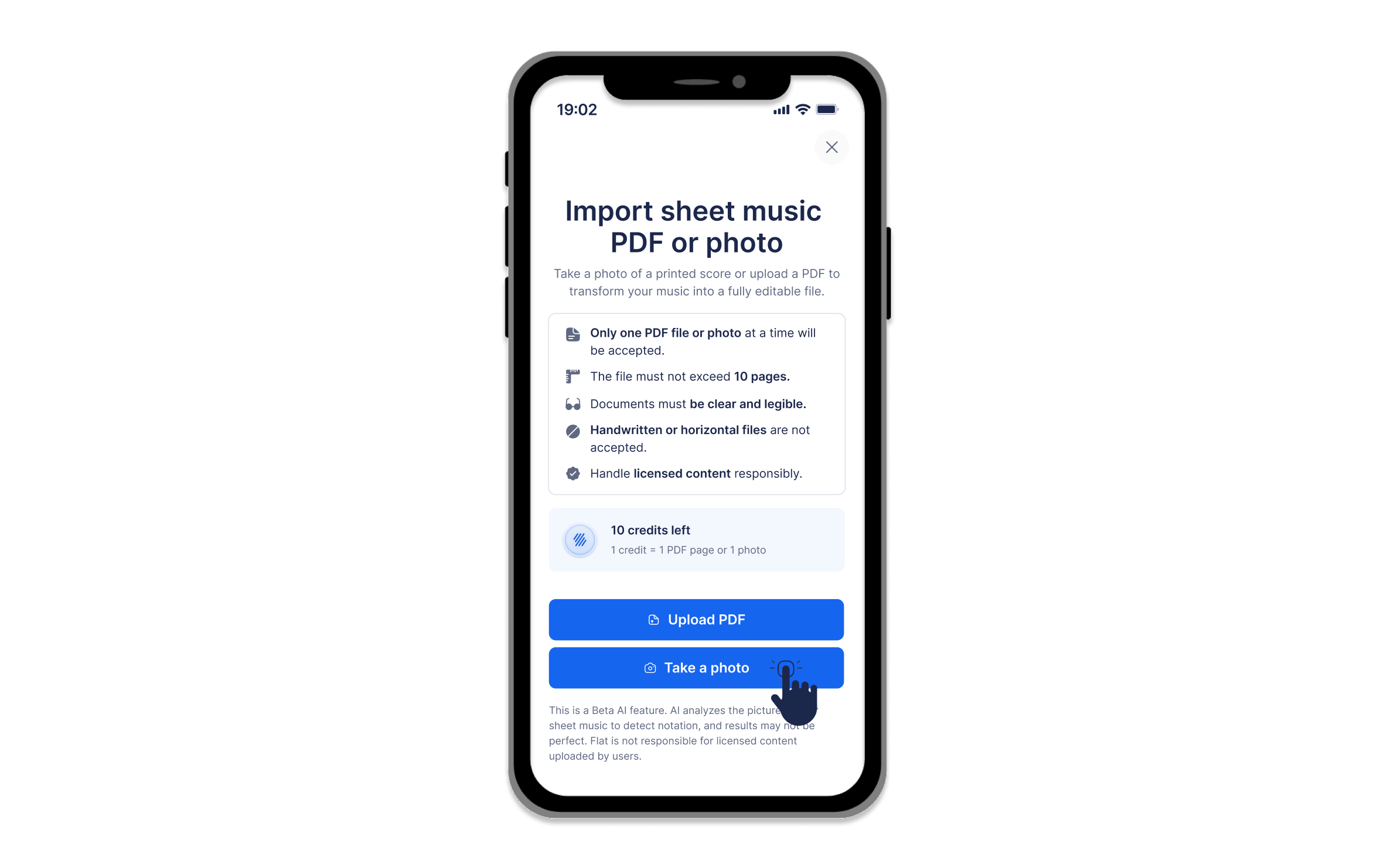
📸 Mobile bonus: import by taking a photo
On mobile, you have one extra option that makes the whole process even faster: instead of uploading an existing file, you can take a photo of your sheet music directly from the mobile app app and import it straight into Flat.
It's perfect for those moments when your music is right in front of you — a printed part at rehearsal, a score on your music stand, or pages from a book — and you want to start working on it without any extra steps.
The flow is the same: your photo is converted into an editable score, ready to use in the Flat editor. Just make sure the page is well-lit, flat, and fully in frame to get the best results.
PDF Import: free pages, credits, and plans
Everyone gets 1 free page to try PDF Import.
If you need more PDF imports pages, you can buy one-time credit packs.
| Credit pack | Price | Pages included | Price per page |
|---|---|---|---|
| Small | $9.99 | 30 pages | $0.33 |
| Medium | $17.99 | 70 pages | $0.26 |
| Large | $49.99 | 300 pages | $0.17 |
These packs are useful if you work on PDFs occasionally or need extra pages beyond what’s included in your plan. This flexible model adapts to how you work. If you import PDFs occasionally, credit packs give you full control and let you pay only when you need to.
If PDF import is part of your regular workflow, a Flat Power subscription is the best option:
- Monthly plan: Includes 10 PDF pages every month, so you can import scores as you go, without worrying about credits — plus access to all premium features.
- Yearly plan: The best value for heavier use, with 20 PDF pages per month, full premium access, and one less thing to manage if you import often or work with larger scores.
- Lifetime plan: Includes 20 PDF pages as a one-time allocation (these credits do not renew), along with full premium access — ideal if you want permanent premium features and occasional PDF imports without a recurring subscription.

Still figuring out what you need? No rush — credits don’t expire as long as your account stays active.
Supported notation & best practices for PDF Import
PDF Import works best with clean, standard sheet music PDFs that are well scanned or digitally exported. While Flat handles most of the conversion automatically, the quality of the result depends on the structure and clarity of the PDF you import. Handwritten music, tablature-only files, or highly complex layouts may require manual adjustments after import — which is normal and expected. This section explains what’s supported, what to avoid, and how to prepare your files to get the best possible results.
What works best
PDF Import performs best with clean, high-quality PDFs that follow standard engraving conventions.
Your PDF will produce the most reliable results if it:
✅ Uses standard music notation with clearly visible staves
✅ Is well-scanned or digitally exported (high resolution, straight pages)
✅ Has a consistent layout across systems and pages
✅ Contains one score per file
Clean input helps the system correctly recognize notes, rhythms, dynamics, articulations, and structure — so you can move quickly into editing instead of cleanup.
Supported notation
PDF Import currently supports a wide range of common notation elements, including:
| Category | Supported elements |
|---|---|
| Clefs | G (treble), F (bass), C (alto and tenor), including clef changes within measures |
| Key signatures | All Western key signatures |
| Time signatures | 6/2, 5/2, 4/2, 3/2, 2/2, cut, 6/4, 5/4, 4/4, common, 3/4, 2/4, 12/8, 9/8, 7/8, 5/8, and more |
| Rhythms & durations | Whole notes to 64th notes and rests, up to 3 dots, all tuplets |
| Pitches | Up to ±5 ledger lines |
| Cue notes | Recognized when used for full measures |
| Multiple rests | Any duration, displayed using H-bar notation |
| Dynamics | pppp to ffff, sf, sfz, cresc, decresc, dim, hairpins |
| Articulations | Slur, tie, staccato, staccatissimo, tenuto, accent, marcato |
| Ornaments | Prall, mordent, turn, reverse turn, trill, appoggiatura (acciaccatura coming soon) |
| Technical marks | Up bow, down bow, fingerings, piano pedal (Ped, *) |
| Barlines | Simple, double, final, repeat (forward/backward), combined repeats |
| Repeat symbols | Endings (1st, 2nd), Da Capo, Dal Segno, Coda, Al Fine |
| Structure | System and page breaks, movement recognition |
| System structure | Part group separation, basic variable staff count support |
| Rehearsal marks | Letters and numbers |
| Text | Assigned to notes; supports English, French, German, Italian; basic lyrics |
| Transposing instruments | Detected and interpreted, solo or ensemble |
| Percussion | 1-, 2-, and 5-line staves; basic noteheads (cross, white, black) |
Common issues and how to avoid them
Some PDFs may import partially or with errors due to layout or notation choices. Here are the most common issues and how to reduce them:
| Issue | Likely cause | Guidance |
|---|---|---|
| Import fails | PDF exceeds your available page credits | Import a smaller file or upgrade your plan |
| Blank or partial score | Handwritten music, chord charts, lyrics-only sheets | Use printed sheet music with standard staves |
| Incorrect notes or rhythms | Low-resolution or warped scans | Use high-quality, straight scans |
| Missing staves or instruments | Inconsistent number of staves between systems | Keep system structure consistent |
| Key or time signatures missing | Not repeated at each system | Repeat key/time signatures at every system |
| Mixed or incorrect voices | Dense polyphony on a single staff | Review rhythms carefully after import |
Best practices before importing
To improve accuracy before you import:
✅ Export from notation software when possible (Sibelius, Finale, MuseScore, Dorico, etc.)
✅ If scanning, use 300 dpi or higher and ensure pages are flat and evenly lit
✅ Crop pages cleanly (no borders, shadows, or cut-off staves)
✅ Keep staff size, spacing, and grouping consistent
✅ Avoid PDFs with double-page spreads or vertical page orientation
✅ Use one file per score
After importing: what to expect
Even with a clean PDF, some manual adjustment is normal.
What usually works well
- Notes, rests, clefs, key and time signatures
- Simple dynamics and articulations
- Overall musical structure
What may need cleanup
- Rhythms in polyphonic or dense passages
- Text and lyric alignment
- Less common ornaments or tuplets
- Instrument names, transpositions, or layout details
Playback is a good way to quickly spot issues, and all imported scores are fully editable in Flat.
If something doesn’t look right
- You can edit everything manually after import
- Try importing a cleaner version of the PDF if needed
- If issues persist, contact hello@flat.io with the original file — PDF Import is still experimental, and your feedback directly helps improve it.

📬 Share Your Experience
Have feedback on PDF Import? Something worked well, or didn’t quite meet your expectations? We’d love to hear from you. Your input helps us improve the feature and shape what comes next.
Thanks for being part of the Flat community.