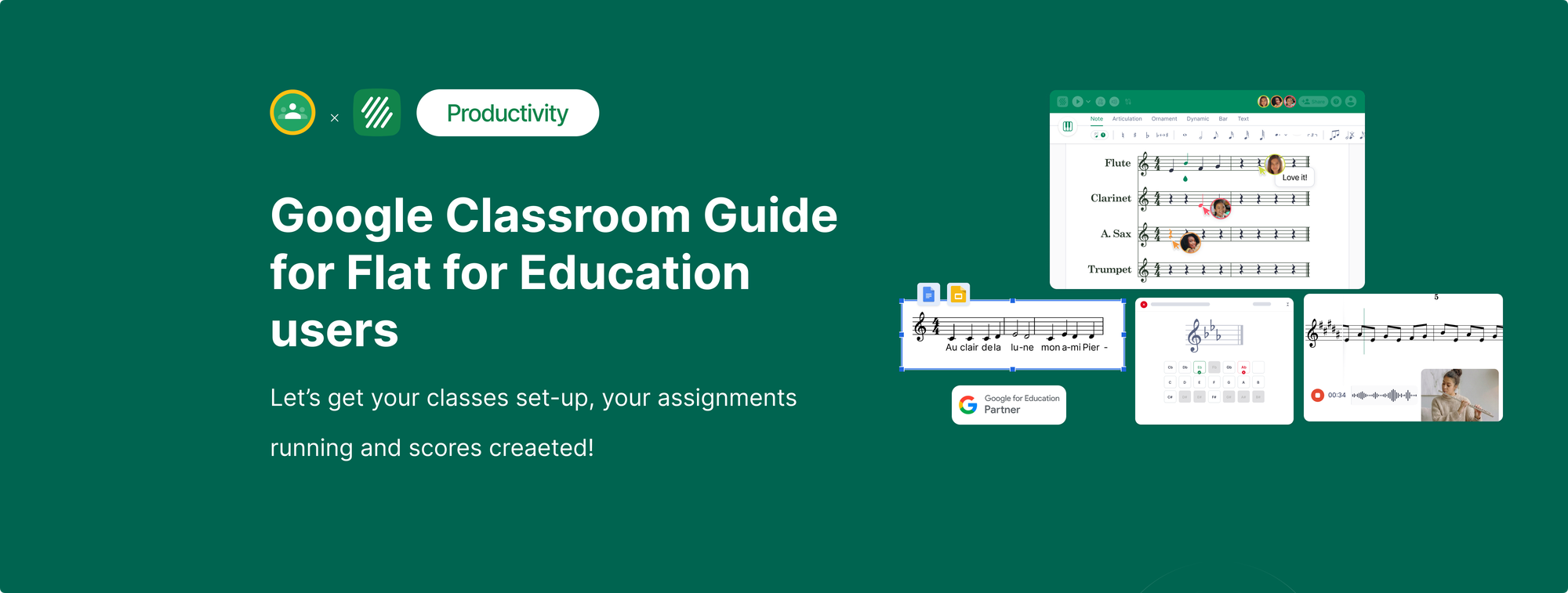
Most Google Classroom teachers set Flat for Education up in about four minutes. Not because it's a simple product, but because the integration was built so that everything flows the way Google Classroom teachers already expect. Rosters come from Classroom. Assignments go back to Classroom. Grades go into the Classroom gradebook. Students access everything from the same stream where they get their maths homework and their English essay.
This guide covers the full Flat for Education Google Classroom integration: what it actually does, how to set it up, every assignment type you can run through it, what the student experience looks like, and the things most teachers only discover a few weeks in.
If you're still deciding whether Flat for Education is the right notation tool for your Google Classroom, start with the [music notation software for Google Classroom comparison guide]. This post is for teachers who are ready to set it up and use it well.
What the Flat for Education Google Classroom integration actually does
Before the steps, the picture. The Flat for Education Google Classroom integration is not an LTI connection or a file-sharing workaround. It's a native integration built specifically for Google Workspace schools, and it covers the full assignment cycle in one direction: creation to submission to grading to gradebook, all inside Google Classroom's structure.
Here's what connects:
Roster sync. Your Google Classroom classes import into Flat for Education automatically. Student accounts are created and updated without any manual steps. If a student joins a class mid-term, their account is ready the next time they open an assignment.
Assignment distribution. When you create an assignment in Flat for Education and attach it to a Google Classroom class, it appears in the Classroom stream immediately. Students see it alongside everything else from their teachers. They don't need to visit a separate platform or remember a separate URL.
Live access. Before a student submits, you can already see their work inside Flat for Education. For composition assignments, this means you can check in on a student who's struggling and leave a comment while they're still working. You don't wait for submission to start giving feedback.
Grade sync. When you grade a submission in Flat for Education, the grade writes back to the Google Classroom gradebook automatically. You grade in Flat for Education. Your Classroom gradebook stays current. No double entry.
That's the full loop. And it runs entirely through tools Google Classroom teachers already use every day.
How to set up Flat for Education with Google Classroom
This takes most teachers under ten minutes the first time. Here is the exact process.
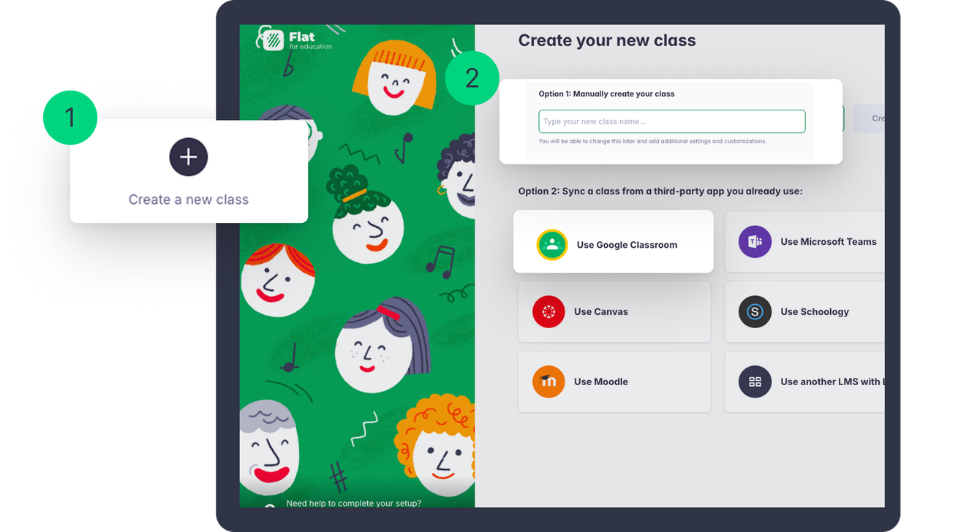
- Create your Flat for Education account. Go to flat.io/edu and start your free 30-day trial. Sign in using the same Google account you use for Google Classroom.
- Connect Google Classroom. On your Flat for Education dashboard, click Classes, then Import from Google Classroom. You'll be asked to authorise Flat for Education to access your Google Classroom data. This is a standard Google permission screen. Flat for Education requests access to your rosters and gradebook, which is what enables the sync.
- Select your classes. Your Google Classroom classes appear as a list. Select the ones you want to connect. Students are imported immediately, their accounts are created, and they can sign in to Flat for Education using their existing Google accounts.
- Verify your students can access it. You don't need to send students a separate sign-up link. The first time they click a Flat for Education assignment in Google Classroom, they sign in with their Google account and land directly in their work.
That's the setup. From here, everything runs through assignments.
The four assignment types you can run through Google Classroom
Flat for Education supports four distinct assignment types, and each connects to Google Classroom differently. Most teachers start with one and add the others as they get comfortable.
Composition assignments. You create a score, set parameters (instrumentation, key, time signature, any structural requirements, optionally a template the student starts from), and assign it to a class. The assignment appears in the Google Classroom stream. Students click it, compose directly in the Flat for Education notation editor, and submit from inside the platform. Submission triggers a notification in Classroom. You review the score, leave feedback at the measure level, grade it, and the grade appears in the Classroom gradebook. For a class of 30, every submission is organised by student name inside your Flat for Education dashboard. No downloads, no file management, no format inconsistencies.
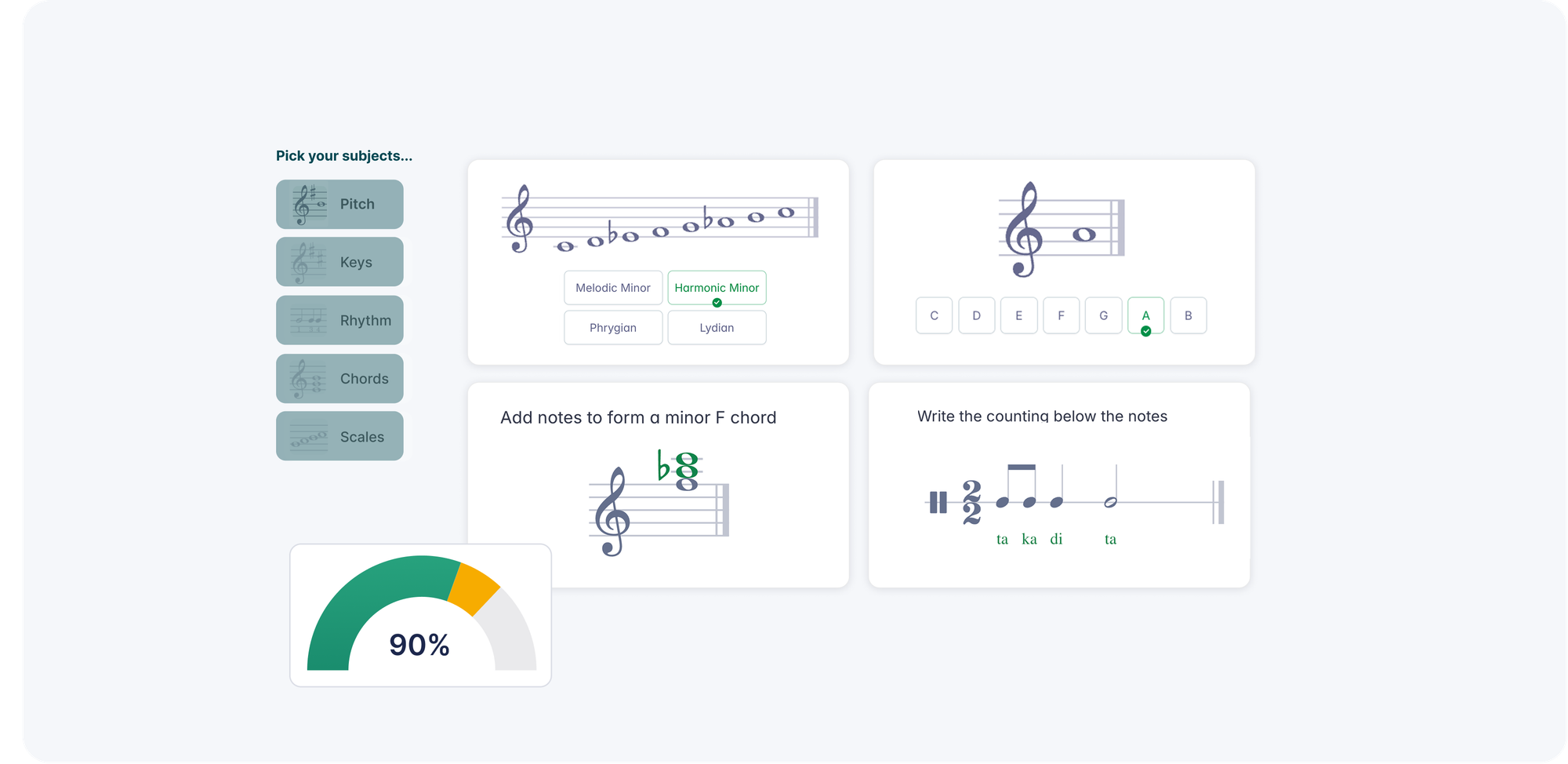
Music theory worksheets. These are auto-graded. You build the worksheet in Flat for Education: interval identification, chord labeling, voice-leading exercises, scale completion, rhythm dictation. Students access it through Classroom, complete it in Flat for Education, and the platform checks their answers against your answer key at submission. The grade goes straight to Classroom. For a theory teacher running three sections, this turns a category of grading from a two-hour task into a zero-hour task. You review results for patterns, not individual right/wrong answers.
Performance assignments. Students record themselves playing or singing against a score, directly in Flat for Education using their device microphone. The audio and score submit together through Classroom. You review the recording alongside the notation, leave timestamped comments anchored to specific moments in the recording, grade it, and it syncs to Classroom. This is the assignment type that changes how teachers run individual playing tests. For a full guide on this, see [how to run individual music performance assessments for a full class].
Shared writing assignments. Multiple students collaborate on the same score simultaneously. Useful for group composition projects, ensemble arrangements, or peer editing tasks. The assignment is distributed through Classroom and the collaborative work happens in Flat for Education. You can watch edits in real time and leave comments while students are working.
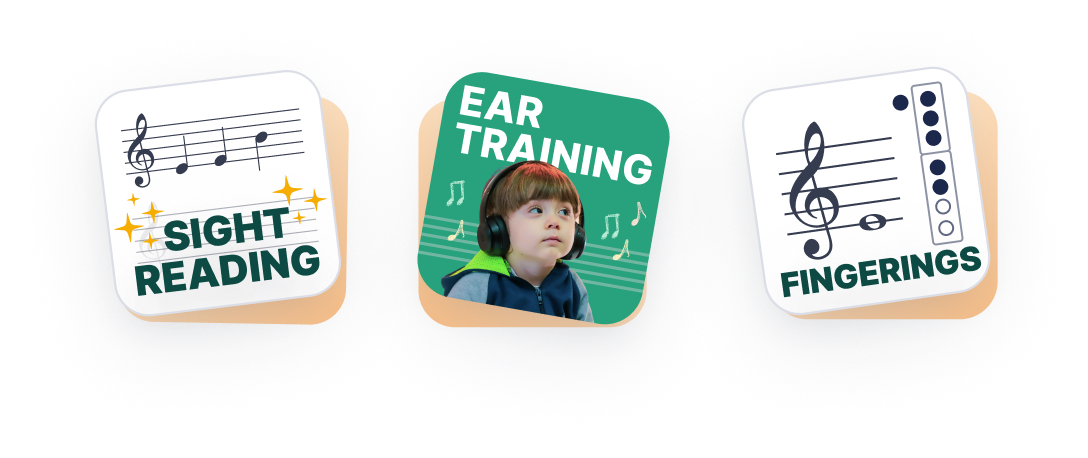
But assignments are not the only thing! A library of tools is making its way to Flat for Education. This means a tune, a metronome, a pitch generator, and a sight-reading generator will be available in a couple of weeks.
Live feedback: the part most teachers underestimate
The grade sync gets most of the attention. The live feedback capability is what changes how music teaching actually works.
In a normal Google Classroom setup, feedback on written work goes into the Classroom comment box next to the assignment. The student reads your comment, then opens their document to figure out what you're referring to. For a music composition, that disconnect is significant. "Check your voice leading in bars 9 to 12" means something very different when the student can see bar 9 highlighted on their score versus reading it in a comment thread.
Flat for Education puts your feedback on the score itself. You click measure 9, leave a comment, and that comment appears attached to that exact measure when the student opens their returned work. If you're reviewing a performance recording, you click a specific moment in the audio waveform and the comment anchors there.
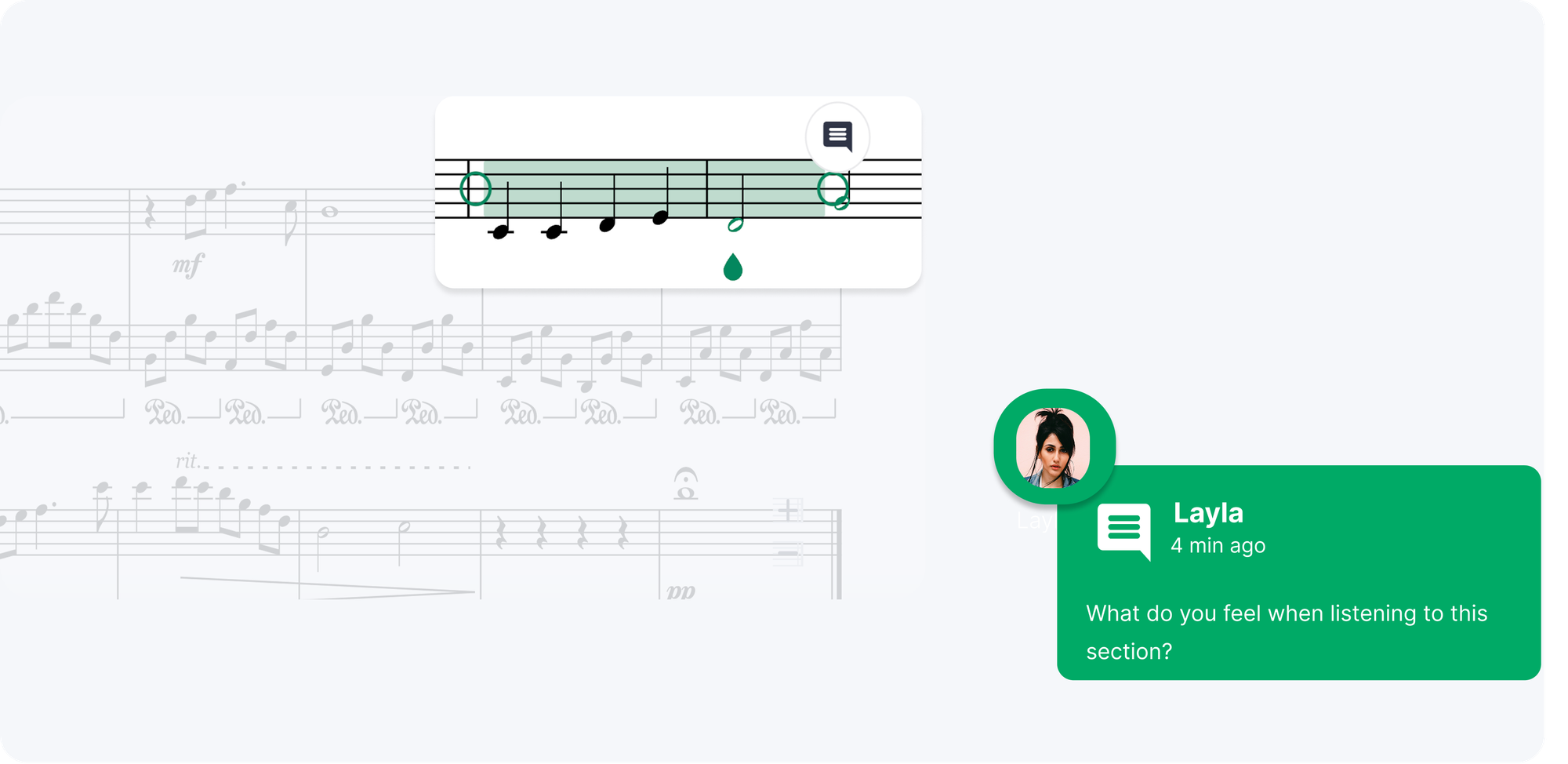
This is available before submission too. If a student is struggling midway through a composition assignment, you can open their in-progress work in Flat for Education, leave a note on the specific passage where they've gone wrong, and they see it immediately. The student doesn't need to submit, you don't need to request a copy. The teacher view is live.
For teachers who previously gave feedback through comments on Google Classroom or emails referencing bar numbers, the difference is noticeable fast.
How to create your first assignment in Google Classroom with Flat for Education
If your integration is set up and you want to run through the full workflow right now, here it is in five steps.
- Open Flat for Education and go to Assignments. Click New Assignment. Choose your assignment type. For a first test, a theory worksheet is the easiest because auto-grading shows you the full grade sync without any manual grading on your part.
- Build the assignment. For a theory worksheet, add five to ten interval identification questions. Set the correct answers. Add instructions if needed.
- Select your Google Classroom class. Under the distribute section, choose which class this goes to. Click Assign. The assignment appears in the Google Classroom stream within a few seconds.
- Access it as a student (use a test account, or ask a student to show you). The student clicks the assignment in Classroom, answers the questions in Flat for Education, and submits. Watch what happens in your Flat for Education dashboard.
- Check your Classroom gradebook. After submission and auto-grading, open Google Classroom. The student's grade for that assignment should be there, entered automatically.
Total time: under fifteen minutes. After this loop, every assignment type follows the same pattern: create in Flat for Education, distribute to Classroom, collect and grade in Flat for Education, grade returns to Classroom.
What students see and do
It helps to walk through this from the student's side, because teachers who understand both sides set up assignments better.
A student in a Google Classroom school using Flat for Education starts their day exactly as normal: they open Google Classroom and see their assignments. The music assignment from Flat for Education appears in the stream like anything else. They click it.
They're taken directly to Flat for Education, signed in automatically via their Google account. The assignment is loaded and ready. They compose, complete the worksheet, or record their performance depending on the assignment type. When they're done, they click Submit. Google Classroom shows the assignment as turned in.
When you return the work with feedback and a grade, the student opens Flat for Education and sees your comments on the score itself. The grade is in their Classroom gradebook alongside everything else.
For students switching between devices, everything is browser-based. A student who starts a composition on a school Chromebook can continue it at home on any device with a browser. No installation, no file to locate, no account to remember separately from their Google account.
Five things most teachers discover a few weeks in
Auto-graded worksheets change yourevenings. The first time you run a theory worksheet and watch grades populate in Classroom without touching them, the reaction is usually something like: "Why wasn't this available before?" It's worth building a worksheet library early.
Live access means earlier intervention. Teachers who check in on in-progress compositions before submission catch misunderstandings at the point when they can still be corrected. A comment on a student's work-in-progress lands differently than a correction on submitted work they can no longer change.
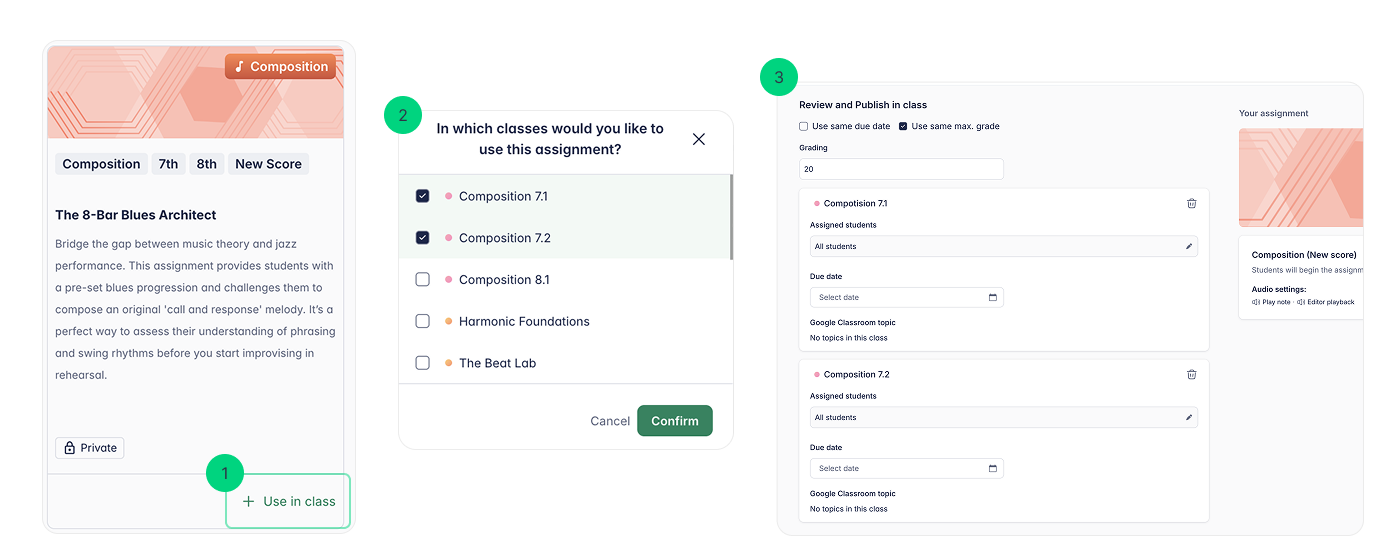
You can assign to multiple classes at once. If you teach the same unit to two sections, you create the assignment once and select both classes. Both rosters get it. Grades sync back to each section separately.
Roster updates happen automatically. When a student joins a class in Google Classroom mid-term, they're in Flat for Education the next time the roster syncs. You don't manage this manually.
The gradebook is cumulative. Over a semester, your Google Classroom gradebook builds a real picture of musical progress: theory accuracy, composition quality, performance scores, all from the same platform. For teachers who've struggled to include performance grades alongside theory grades, this matters.
Frequently asked questions
How do I connect Flat for Education to Google Classroom?
Sign in to Flat for Education using your Google account at flat.io/edu. Go to Classes, click Import from Google Classroom, and authorise access to your Google Workspace. Select the classes you want to connect. Students are imported automatically and can sign in using their existing Google accounts. The full setup guide is at help.flat.io/en/education/google-classroom/setup-course/.
Do students need a separate Flat for Education account?
No. Students sign in to Flat for Education using their existing Google account, the same one they use for Google Classroom. Flat for Education creates their account automatically when they access their first assignment. They don't need to register separately or remember a new password. Hyou ed to create username and password combinations for students without email addresses, you can do that!
Does Flat for Education grade sync work with Google Classroom?
Yes. Grades entered in Flat for Education write back to the Google Classroom gradebook automatically. For auto-graded theory worksheets, this happens immediately at submission. For composition and performance assignments, grades sync when you enter them in Flat for Education's review dashboard.
Can I see student work before they submit?
Yes. Flat for Education gives teachers live access to student work from the moment a student starts an assignment. You can open any in-progress score, see what the student has written, and leave comments on specific measures while they're still working. The student sees your feedback in real time.
Does Flat for Education work with Google Classroom on Chromebooks?
Yes. Flat for Education is fully browser-based and works on Chromebooks without installation. Students access it through the same Google Classroom stream they use on any device. This is specifically useful for schools that issue Chromebooks as primary student devices, since music notation tools that require installation don't run on Chromebooks.
What happens if a student joins my Google Classroom class after I've set up the integration?
Roster sync is automatic. When a new student joins your Google Classroom, they'll appear in Flat for Education on the next roster sync. Their account is created automatically. You don't need to add them manually.
Flat for Education's Google Classroom integration is designed to feel like one system, not two. The assignments are in Classroom, the notation is in Flat for Education, and the gradebook is in Classroom. Students stay in their normal workflow. You stay in yours. The music just works.
Start your free 30-day trial at flat.io/edu. It takes four minutes to connect your classes.
Still deciding which notation tool to use with Google Classroom? Read our guide: Music Notation Software for Google Classroom: Which Tool Actually Integrates?
Read next: