
A melody often turns up when you are nowhere near a desk: on the bus, in a rehearsal, halfway up a hill. The good news is that you can write real sheet music on your phone, for free, then play it back and share it in minutes. Below you will find what to look for in a notation app, then a simple walk-through of writing your first score in Flat, from adding notes to playing them back and sharing.
What to look for in a phone notation app
Writing music on a small screen only works if the app is built for it. Before you start, look for a few things:
- Notes you add by tapping the staff or a touch keyboard, with no mouse and no manual needed.
- Instant playback, so you can hear what you wrote even if you do not play that instrument.
- A free plan, so you can start without paying anything.
- PDF import, which really matters: open a PDF or snap a photo of sheet music you already have and turn it into an editable score, instead of typing it in again.
- Export to PDF, MIDI and MusicXML, plus a link you can share.
- Cloud sync, so the same score opens on your phone, tablet, and computer.
Flat covers all of these. The app is free to start, runs natively on both iPhone and Android as well as in any browser, and ties them together with a true cross-device experience: your score lives in your account, so you can capture an idea on the train and keep shaping it at home on a tablet or laptop. It can also turn a PDF or photo of existing sheet music into an editable score, so you are not retyping a part by hand.
📲 Get it for iOS
📲 Get it for Android
Write your first score in six steps
- Get the app or open Flat. Install the free app from the App Store or Google Play, or open flat.io in your phone's browser and sign in.
- Create a new score. Tap New score and give it a title. You can also import a MusicXML or MIDI file, or a PDF or photo of sheet music you already have.
- Add an instrument and set the key and time signature. Choose one instrument or start from a template, then set the key and time signature for your piece.
- Tap notes onto the staff. Pick a note value, then tap where it goes, and add rests, sharps and flats from the toolbar. Tap a note again to change its length or delete it.
- Play it back and fix what you hear. Press play to hear your part, then adjust anything that sounds off. Playback is the fastest way to catch a wrong note on a small screen.
- Save, share and export. Your score saves to your account automatically. Share a private link, or export to PDF, MIDI or MusicXML when it is ready.
Tips for writing on a small screen
A few habits make phone composing easier. Zoom in before placing notes so you tap the right line or space, and rotate to landscape when you want more of the staff in view. Lean on playback to check your work by ear rather than squinting at every note. And because your score syncs automatically, you can switch to a tablet or computer for a longer editing session and pick up exactly where you left off.
Prefer to work on a computer? Our guide to the best notation software for composers covers the desktop options.
Find inspiration in the Flat community
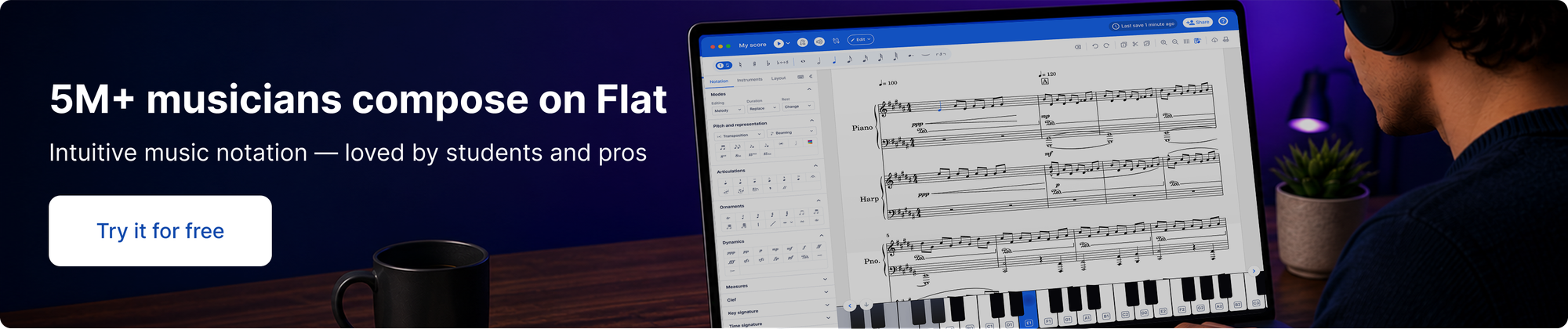
Flat has a community of more than 5 million musicians, and you can browse their public scores at flat.io/popular. Open one you like, clone it to your account, and pull it apart on your phone to see how it was written.
Ready to write your first piece on your phone? Try Flat for free!
FAQ
Can I write sheet music on my phone for free?
Yes. Flat's mobile app for iPhone and Android is free to download, and the free plan lets you create, play back and share notation. A paid Flat Power plan is optional if you want more instruments and unlimited scores.
How do I write notes on a phone screen?
In Flat you pick a note value from the toolbar and tap the staff where the note should go, then add rests, sharps, flats and dynamics the same way. You can press play at any time to hear what you have written.
Can I start a score on my phone and finish it on a computer?
Yes. Flat saves your score to your account and syncs it across devices, so you can start on your phone and keep editing in a browser, on a tablet, or in the desktop app.
Does Flat work offline on a phone?
Yes. Flat works through its mobile app and its mobile web app, both of which let you compose offline, and your work syncs once you are back online.
Can I turn a photo or PDF of sheet music into an editable score?
Yes. In the Flat mobile app you can photograph a printed page or open a PDF and import it as an editable score, then keep working on it on your phone.