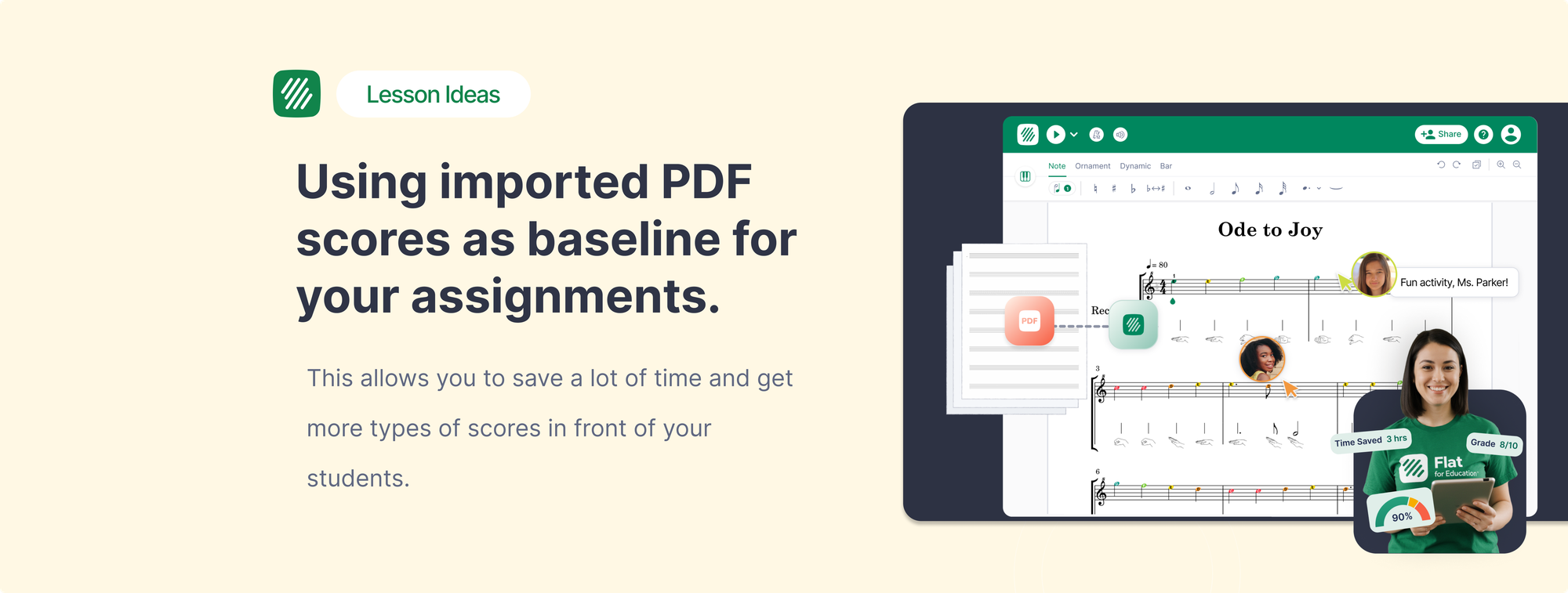
Most music teachers have years of sheet music sitting in folders, inboxes, and hard drives as PDFs. Printed parts from publishers. Scanned arrangements from a previous colleague. Downloaded exercises from a method book website. The music exists. Getting it into a format you can actually work with is the problem.
Flat for Education's PDF import turns any PDF score into an editable file. From there, you can transpose parts, adapt the difficulty, build assignments around the score, and distribute it directly to students through Google Classroom, Microsoft Teams, Canvas, Schoology, or MusicFirst. This guide covers how it works, what to expect from the conversion, and the practical ways teachers use it in class.
How PDF import works in Flat for Education
The import process reads your PDF and converts the notation into an editable score in the Flat for Education editor. You upload the file, the platform processes it, and the result opens ready to edit.
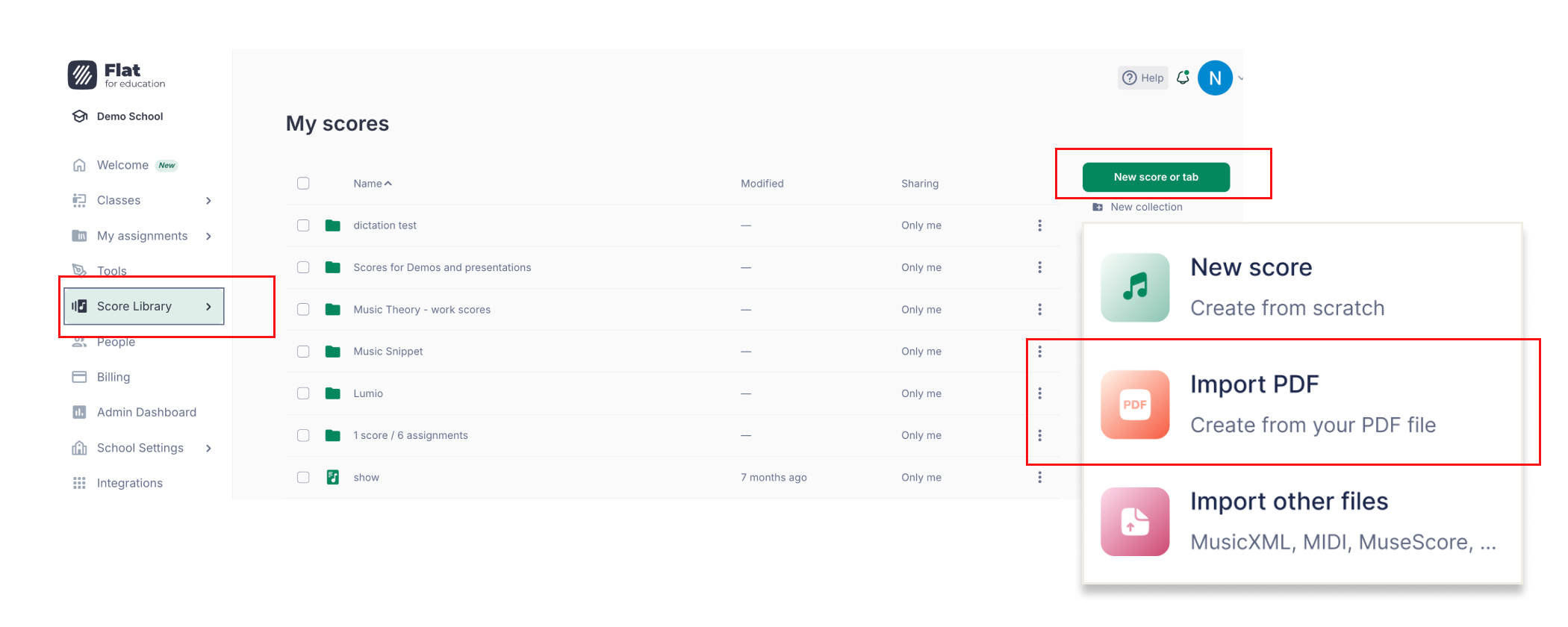
- Open Flat for Education and go to your score library.
- Click New Score, then Import PDF.
- Upload your file. The platform converts it and opens the editable score.
On mobile, there's a bonus: instead of uploading a saved file, you can take a photo of printed sheet music directly from the app. Hold the page flat under good light and the photo imports the same way a PDF would. Useful at rehearsal when you want to work from a part that isn't digitised yet.
The converted score is fully editable in the Flat for Education notation editor. Every note, dynamic, articulation, and barline is individually selectable. You're not working with a flattened image of the music — you're working with real notation.
What transfers cleanly and what needs attention
PDF import handles most standard notation well. Notes, rhythms, clefs, key signatures, time signatures, dynamics, articulations, slurs, ties, barlines, repeat marks, and rehearsal letters all come across reliably from a clean, well-formatted PDF.
A few things are worth knowing before you start.
The quality of the input affects the quality of the output. A digitally exported PDF from Sibelius or Finale will convert more accurately than a low-resolution scan of a photocopied part. If the scan is dark, skewed, or the staves are faint, the conversion will have more errors to fix.
Polyphonic passages and dense textures sometimes need attention after import. Complex voice leading where multiple rhythmic layers share a staff can confuse the converter. Playback is the fastest way to spot these — listen through after importing and anything that sounds wrong tells you exactly where to look.
Handwritten scores, chord charts, and lyrics-only sheets don't import well. PDF import is built for standard engraved or printed notation.
Every imported score is fully editable, so any issues that do come through are fixable inside the editor.
Five ways teachers use PDF import in the classroom
Transposing parts without starting from scratch
You have a piece in concert pitch. Half your ensemble plays transposing instruments. Before PDF import, producing a transposed version meant either retyping the whole thing or having the right software installed. Now you import the PDF, select all, and transpose. The result is a clean, accurate transposed part ready to print or assign digitally.
For directors managing mixed ensembles where the same melody needs to reach B-flat clarinets, alto saxophones, and concert pitch instruments simultaneously, this alone saves significant preparation time.
Adapting difficulty for different ability levels
A published piece is pitched at one difficulty level. Your class isn't one difficulty level. Import the score, duplicate it, and create a simplified version for students who need it: remove the second voice, simplify the rhythm in a complex bar, lower the range slightly. The original and the adapted version both live in your score library, both assignable as separate assignments with separate feedback workflows.
Building fill-in-the-blank score exercises from existing repertoire
Score exercises built from the music students are actually playing are more engaging than abstract ones. Import the score, extract a few bars that feature the concept you're teaching, delete the notes in the bars you want students to complete, and you have a fill-in-the-blank exercise tied directly to their repertoire. Assign it as a composition assignment through Flat for Education, and the results feed directly into your gradebook.
Distributing parts digitally
Once a score is imported and in your library, you can assign it to students through any connected LMS. Students open the score in their browser or on a device, see the notation, hear playback, and can annotate their own copy without touching the original. For ensemble programs that want to reduce the paper trail, or for remote and hybrid settings where printing isn't practical, this makes PDF imports directly useful.
Building performance assignments from your existing library
Import a passage you want students to prepare, set it as a performance assignment, and students record themselves playing against the score using their device microphone. Their audio and the score submit together. You review the recording alongside the notation, leave timestamped comments, and the grade goes back to the gradebook. The whole workflow starts with a PDF that was sitting in a folder.
PDF import credits and plans
You get one free PDF import to try the feature on your free trial. Once you're on a paying plan, you get 100 credits to use for PDF imports. If you need more, you can request additional credits. See full plan details at flat.io/edu/pricing.
Getting the best results
A few habits that consistently produce cleaner imports.
Export from notation software when you can. A PDF exported from Sibelius, Finale, MuseScore, or Dorico converts more accurately than a scanned physical copy. If you have access to the original file, export from there.
For scans, use 300 dpi or higher. Keep pages flat, well-lit, and fully in frame. Crop borders and shadows before importing.
Import one score per file. Multi-piece PDFs where different arrangements are concatenated don't convert cleanly.
After importing, use playback to check for conversion errors before you start editing or assigning. It takes thirty seconds and tells you immediately where to focus any cleanup.
Frequently asked questions
Can I import a PDF into Flat for Education on a Chromebook?
Yes. PDF import works in the browser on Chromebooks, laptops, and tablets. Upload the file from your device or Google Drive and the conversion runs in the platform without any software installation.
What happens to my PDF after import?
The imported score is saved in your Flat for Education score library as an editable notation file. The original PDF is not stored separately inside the platform. Keep a copy in your own files before importing if you need the original.
Can I assign an imported PDF score to students?
Yes. Once a PDF has been imported and converted to an editable score, you can use it as the basis for any assignment type in Flat for Education: composition assignments where students edit or complete the score, or performance assignments where students record themselves against it. Assignments distribute through Google Classroom, Microsoft Teams, Canvas, Schoology, and MusicFirst.
What if the imported score has errors?
Every imported score is fully editable. Fix errors directly in the notation editor. Playback is the fastest way to identify where issues are. If a PDF consistently produces poor results, try importing a higher-quality scan or a digitally exported version of the same piece.
Can students use PDF import?
PDF import is for teachers. Students work within the assignments teachers create and distribute — they don't import their own files.
Flat for Education offers a free 30-day trial with no credit card required. PDF import is available from day one, so you can bring your existing library in before committing to any plan. Start at flat.io/edu.