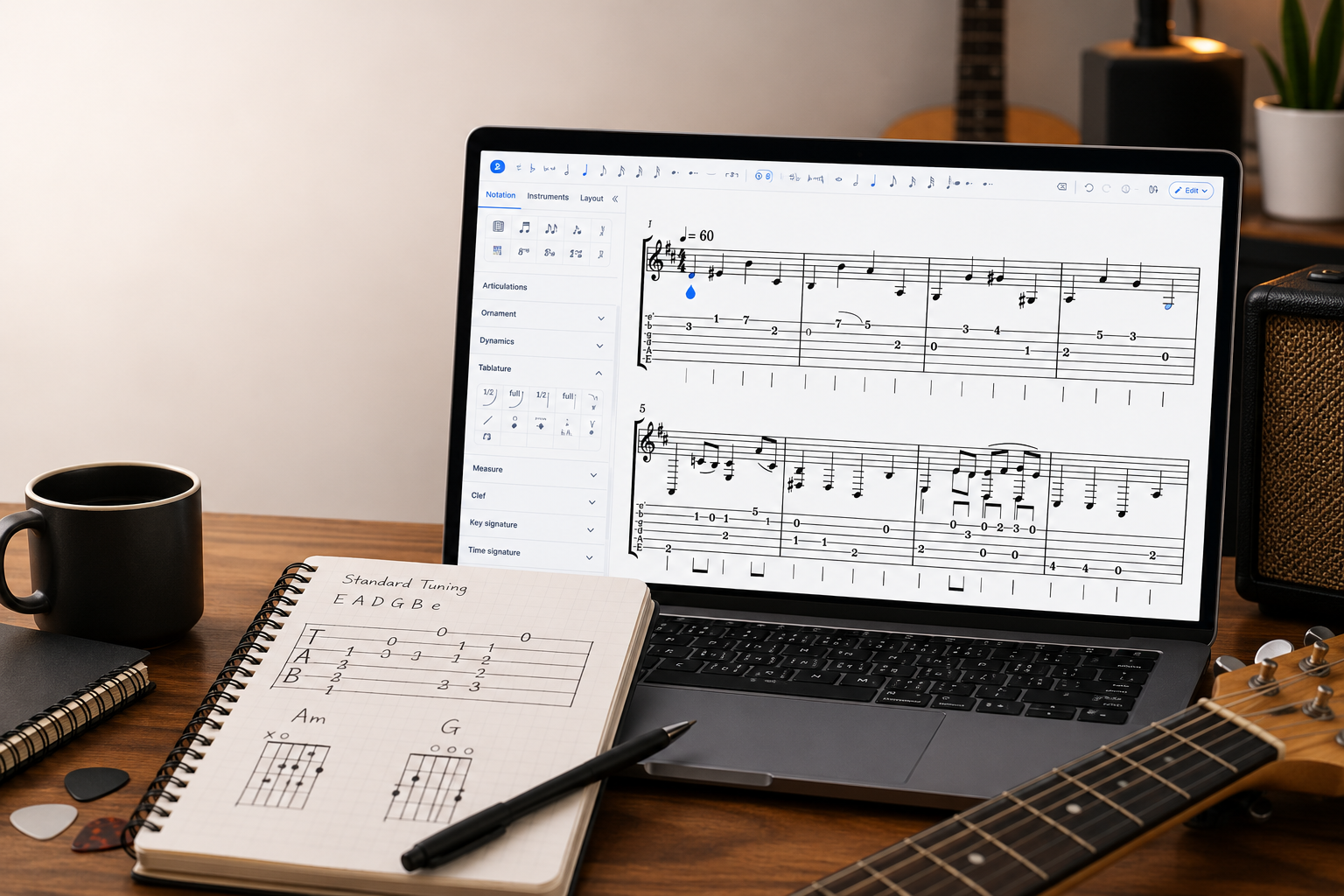
If you play guitar, bass, or ukulele, you've probably wanted to write down a riff or a full song the way you actually play it: by string and fret, not by pitch on a staff. That's what tablature does, and doing it by hand gets tedious as soon as you add alternate tunings, techniques, and rhythm. This article covers what tablature is, how to write it in Flat, and the details (tuning, capo, chord grids, playing techniques) that matter.
What tablature actually is
Tablature, or "tab," is a notation system for fretted string instruments. Each horizontal line represents a string, and the number on the line tells the player which fret to press. The lowest-pitched string sits at the bottom of the staff and the highest at the top, matching what a player sees looking down at the fretboard.
Tab has been around since the Renaissance, when lutenists used it to write down music. It survived because it solves a specific problem: the same pitch can be played in several places on a guitar fretboard, and standard notation doesn't tell you which one to use. Tab does. It's now standard in guitar, bass, and ukulele music for pop, rock, folk, and country.
The trade-off is that tab on its own doesn't show rhythm clearly. Modern tab fixes this by pairing the tab staff with a standard notation staff above it, so you get rhythm from the notation and fingering from the tab.
How to write tablature in Flat
Flat creates tab paired with standard notation by default for any plucked instrument. Both staves stay synced: write a note on either one and the other updates automatically. If you want a deeper walkthrough of how the guitar editor works on its own, see our guitar sheet music maker guide.
- Create a new score. Pick a plucked instrument (Guitar, Bass, Ukulele, Banjo, Mandolin) and Flat adds a tab staff under the standard notation staff automatically. You can disable the tab at this stage if you only want notation.
- Enter notes on either staff. Click on the standard notation staff to add notes by pitch, or click on the tab staff to add notes by string and fret. Both staves update in sync.
- Adjust tuning and capo if needed. Go to instrument settings to change the number of strings (3 to 14), the tuning, or the capo position. Existing tab updates to reflect the new configuration.
- Add playing techniques. Use the tab toolbar for hammer-ons, pull-offs, slides, bends, and palm mutes. These appear above the tab staff and play back correctly.
- Export or share. Export to PDF or MusicXML, or share a link to the score that others can clone and edit.
💡 Full reference: writing tablature in Flat.
Tab-specific tips and edge cases
A few things to know beyond the basics. For a longer walkthrough of techniques and styling, see our companion piece on mastering tablature writing.
- Set the tuning before you start, not after. Drop D, DADGAD, open G, half-step down: they all change which frets produce which pitches. Flat lets you pick from presets or define your own, and it works for any number of strings from 3 to 14. Tuning and capo settings.
- Use chord grids for songs with consistent chord work. Chord grids show a small fretboard diagram with finger positions above the staff. They help with rhythm guitar parts where the tab numbers alone don't communicate the shape. Chord grids in Flat.
- Pair tab with notation when rhythm matters. Pure tab tells you which frets to play but is weak on duration. The dual-staff layout fixes this. Disable the notation staff only when rhythm is simple enough that it doesn't need to be written.
- Bass tab uses 4 strings, 5-string bass uses 5. Flat detects this from the instrument you pick. If you build a custom instrument you'll set the string count yourself. The same logic covers extended-range guitars (7 and 8 strings) and standard ukulele (4 strings).
- Capo changes both fretboard and pitch. When you set a capo, Flat can either keep the same fret numbers and transpose the pitches, or keep the pitches and shift the fret numbers. Pick the behavior that matches how the player will think about the part.
- Import Guitar Pro files instead of starting from scratch. Flat's Guitar Pro online editor opens .gp, .gpx, .gp5, .gp4, and .gp3 files in the browser, so existing libraries don't need a desktop install.
Try it yourself in Flat
Open a new score, pick Guitar from the instrument list, and Flat adds the paired notation + tab staff automatically. Type "0" on the bottom line of the tab and a low E appears on the notation staff. Switch to standard tuning, drop D, or DADGAD in instrument settings and the same fingering produces different pitches, the same as on a real guitar.
Create a free Flat account to write your first tab.
Find more tablature inspiration
The Flat community has over 100,000 public scores, many of them guitar, bass, and ukulele tabs. Browse popular scores in Flat to see how other players notate bends, harmonics, and fingerpicking patterns. Clone any public score to edit it in your own library.
Ready to write your first tab? Try Flat for free.
FAQ
Do I need to read standard notation to write tab in Flat?
No. You can enter notes directly on the tab staff by clicking the string and typing the fret number. The standard notation staff updates automatically and you can hide it if you only want tab.
Can I write tab for non-standard tunings like drop D or DADGAD?
Yes. Pick a tuning preset or define your own in the instrument settings. Flat supports any tuning across 3 to 14 strings.
Does Flat support bends, hammer-ons, and other guitar techniques?
Yes. The tab toolbar covers hammer-ons, pull-offs, slides, bends, palm mutes, and more. They appear in the tab and play back when you preview the score.
Can I import a Guitar Pro file into Flat?
Yes. Flat imports Guitar Pro files (.gp, .gpx, .gp5, .gp4, .gp3) and you can keep editing them in the browser without installing Guitar Pro.
Can I export my tab as a PDF or MusicXML?
Yes. Both formats are supported, plus MIDI and audio. PDF is best for printing, MusicXML for transferring the score into another notation tool.