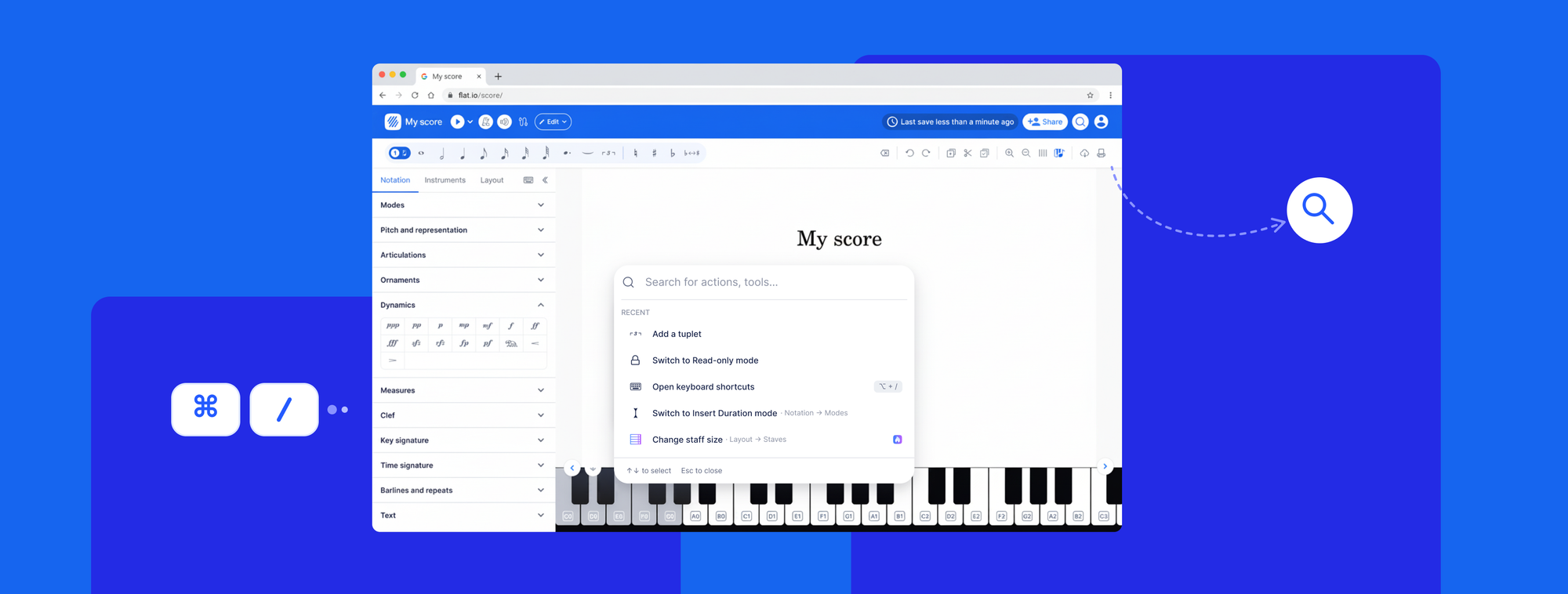
You know the tool exists. You used it last week. But right now, mid-phrase, you can't remember where it lives — and scanning every toolbar section, clicking through nested menus, and eventually leaving your score to search the help center breaks something that's hard to get back: your concentration.
Quick Search is the fix. Press / anywhere in the Flat editor, type what you need, and activate it. Every notation tool, layout option, and instrument setting in Flat is now searchable from the keyboard, without touching the toolbar.
What Quick Search does
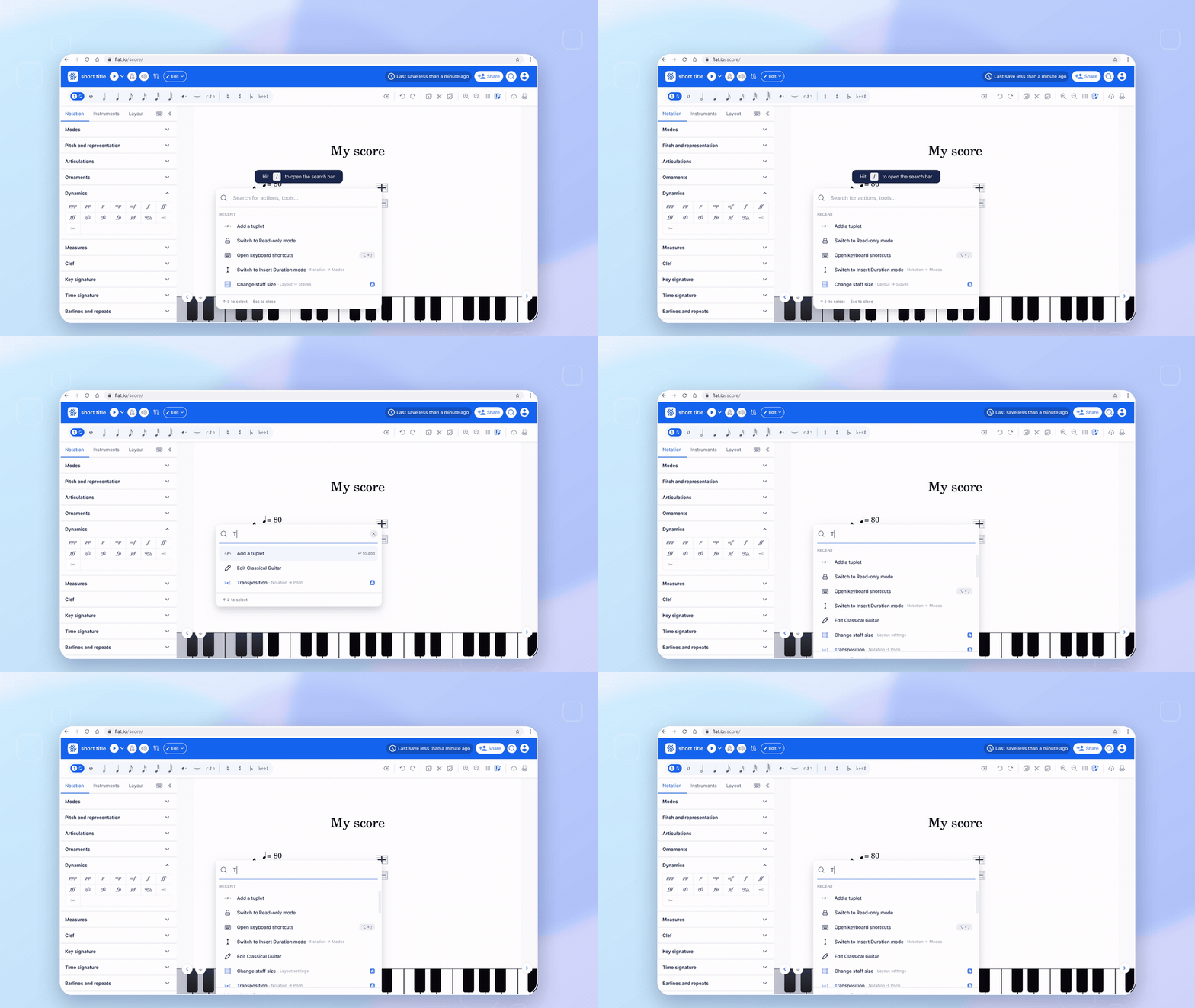
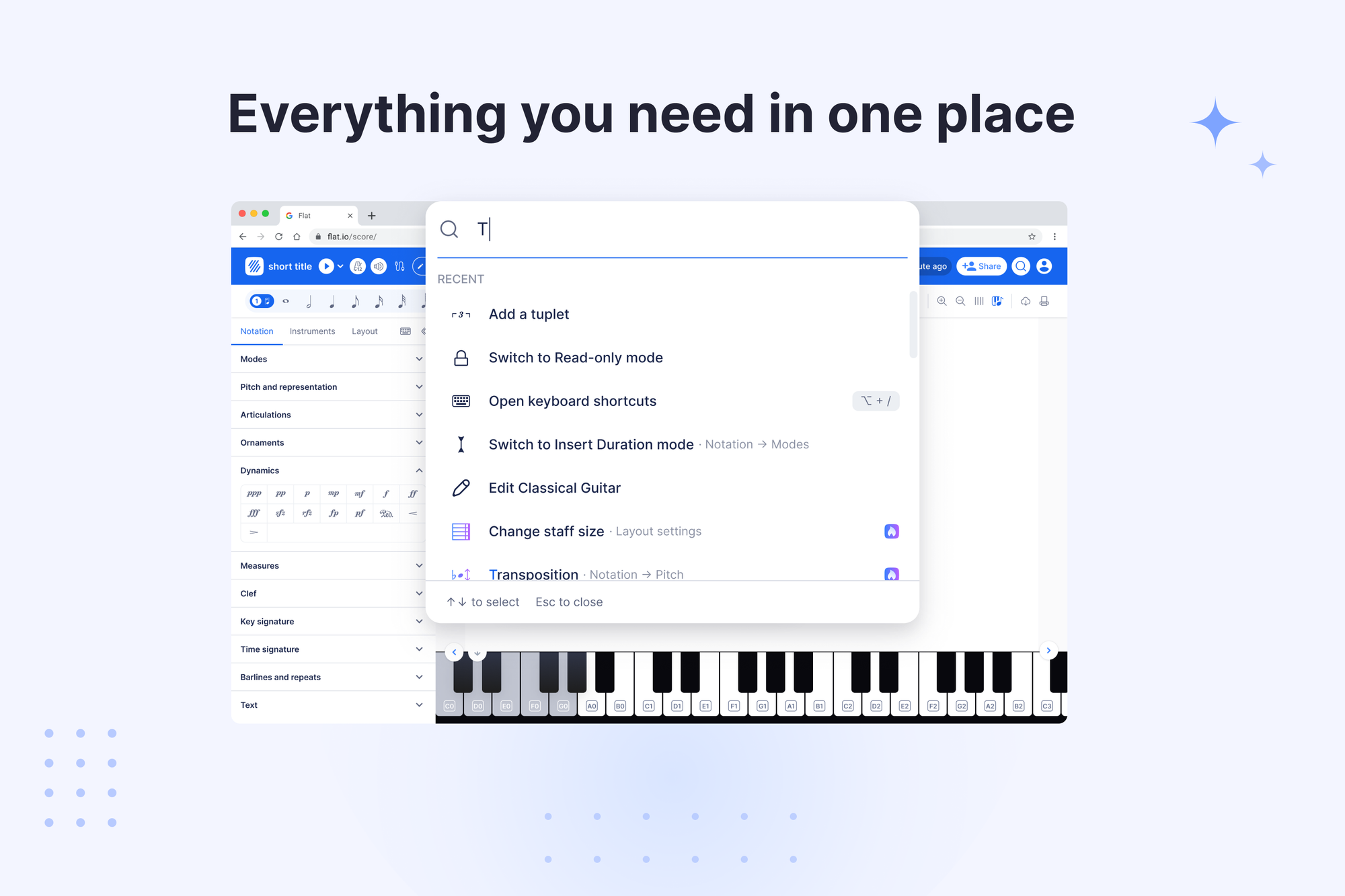
Open any score and press /. A search modal opens — no mouse needed. Start typing and results appear immediately: tool name, where it lives in the toolbar if it's nested, and the keyboard shortcut if one exists.
Press Enter or click a result to activate it. The modal closes and the tool fires. You're back in your score.
A few things that make it genuinely useful:
- Recently used actions. Open Quick Search without typing and you'll see the tools you reached for most on the current score — no memory required.
- Category filter tabs. If your search spans Notation, Instruments, and Layout, tabs let you narrow it down fast.
- Shortcut hints on every result. Each card shows the keyboard shortcut for that tool — so as you search, you're also learning the shortcuts you'll eventually stop needing to search for.
- Free and Power badges. Every result tells you whether a tool is on your current plan. If it needs an upgrade, clicking takes you to the upgrade page rather than silently failing.
- Toolbar search button. If
/isn't your style, the search icon in the toolbar opens the same modal.
One thing to know: Quick Search covers toolbar actions — notation tools, instrument settings, layout options. Score library search is a separate feature and is coming later.
How to use it
Quick Search is already live in the Flat editor. There's nothing to turn on.
Try this in Flat:
- Open any score and press
/. - Type a tool name or part of one — "swing", "hairpin", "tremolo", whatever you're looking for.
- Press Enter or click the result. The tool activates, the modal closes, and you're back in the music.
If a result appears greyed out, the tool isn't available in your current context — for example, a tab-specific tool when you're in a standard notation score. The badge tells you whether it's a plan issue or a context one.
Who benefits most
If you're new to Flat, Quick Search removes the biggest early barrier: having to memorize where everything lives. Type what you want in plain language — "fermata", "repeat barline", "change instrument" — and find it. The shortcut hints on each result card mean you're building muscle memory as you go, without being forced to learn everything upfront. The step-by-step tutorial is still the best place to start from scratch.
If you're an experienced composer who already uses Flat from the keyboard, this fills the gap: the tools you reach for occasionally, maybe once a month, are now a / and a few letters away. No mouse detour, no context switch. It pairs naturally with Workflow Modes and Flat's full keyboard shortcut system. For the tools you reach for every day, you can also set your own custom shortcuts.
If you write in a language other than English, Quick Search now understands how you name musical concepts in your language. It covers 28 locales, and the list grows as real search data shows us which terms people use.
Switching from MuseScore, Dorico, or Sibelius? The keyboard shortcuts migration guide maps every difference, and Quick Search makes the transition easier — you can look up tools by the name you already know them by.
Why the editor needed this
The Flat editor is deep, and that depth is intentional. It's what makes Flat capable enough for professional-level work. But the more tools exist, the harder it gets to find any specific one — especially tools you don't reach for every day.
The problem wasn't the toolbar. It was what happened when a tool didn't surface immediately: you'd leave your score, lose your thread, and come back to a cold start. Quick Search keeps you in the music. The editor's depth is still there — it's just no longer a navigation puzzle.
Get started
Quick Search is available to all Flat users on the new toolbar. No plan upgrade, no settings to change. If you haven't switched to the new toolbar yet, you can do it in your editor settings — it takes a few seconds.
Ready to write without interruption? Open a score on Flat, press /, and find the tool you need — right where you need it.