Most guides to notation software are written for composers. If you're a music teacher choosing music notation software for your classroom, the decision looks completely different. A professional composer cares about engraving control and workflow speed. You care about whether thirty students can open it on a school Chromebook, whether it syncs to your gradebook, and whether you can afford it at classroom scale. This post compares the main music notation software options for schools against that decision, not the composer's one.
What music notation software needs to do in a classroom
No installation required. Most school devices don't allow students to install unapproved software. Browser-based is the only practical option for many schools.
Works on Chromebooks. Chromebooks dominate US school device purchasing. If your notation software doesn't run well on a Chromebook, a significant portion of your students can't use it.
LMS integration. If the notation software doesn't connect to your LMS, you're copying grades by hand, every week, for every class.
Student account management. Adding students, removing leavers, resetting passwords. These management features matter when you're running classes of thirty rather than working alone.
Price per student. School programs need to budget for 30, 60, or 300 students. Professional per-seat pricing models don't work at classroom scale, and tools with high seat minimums can price out a small program before it starts.
Music notation software for schools, at a glance
Here is how the main options compare on the things that matter in a classroom. The sections below go deeper on each.
| Tool | Runs on Chromebook (no install) | LMS integration | Built for | Pricing note |
|---|---|---|---|---|
| Flat for Education | Yes | Google Classroom, Microsoft Teams, Canvas, Schoology, MusicFirst, Moodle, 50+ | Classroom notation, composition, theory, assessment | $99/teacher + $6/student per year, no minimum |
| Noteflight Learn | Yes | Basic gradebook integration | Classroom notation | Per-student, education tiers |
| MuseScore | No (desktop install) | None | Individual composing | Free |
| Sibelius / Dorico | No (desktop install) | None native | Professional engraving | Professional per-seat |
| Soundtrap for Education | Yes | Some LMS support | Audio production (DAW), not notation | Annual, 50-seat minimum |
| Chrome Music Lab | Yes | None | Free exploration, not a platform | Free |
| SmartMusic | Yes | Some LMS support | Performance practice, not notation | ~$8/student in a block |
Sibelius and Dorico: professional grade, not classroom grade
Sibelius and Dorico are excellent tools for professional composers and engravers. For a classroom of students, they're the wrong fit. They require installation, carry steep learning curves, and have no native Google Classroom or Microsoft Teams integration. A student can't pick up Dorico in a single lesson, and your IT department can't push either one to a fleet of Chromebooks. If you're training future professional engravers at conservatory level, they have a place. For a general or secondary classroom, they ask too much.
MuseScore: free, but with real limitations for schools
MuseScore is genuinely impressive for a free tool, and for an individual student composing at home it's a strong option. The classroom limitations are practical. The desktop version needs installing, which rules it out on most school Chromebooks. There's no gradebook integration, no assignment distribution, and no teacher dashboard. You can absolutely point a keen student toward it. Running a class of thirty through it, collecting and grading their work, is where it stops fitting.
Noteflight: browser-based, with a classroom tier
Noteflight Learn is a closer comparison, because it was built with classrooms in mind. It supports class management, assignment distribution, and basic gradebook integration, and it works on Chromebooks. It's a reasonable option. The questions worth asking when you compare it are around the depth of the assignment and assessment workflow, the breadth of LMS integrations, and how the practice tools and auto-graded content stack up against the alternatives.
Soundtrap: a DAW, not notation
It's worth being clear about what Soundtrap for Education actually is, because teachers often shortlist it alongside notation tools. Soundtrap is a browser-based digital audio workstation, built for recording, loops, beat-making, and podcasting rather than written notation. For a music production or media unit it's a capable tool, and it runs on Chromebooks with no install. Two things to weigh for a notation-focused classroom: it isn't a notation editor, so it doesn't do the score-writing, part-transposition, and theory work a notation platform does, and it's sold on an annual subscription with a minimum of 50 seats covering both students and teachers. If your goal is composition and notation, it's solving a different problem.
Chrome Music Lab: free exploration, not a classroom platform
Chrome Music Lab comes up constantly, and for good reason. It's completely free, needs no signup, collects no student data, and runs on any device in seconds. For early exploration, a quick rhythm or sound-waves activity, or a STEAM crossover lesson, it's a genuinely useful free resource, and there's no reason not to use it for what it's good at. What it isn't is a music program. There's no curriculum, no skill progression, no assignments to set, and nothing to grade. Students explore and create in the moment, but the work doesn't flow into a gradebook and there's no scaffolded path from one skill to the next. Use it freely for exploration. It won't run your assessed classroom work.
SmartMusic: performance practice, a different job
SmartMusic is the tool many band and orchestra programs already know, and it's strong at its core job: students play their part into a microphone and get instant feedback on accuracy, backed by a large accompaniment library. That's performance practice, not composition or notation. On price it recently sits around $8 per student in a block that includes a few teachers, so it's no longer dramatically more expensive per student than the notation platforms. The real question isn't price, it's fit: if your program is performance-first and built on drilling repertoire, SmartMusic serves that well. If your students are composing, doing theory and worksheet work, or you teach general music as much as ensemble, it's built for a different classroom than yours.
Flat for Education: built for classrooms from the start
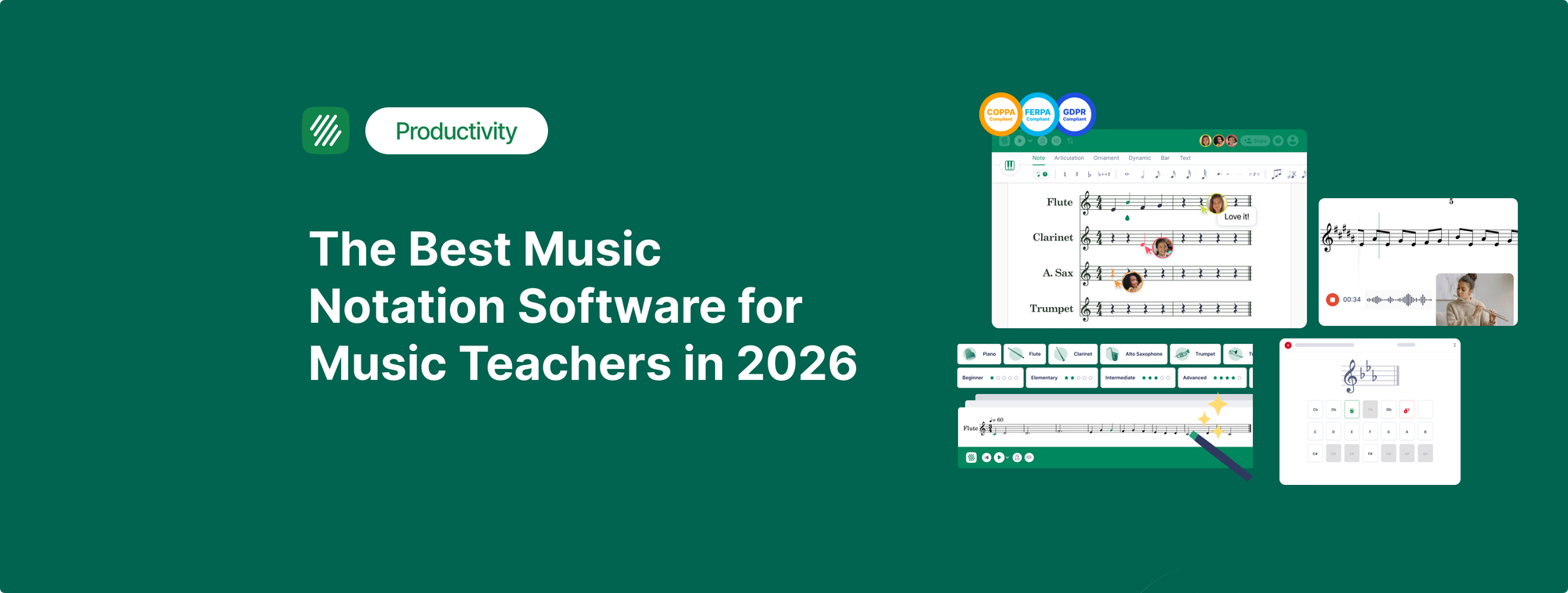
Flat for Education is the notation and music education platform built specifically for classroom use. The classroom workflow, assigning, submitting, giving feedback, and returning grades, is native to how the platform works rather than added on top of a composer's tool.
It runs entirely in the browser. No installation. It works on any device including Chromebooks. Students compose multi-instrument scores, transpose parts, add dynamics and articulations, and hear realistic playback. Real-time collaboration lets several students write on the same score at once, the way they already expect from a shared document, and contribution tracking shows you who wrote what so group work stays gradeable.
Music theory worksheets are auto-graded, which saves hours of marking each week, and there's a sight-reading generator plus interval ear-training worksheets for regular practice. PDF import lets you bring existing sheet music into the platform for fill-in-the-blank exercises. It integrates with Google Classroom, Microsoft Teams, Canvas, Schoology, and MusicFirst for roster sync, assignment distribution, and grade return, with Moodle and 50+ other platforms supported as well.
On pricing, the Teacher Plan is $99 per teacher per year plus $6 per student per year, with no seat minimum, which matters for a small program that can't commit to a 50-seat floor. The teacher license also sits under the $100 purchase-order threshold many schools have, so teachers can often buy without district sign-off.
How much should music notation software cost per student, and what's the best value?
Classroom pricing comes down to two numbers: the per-student rate, and whether there's a seat minimum. A low per-student rate stops being cheap the moment a 50-seat floor makes you pay for seats you don't have. Cost it at your real roster size before you compare sticker prices.
Here's the same 60-student program costed across the tools that publish per-student pricing:
| Tool | Model | 1 teacher + 60 students | Seat minimum |
|---|---|---|---|
| Flat for Education | $99/teacher + $6/student | $459/year | None |
| SmartMusic | ~$8/student in a block | ~$480/year | Block-based |
| Soundtrap for Education | Annual, 50-seat minimum | Pays for 50 seats minimum | 50 seats |
For a classroom built on composition, theory, and assessment, Flat for Education is usually the best value: the $6 per student has no minimum, so a small program pays only for the students it has. If your program is performance-first and built on drilling repertoire, SmartMusic's per-student cost is comparable, so choose it on fit rather than price. The trap to avoid is the seat minimum, where a 30-student program on a 50-seat floor pays a two-thirds premium for empty seats. One more number worth knowing: the Flat for Education Teacher Plan sits under the $100 purchase-order threshold many schools set, so a teacher can often buy it on a card without district sign-off.
What to look for when comparing music notation software for schools
Whatever you shortlist, hold each option against the same questions. Does it run on your school's devices without installation? Does it integrate with your LMS for roster sync and grade return, not just a login button? How does student account management work when a class changes mid-year? What does the student experience actually look like on a Chromebook? Is the pricing per student with no minimum, or is there a seat floor that doesn't fit your program size? And is the tool built for the job you actually need, notation and composition, performance practice, or audio production, because those are three different classrooms.
Start your free 30-day trial of Flat for Education. No credit card required, and you'll know within a week whether it fits how you teach.
FAQ
What is the best music notation software for schools?
The best music notation software for a school depends on the job: Flat for Education and Noteflight Learn are browser-based platforms built for classroom notation, composition, and assessment, while Sibelius and Dorico are professional engraving tools that require installation. For most classrooms, a browser-based platform that runs on Chromebooks and integrates with your LMS is the practical choice. Flat for Education starts at $99 per teacher plus $6 per student per year with no seat minimum.
What is the best free music notation software for schools?
MuseScore is the strongest free notation tool, but it requires installation and has no LMS integration, which limits it on school Chromebooks. Chrome Music Lab is free and needs no signup, but it is an exploration tool rather than a notation platform with assignments and grading. Flat for Education offers a free 30-day trial with full classroom access.
Does music notation software work on Chromebooks?
Browser-based tools like Flat for Education and Noteflight Learn work on Chromebooks. Desktop applications like Sibelius, Dorico, and the MuseScore desktop app do not run natively on them.
What music notation software integrates with Google Classroom?
Flat for Education integrates natively with Google Classroom for roster sync, assignment distribution, and grade passback, along with Microsoft Teams, Canvas, Schoology, and MusicFirst.
Is Soundtrap a notation tool?
No. Soundtrap for Education is a browser-based digital audio workstation for recording, loops, and podcasting. It is a good fit for music production units but does not do written notation, score editing, or theory work, and it carries a 50-seat minimum.
What is the difference between SmartMusic and a notation platform?
SmartMusic focuses on performance practice, giving students instant feedback as they play repertoire against accompaniment. A notation platform like Flat for Education focuses on writing, composing, and assessing notated work. They serve performance-first and composition-first classrooms respectively.
What happened to Finale?
Finale was discontinued by MakeMusic in 2024. Browser-based platforms like Flat for Education are the practical classroom replacement.
How much should music software cost per student?
Classroom music software is typically priced per student per year. Notation and composition platforms sit around $6 per student (Flat for Education is $6 with no seat minimum), while performance-practice tools like SmartMusic sit near $8 per student in a block. Watch for seat minimums: a 50-seat floor means a 30-student program pays for seats it does not use.
What's the best value music software for a school music department?
For a department teaching notation, composition, theory, and assessment, Flat for Education is usually the best value at $99 per teacher plus $6 per student per year with no seat minimum, so you pay only for the students you have. Performance-first programs may get better fit from SmartMusic at a similar per-student cost. Free tools like MuseScore save money but add no classroom management, grading, or LMS integration.