Every music teacher who has run a composition lesson in a computer lab knows the moment. Twenty-eight students are mid-assignment, and the Wi-Fi drops. Or the school network throttles at the exact time three classes are online at once. Or a student wants to keep working at home and isn't sure whether they can. The work is good. The connection is the problem.
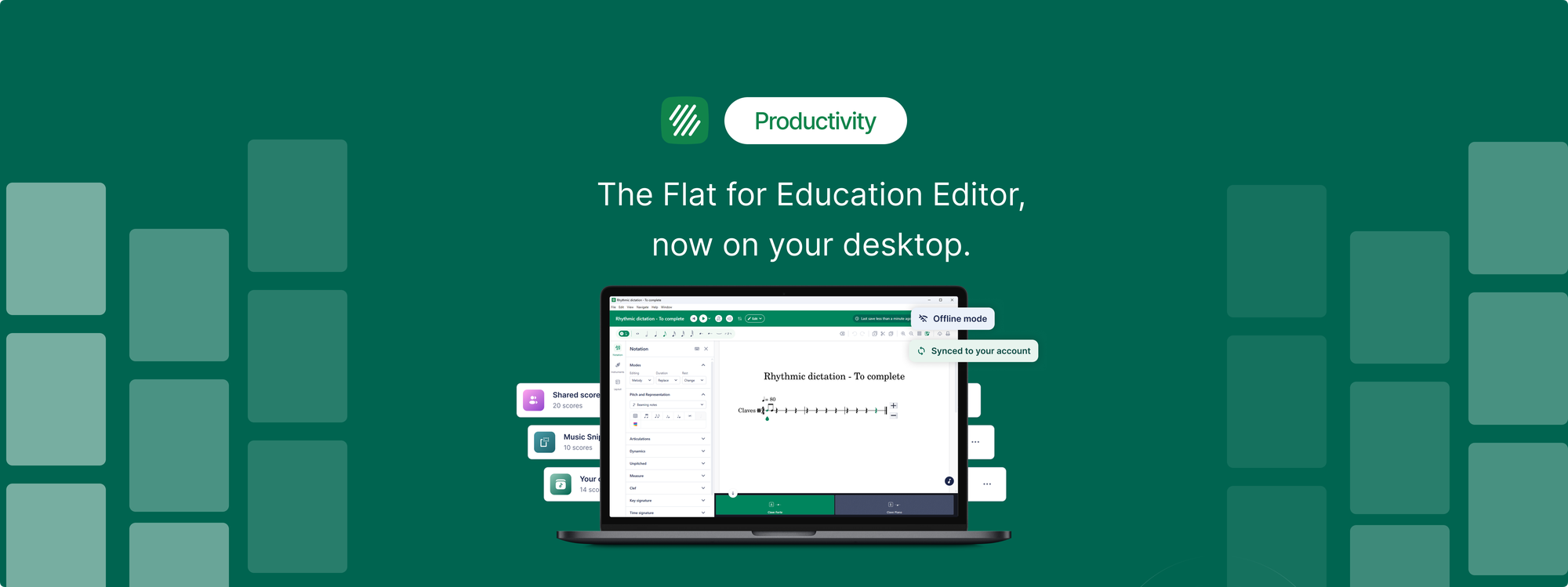
The Flat for Education editor now runs as a desktop app for Mac and Windows, and it's built to remove that whole category of friction. It's the same account, the same scores, and the same full notation editor you already use in the browser, installed directly on the computer. The difference is that it keeps working when the network doesn't, and it syncs everything back the moment you're online again.
Here's what it is, why it matters for classrooms, and how to get it.
The full editor, now on the desktop
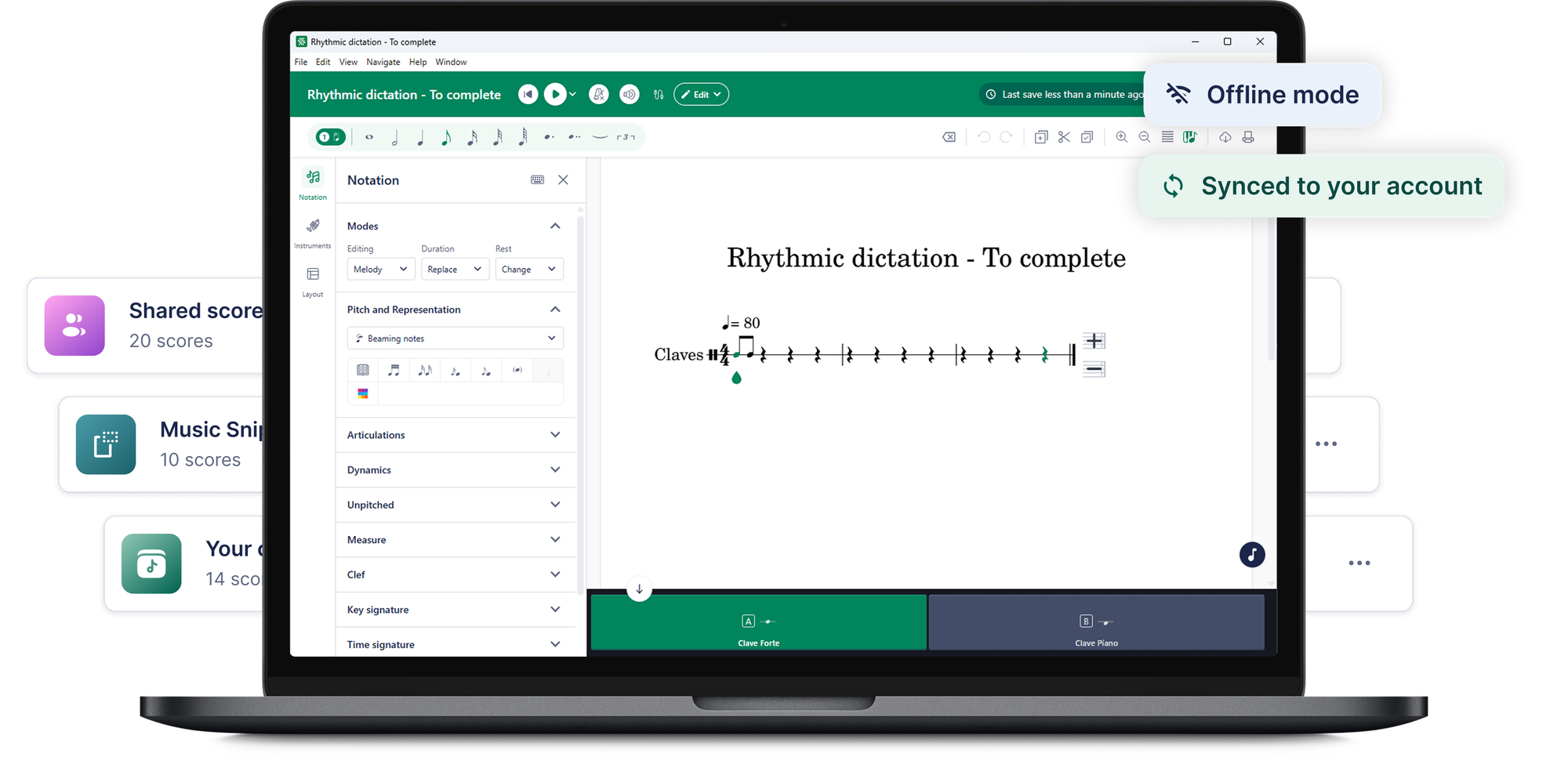
This isn't a stripped-down companion app. The desktop app is the full Flat for Education notation editor: writing and editing, playback, the pedagogical notation tools, and your whole score library. You install it, sign in with your existing Flat for Education account, and your scores are exactly where you left them.
The desktop app is the notation editor only. Assignments stay in the browser version of Flat for Education, so you still create, hand out and grade them on the web, and students still open and submit them there.
Installing it on the computer also means it integrates more closely with the machine your students actually work on, and it takes advantage of desktop performance rather than being limited by what a browser tab can do.
Great work shouldn't wait for the Wi-Fi
This is the reason the desktop app exists, and it solves a problem that has quietly shaped music technology in schools for years.
Unreliable school networks are one of the most common reasons teachers hesitate to build a lesson around software. A composition activity that depends on a live connection is a composition activity that can collapse halfway through a period. With the desktop app, that dependency is gone. Connection dropping in and out? Students keep composing and editing, and their work is saved locally on the computer, no connection needed. The next time the app is online, those changes sync straight back to their Flat for Education account.
For students, that means a score started in class carries on at home and back again, without anyone emailing files around or losing progress. For teachers, it means you can plan a composition lesson without the network being a single point of failure. The offline-first design turns "I hope the Wi-Fi holds" into a non-issue.
Install it on every computer
There's no per-seat install limit on the desktop app. You can put it on the lab machines, on your own staff laptop, and on a student's home computer, all at once.
The reason this works cleanly is that your Flat for Education account is the single source of truth. The app is just a way in. Whoever signs in on whichever machine picks up exactly where they left off, because the scores live with the account, not the device. A student can start a piece on a lab computer during class, open the app at home that evening, and continue on the same score without a single manual step.
Built for the whole music classroom
The desktop app is designed to serve everyone in the room, not just one type of user.
Teachers get the full notation editor on a tool that doesn't buckle when the network does, so a composition lesson in the lab is something you can rely on rather than gamble on. Your assignment workflow stays in the browser, exactly as it is today.
Directors and administrators get software that installs on school machines and works within the realities of a school's network, without a per-seat install limit to manage.
Students get to keep writing wherever they are, in class or at home, on the same scores, with their progress always saved and always synced back.
Get the desktop app in three steps
- Log in to download. Sign in to Flat for Education and the download for your platform will be waiting in your dashboard.
- Install it. Download the app for Mac or Windows and install it like any other desktop application.
- Sign in and start. Open the app, sign in with your existing Flat for Education account, and your scores are all there.
Don't have an account yet? Start a free trial and the download will be waiting in your dashboard.
The same Flat for Education editor, now on your desktop
The desktop app doesn't ask you to learn anything new or manage anything extra. It's the Flat for Education editor you already know, installed where your students work, built to keep going when the connection can't. For any music program that has ever had a lesson interrupted by the network, that's the whole point.
If your school already uses Flat for Education, log in and grab the download from your dashboard. Not on Flat for Education yet? You can start a free 30-day trial and set up your classroom in minutes.
FAQ
Do I need a new Flat for Education account for the desktop app?
No. The desktop app uses the same Flat for Education account you already have. You log in with your existing credentials and all your scores are there. There's nothing separate to set up and no new account to create.
Can students do their assignments in the desktop app?
Not at the moment. The desktop app is the Flat for Education notation editor only. Assignments stay in the browser version of Flat for Education, where teachers create and grade them and students open and submit them.
How do I download the Flat for Education desktop app?
Log in to Flat for Education, and the download for your platform will be waiting in your dashboard. Install it on Mac or Windows, sign in with your existing account, and start composing. If you don't have an account yet, start a free trial and the download will be ready in your dashboard.
Which operating systems does the desktop app support?
The desktop app is available for macOS and Windows. It's the full Flat for Education notation editor, so everything you do in the browser editor is available in the desktop app. Assignments stay in the browser.
Does the desktop app work offline?
Yes. The desktop app works offline. If your classroom connection drops, you and your students can keep composing and editing, and the work is saved locally. The next time the app is online, those changes sync straight back to your Flat for Education account.
How many computers can I install the desktop app on?
There's no per-seat install limit. You can install the desktop app on your lab machines, your staff laptop, and a student's home computer. Because your Flat for Education account is the single source of truth, anyone signs in and picks up exactly where they left off.