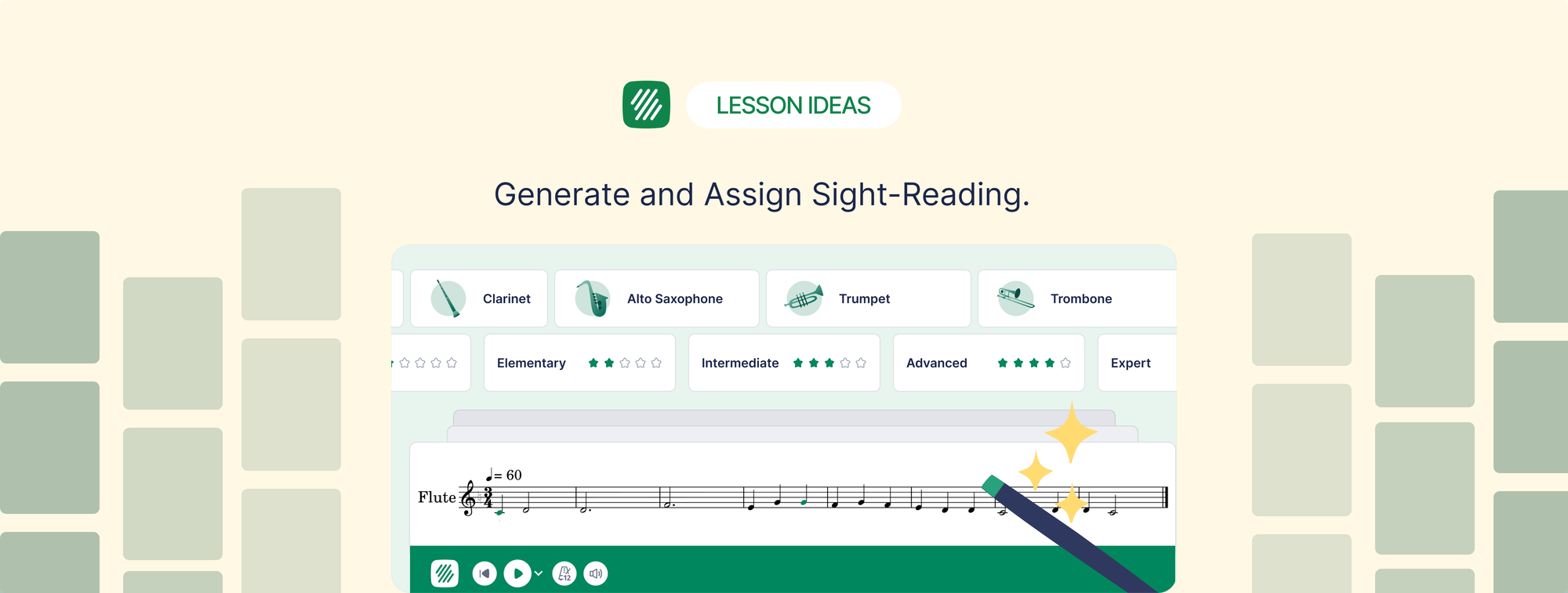
The standard sight-reading assignment workflow in most schools has too many steps. A teacher finds or creates an exercise, formats it, prints it, or converts it to a PDF, distributes it somehow, students read it, and then the teacher either runs individual playing tests (time-consuming) or takes their word for it (useless). The whole process takes more preparation time than the actual reading does.
Flat for Education's sight reading generator, combined with the platform's performance assignment tool, collapses this into a single workflow. Generate. Assign. Students record. You review. Here's exactly how it works.
What is the sight-reading generator?
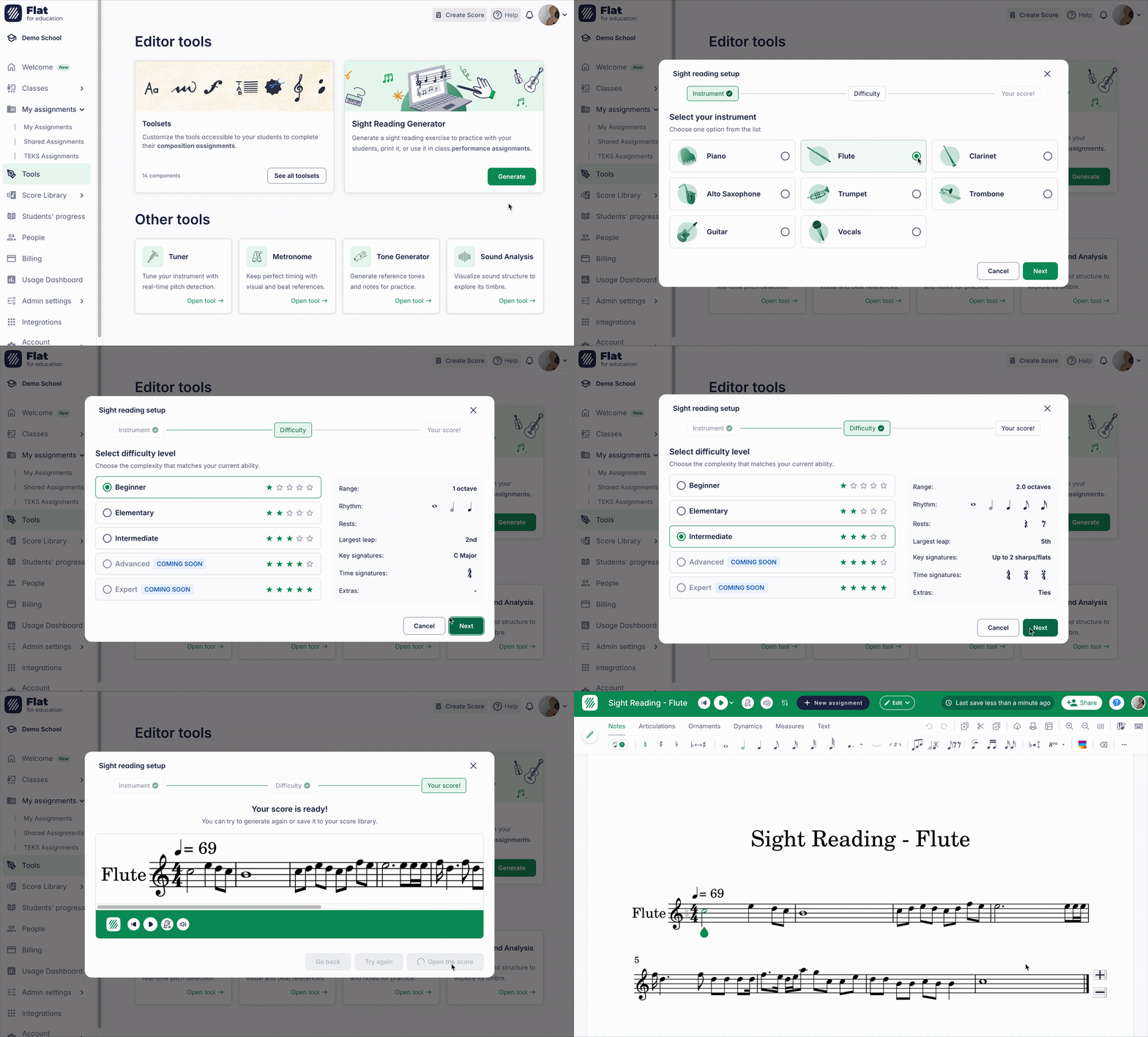
The sight-reading generator is a tool built into Flat for Education that creates unique 8-measure sight-reading exercises on demand. You choose the instrument, the difficulty level, the time signature, and the key signature. The platform generates a notated exercise instantly. Run the generator again with the same settings and you get a different exercise. Every exercise is unique, which means students cannot share answers or look up the exercise in advance.
The generator currently supports Piano, Flute, Clarinet, Alto Saxophone, Trumpet, Trombone, Guitar, and Vocals. Generated exercises are saved automatically in the student's score library under a folder called Sight Reading.
Step 1: Generate the exercise
Log into Flat for Education and open the sight-reading generator from your teacher dashboard in the tools section.
- Select the instrument for the exercise.
- Choose a difficulty level appropriate for your students' current reading level.
- Set the time signature and the key signature. Pick one of each, or select several and the generator uses one at random. Leave either on Random to let it choose.
- The platform generates the exercise instantly as a standard notation score, opening in horizontal Track View so it's ready to project.
- Preview the exercise to confirm it's appropriate. If you want a different version, regenerate with the same settings.
One useful decision at this stage: do you want every student to receive the same exercise, or a different one? If you're using the exercise as a class warm-up projected on screen, one exercise for the whole class is fine. If you're collecting individual recorded submissions, you can generate a different exercise for each student so no one hears another student's version in advance.
Students can now open the generator from their own tools page too, so they can practise between assignments, not only when you set one.
Step 2: Create a performance assignment
The sight-reading exercise becomes a real assignment through Flat for Education's performance assignment tool. This is what makes the recording and submission workflow possible.
- From your Resource Library, create a new Performance Assignment.
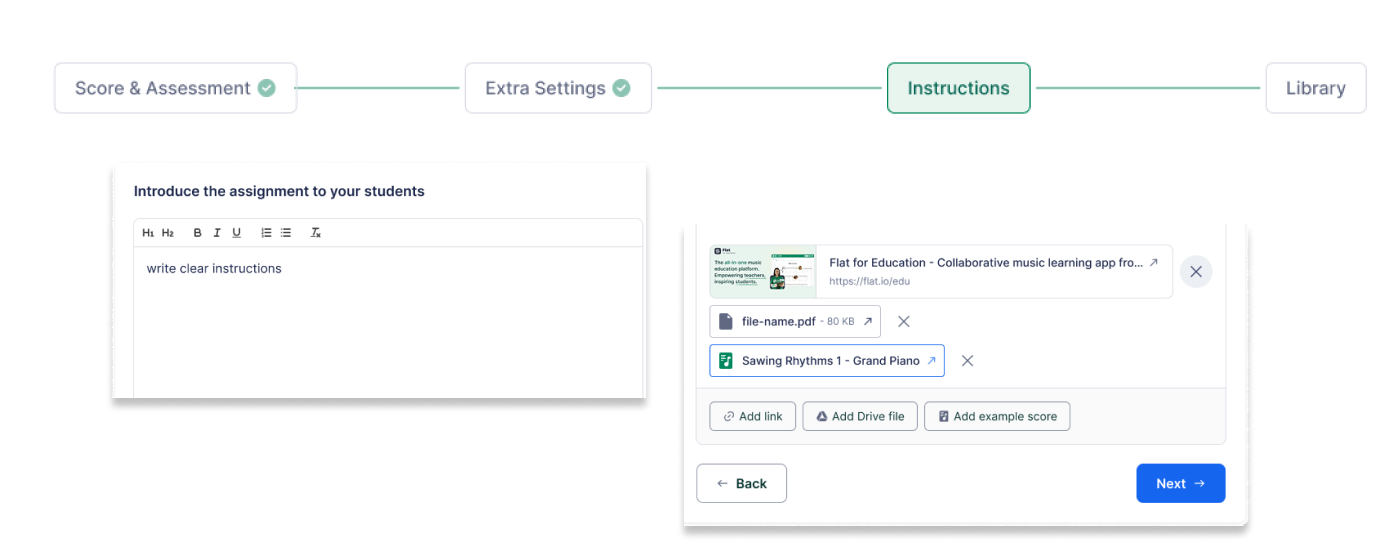
- Attach the generated sight-reading exercise as the score students will perform against or directly create it inside the assignment!
- Write the assignment instructions. Be explicit: "This is a first-read exercise. Do not practise before recording. Record your first attempt and submit."
- Set the due date and any gradebook settings.
- Publish to your class.
Students receive the assignment in their normal Flat for Education workspace. They open the exercise, read through it once if they want to prepare (that's fine and normal), then record their performance using their device microphone directly inside the platform. The audio records alongside the score and submits together.
Step 3: Distribute through your LMS
Flat for Education integrates natively with Google Classroom, Microsoft Teams, Canvas, Schoology, and MusicFirst. The assignment appears in students' normal coursework view and grades return automatically to your LMS gradebook when you mark submissions.
Students don't need to navigate to a separate platform. They see the sight reading assignment alongside their other coursework, open it, record, and submit. The submission includes both the audio recording and the score, so you can listen while reading the notation.
Step 4: Review recordings and give feedback
Open the assignment dashboard in Flat for Education. Each student's submission shows the score they performed and the audio recording of their first read.
Review the recording while following the score. You can leave timestamped comments at specific points in the recording: "Lost the beat here at measure 5," "Good rhythm in measures 1-3," "Pitch accuracy drops after the break at measure 6." Students receive this feedback attached to the specific moment in their recording.
Step 5: Build a sight-reading record over time
The most powerful use of this workflow isn't a single assignment. It's doing this once a month, consistently. A September recording and a January recording of sight-reading exercises at the same difficulty level tell a clear story about development. The student can hear it. You can hear it. A parent can hear it.
Keep difficulty levels consistent across monthly submissions so you're comparing like with like. Note when you increase the difficulty level: that's a milestone worth recording in your feedback. "I've moved you to the next difficulty level this month, which means the exercises will introduce some new rhythmic patterns. Keep the same approach."
Using the same exercise as a class warm-up and individual assessment
These two uses don't have to be separate. Generate an exercise for a class warm-up at the start of the period. Everyone reads together from the projected score. Then assign a different generated exercise (same difficulty, different notes) as an individual home recording. Students know what the difficulty level feels like from the class read. The home recording captures their independent performance.
This is the most efficient sight-reading routine: 5 minutes of class sight-reading warm-up, one individual assignment per month, and minimal teacher preparation time.
Curious to see it in action?
Explore our latest tutorial!

Flat for Education's sight-reading generator and performance assignment tools work together to make regular sight-reading practice possible without significant teacher preparation time. Generate exercises in seconds, collect recorded submissions, and build a termly picture of each student's reading development. Free 30-day trial at flat.io/edu.
FAQ
Can I give every student a different exercise?
Yes. Generate a new exercise for each student using the same instrument and difficulty settings. Each generated exercise is unique, so students cannot share or look up the answer. You can create multiple exercises quickly and assign them individually through the performance assignment tool, which is the most rigorous approach for individual playing test contexts where you want evidence of genuine first-read performance.
How do students record their sight reading?
Students open the performance assignment in Flat for Education on any device (Chromebook, tablet, laptop, or phone) and use the built-in recording tool, which uses the device microphone. The recording runs for the duration of the performance and submits automatically alongside the score when they complete the assignment. No separate app or recording software is needed.
How long are the generated exercises?
All exercises generated by the sight-reading generator are 8 measures long. This is a practical length: long enough to require sustained reading attention, short enough to complete in a single attempt and review quickly as a teacher.
Does the grade go back to Google Classroom or my LMS automatically?
Yes. When you mark a performance assignment in Flat for Education, the grade returns automatically to Google Classroom, Microsoft Teams, Canvas, or Schoology, depending on which LMS you're using. Students see their grade and comments in their normal coursework view, so you do not need to enter grades manually in a second system.
Can I use the sight-reading generator for a class warm-up without creating a formal assignment?
Yes. Generate an exercise, project it on screen, and use it for a class read-through without creating any assignment. The generator works as a standalone tool independent of the assignment workflow; the formal assignment structure with recording and grade return is for contexts where you want individual evidence and a gradebook entry. Both uses are valid, and many teachers use both in the same week.