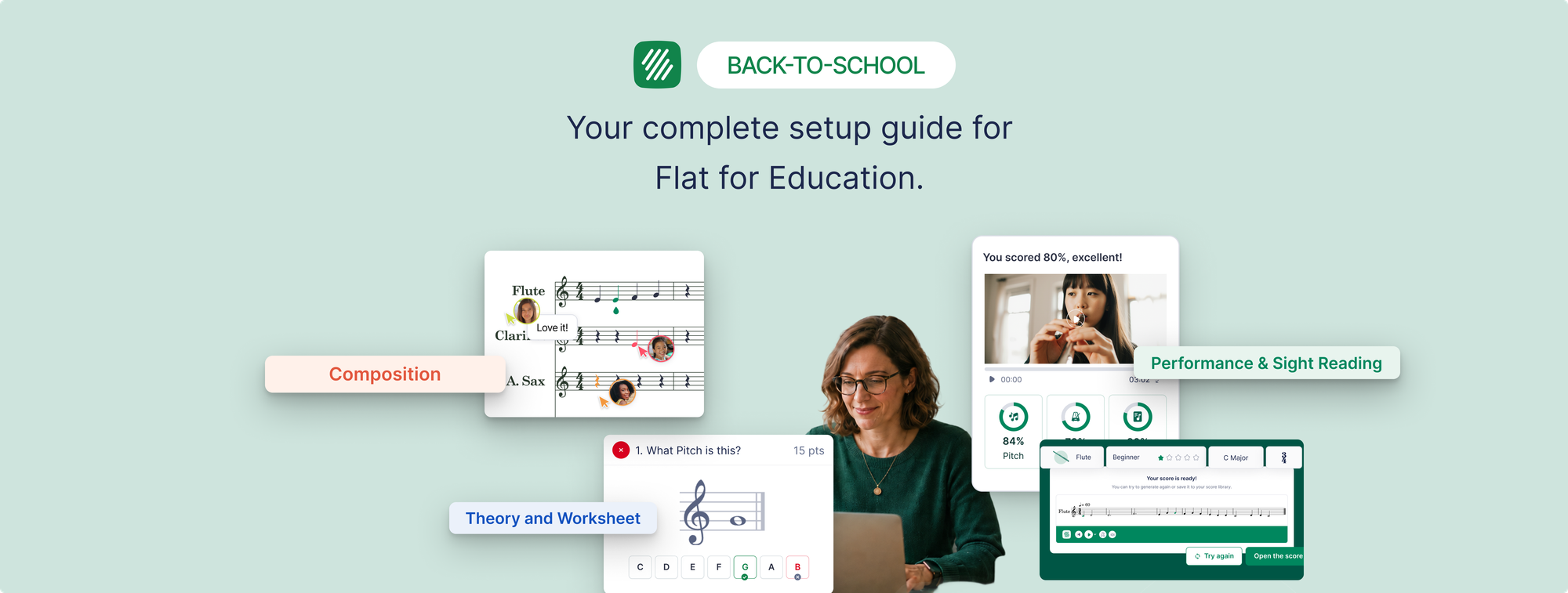
The week before school starts is not the time to figure out a new platform. You have rosters arriving late, instrument checks to run, and a room that still smells like the summer. So here is a setup guide you can actually finish before the bell rings.
Setting up your music class with Flat for Education takes about 30 minutes if you know what you are doing. This guide walks through every step, in order, so you do not waste time clicking around trying to find things.
What you'll need before you start
Before you open Flat for Education, have these ready:
- Your school email address (the one linked to Google Classroom or Microsoft Teams, or any other LMS you use)
- Your class rosters, or access to your LMS
- A rough idea of your first assignment for the semester
That is genuinely all you need. You do not need to install anything. Flat for Education runs entirely in the browser, on any device, including Chromebooks.
Step 1: Create your account and start your trial (3 minutes)
Go to flat.io/edu and click Start Free Trial. Your 30-day trial gives you full access to everything, including the new tools added in 2026: the Sight-Reading Generator, Ear Training Worksheets, Fingering Worksheets, Tuner, Metronome, and Tone Generator. No credit card required.
Step 2: Connect your LMS and import your roster (5 minutes)
This is the step that saves you the most time over the course of the year. If your school uses Google Classroom or Microsoft Teams, your roster imports automatically. For Canvas, Schoology, and Moodle, a simple LTI integration will be needed to access your roster.
Go to Settings, then Integrations. Your classes will appear. Select the ones you want to import. Students are added automatically, with no data entry on your part.
If you are not using an LMS, you can add students manually by email, or share a class join link that students use to enroll themselves.
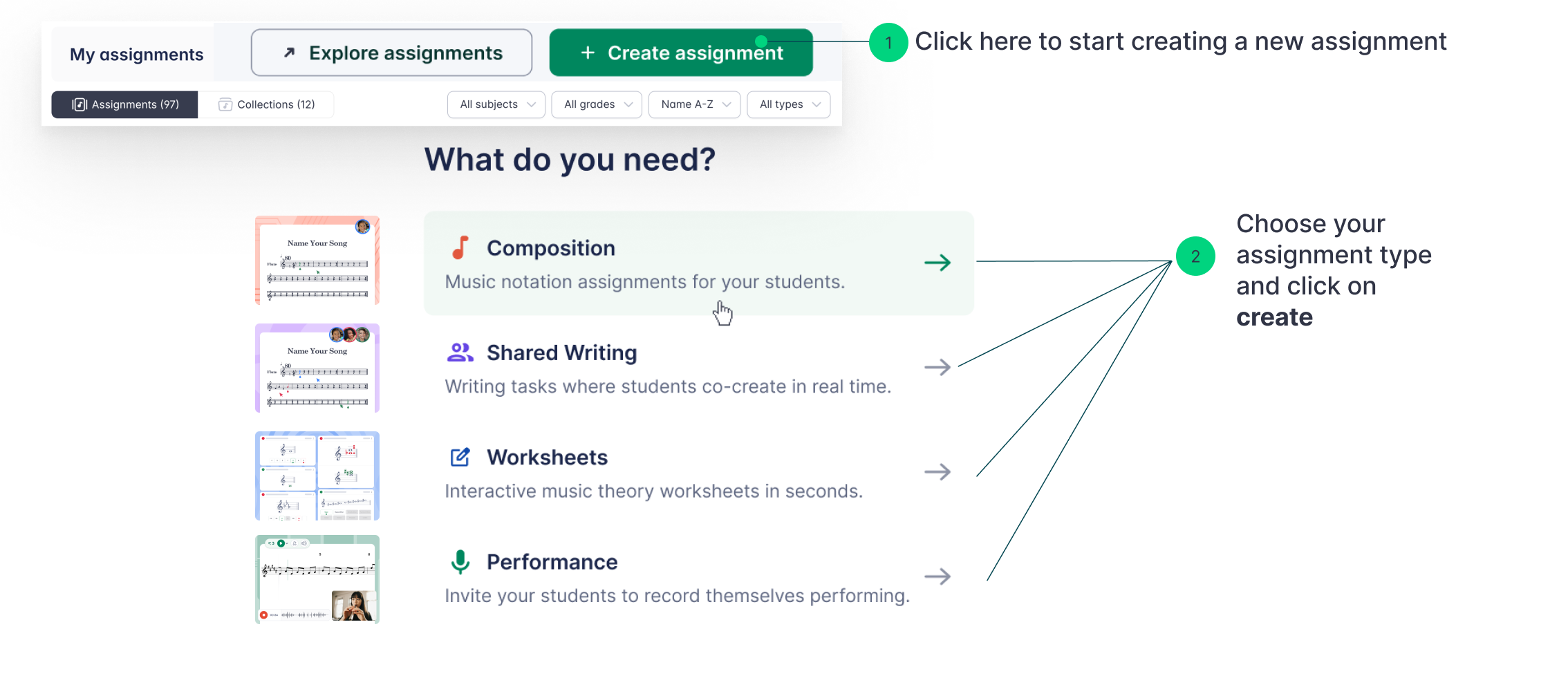
Step 3: Explore the assignment types (5 minutes)
Before you build your first assignment, spend five minutes clicking through what is available. Flat for Education has four main assignment types, and knowing which one fits which learning goal saves you from making the wrong choice under pressure.
Composition assignments. Students create a score from scratch or from a template you provide. You see their work in real time, leave timestamped comments on specific measures, and they revise inside the platform. Good for: original composition projects, arranging exercises, creative work.
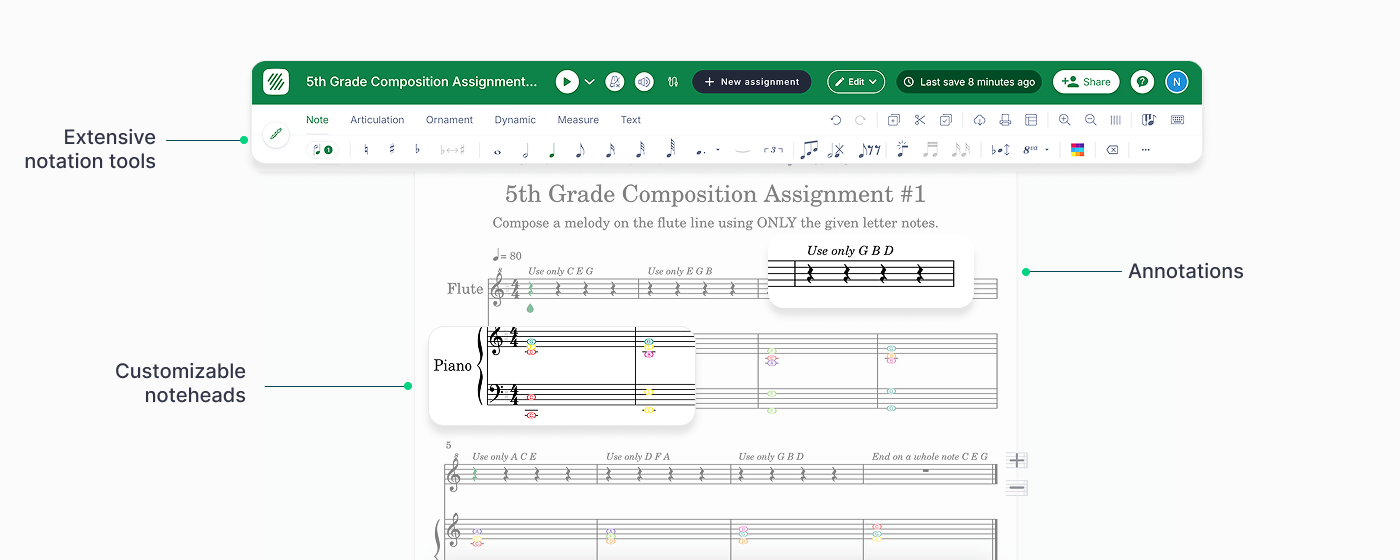
Score exercises. You import a score, delete notes in specific measures, and students complete the passage. This is not the same as a music theory worksheet. It is a repertoire-based exercise, useful for fill-in-the-blank notation work, harmonic completion, or melody writing within a given context.
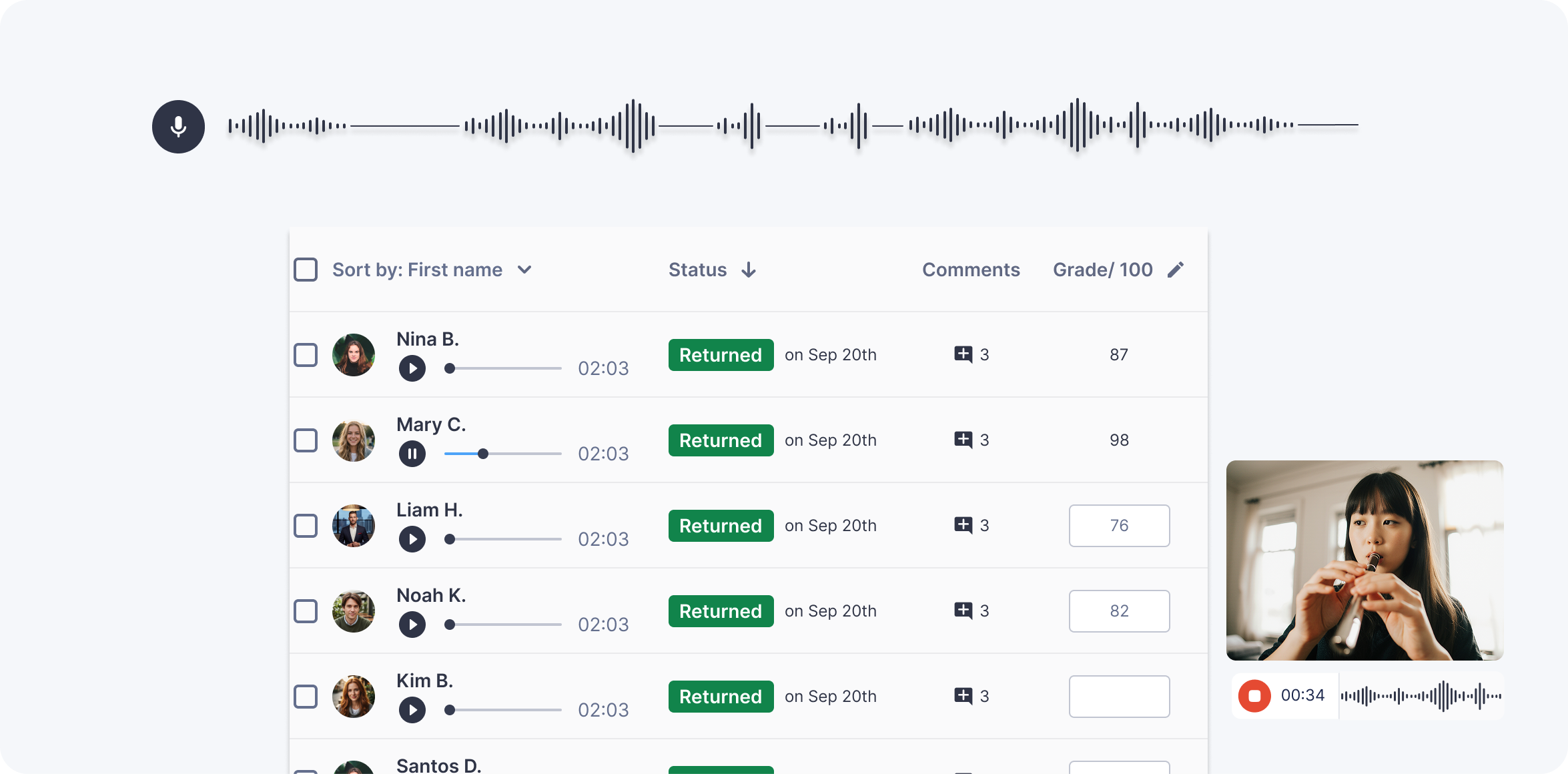
Performance assignments. Students record an audio or video performance directly against the score using their device. Submissions land in your gradebook with the notation and recording together. Good for: playing tests, sight-reading assessments, jury-style recordings. You can attach a score for students to play, or use Free Record to have them record with none, handy for ensembles, mixed repertoire, and improvisation.
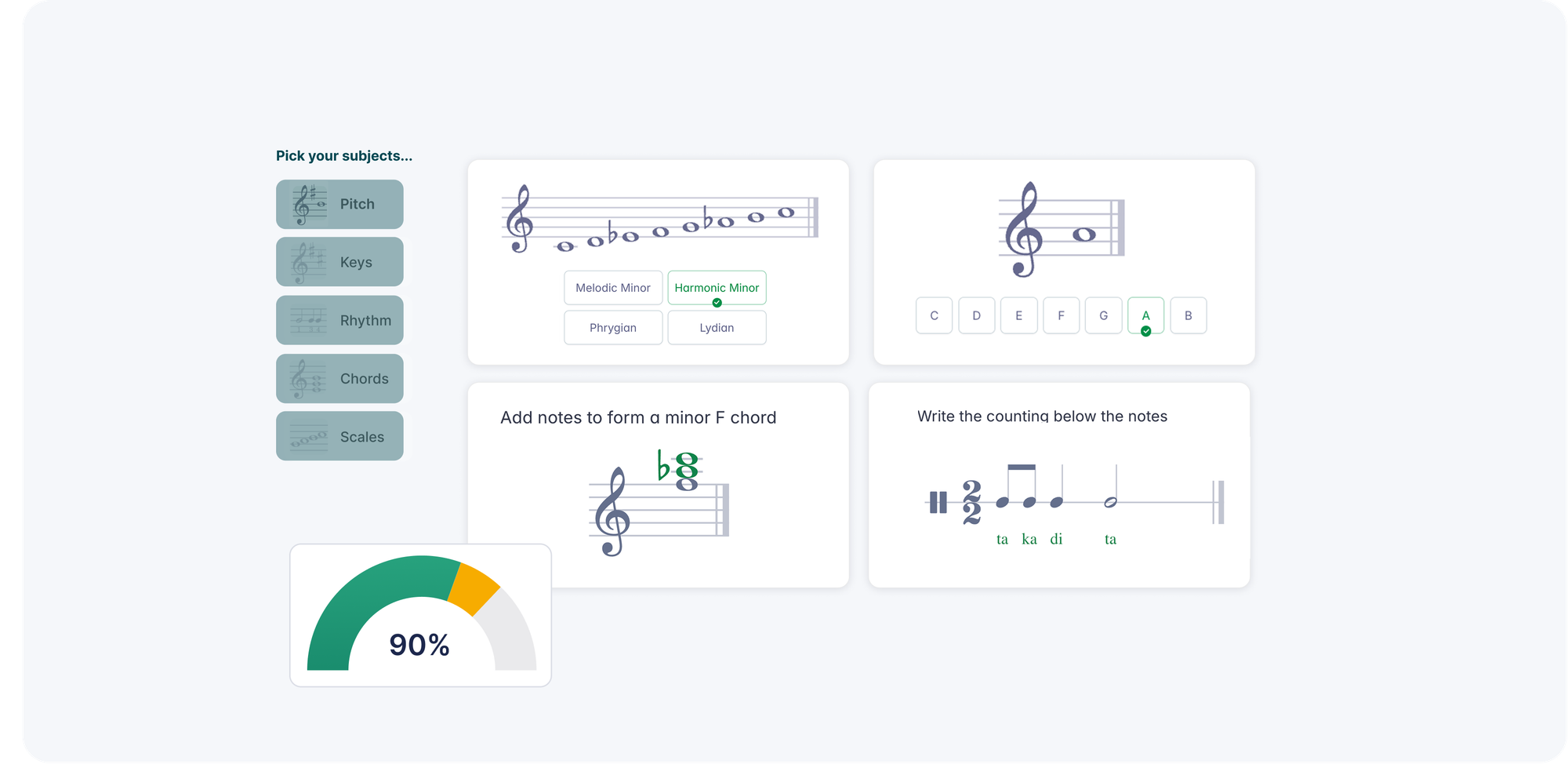
Music theory worksheets. Auto-generated by Flat for Education across three categories: notation theory exercises (pitch, key, and interval recognition and construction), Ear Training Worksheets (interval identification by ear), and Fingering Worksheets (recorder). All are auto-graded digitally, so results appear in your gradebook the moment a student submits without you grading a single question.
Step 4: Build your first assignment (10 minutes)
Click New Assignment in your class dashboard. Pick an assignment type based on what you want students to do in the first week.
For a first-day activity, a composition assignment with a simple brief works well. Something like: "Write a four-measure melody in C major using only quarter and half notes." It gets students into the notation editor immediately, and you can see who has figured out the interface and who needs support, without collecting anything on paper.
Write your instructions in the assignment description. Set a due date. If you want to restrict the instruments or clef students can use, set those parameters in the assignment settings. Publish to your class. Students receive a notification through their LMS or by email, depending on how you connected.
Step 5: Set up one practice tool for day one (5 minutes)
If you are on the Teacher Plan or School Plan, you have access to the new tools added in 2026. Pick one to introduce on the first day.
The Tuner is the lowest barrier to entry. Students open it, play a note, and see immediately whether they are in tune. It uses the device's microphone and works for any instrument or voice. It does not require you to explain anything complicated. Students figure it out in about thirty seconds, which gives you time to deal with everything else happening on the first day of school.
The Metronome and Tone Generator are similarly self-explanatory. Save the Sight-Reading Generator for once students know the interface, as it works best when they understand how to read and play back a score first.
Step 6: Check your gradebook view (2 minutes)
Go to your class dashboard and click Grades. This is where all assignment submissions appear, organized by student. Auto-graded worksheets show results automatically. Composition and performance submissions sit here waiting for your review, with the notation and any recordings accessible in one click.
You do not need to configure anything for this to work. It is ready as soon as you publish your first assignment.
Your class is ready
Thirty minutes from creating your account to having a class set up with a roster, a first assignment ready to publish, and a practice tool students can open on day one. That is the goal of this guide, and for most teachers it is achievable in a single sitting.
Flat for Education offers a free 30-day trial with no credit card required. If you have questions about setup or want help connecting your LMS, the team is reachable at edu@flat.io.
FAQ
Does Flat for Education work on Chromebooks?
Yes. Flat for Education is fully browser-based and runs on any device with a modern browser, including Chromebooks, with nothing to install. This is particularly relevant for US schools, where Chromebooks are the dominant student device.
How do students access Flat for Education?
Students log in through the platform at flat.io/edu, using their school Google or Microsoft account if your LMS is connected, or with a username and password if they enrolled manually. If you connected Google Classroom, students can access assignments directly through the Classroom interface.
Can I use Flat for Education with Canvas or Schoology?
Canvas, Schoology, and Classlink integrations are available on the School and District Plan. If you are on the Teacher Plan and need one of these integrations, contact edu@flat.io to discuss your options.
What is included in the free trial?
The 30-day free trial includes full access to all features, including the new tools added in 2026, with no credit card required. After the trial, the Teacher Plan is $99 per teacher per year, with student licenses available at $6 per student per year.
Can I import scores I already have?
Yes. Flat for Education imports MusicXML files, so scores from Finale, Sibelius, MuseScore, and Dorico all migrate cleanly. PDF import is also available: paying plans include 100 PDF import credits per year, which converts a PDF score to editable notation inside the platform.