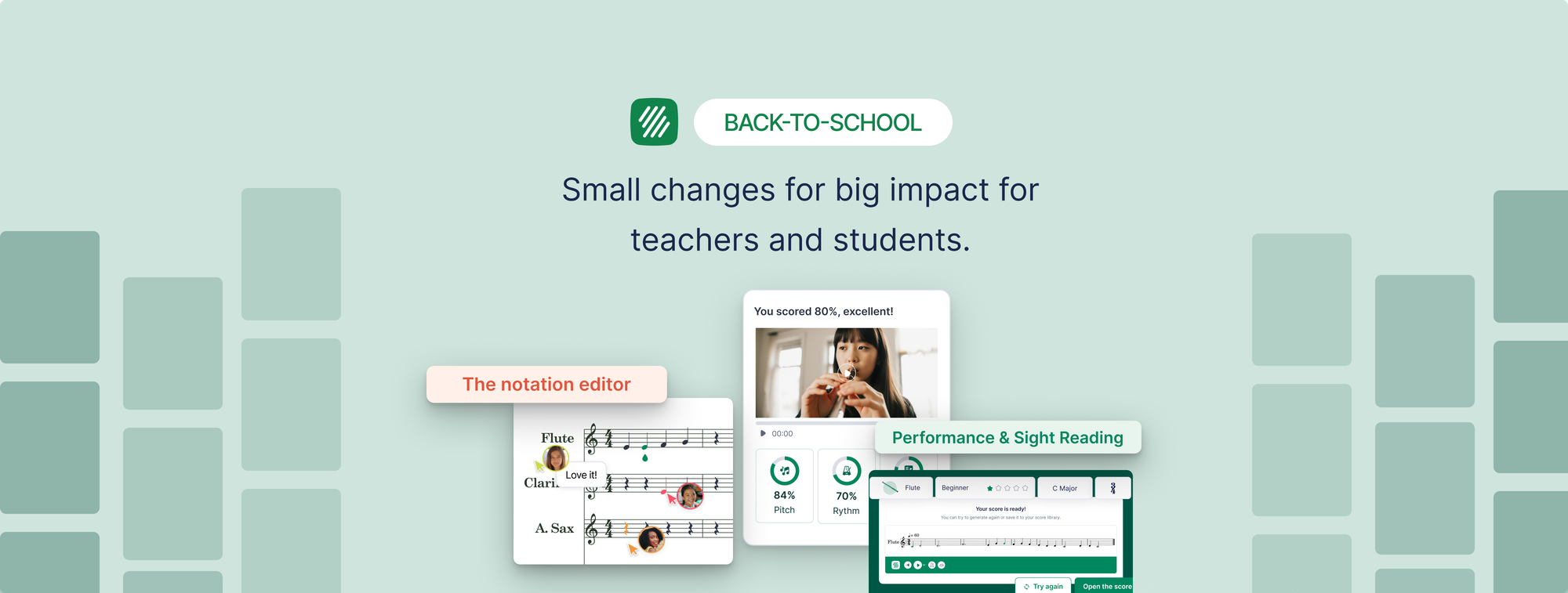
If you only have ten minutes before rosters land, these are the Flat for Education updates worth knowing about, because most of them change what you can set up on day one.
The sight-reading generator grew up
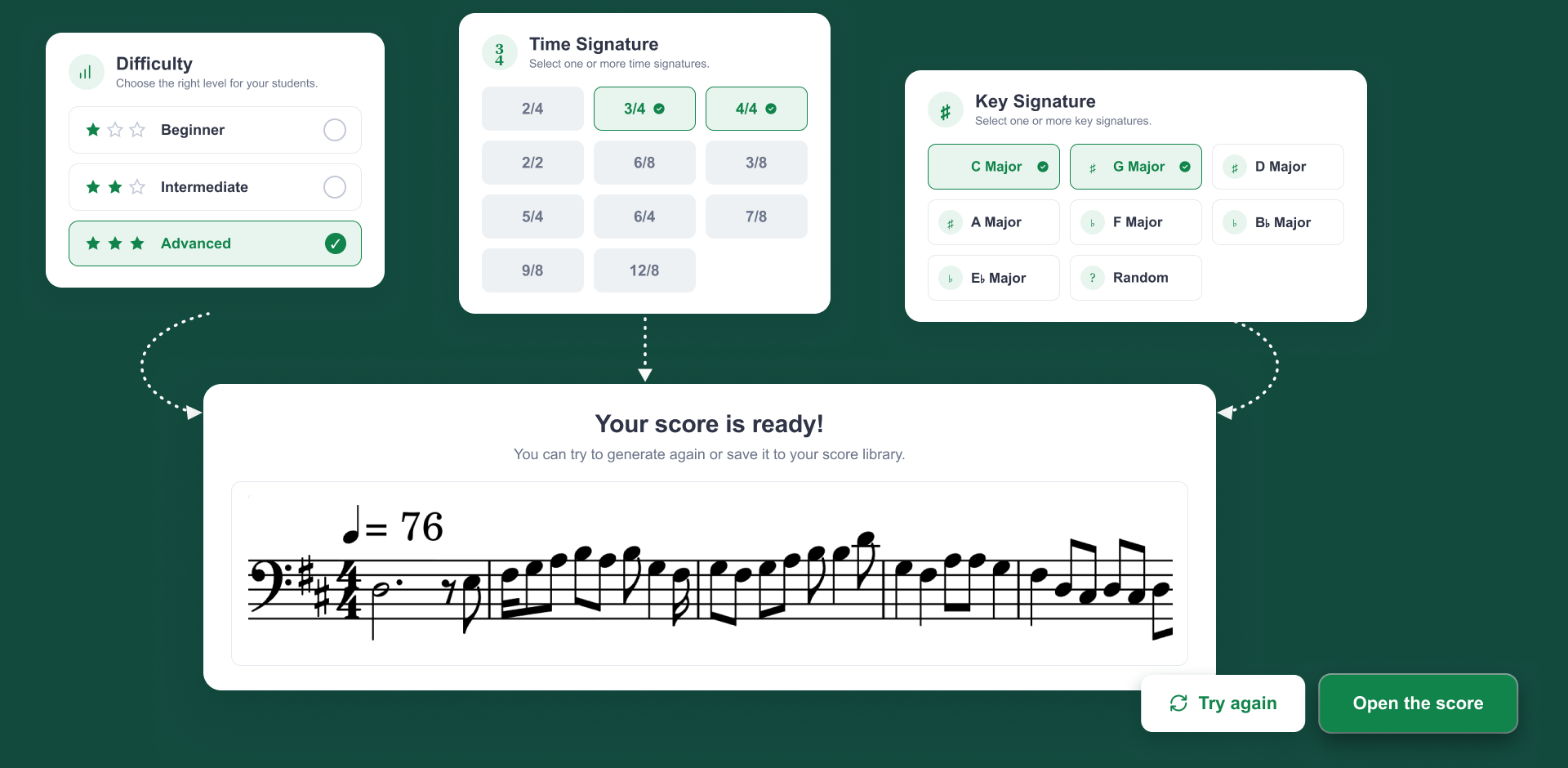
The sight-reading generator got the update teachers asked for most: you now control the key and the time signature before an exercise is created. You can also create multi-band parts in one click!
That sounds small. It's the whole game. If you're teaching a unit in 6/8, you generate reading practice in 6/8 instead of hoping it turns up. Starting beginning band in flats? Set the key to B-flat and the exercise lands where your students actually are. The key options are major keys for now, so C, G, D, A, F, B-flat, and E-flat, plus Random. You can tick several keys or several meters at once and let the generator pick one at random each time, which is how you get a week of varied practice from one setup.
Two smaller changes you'll feel straight away. Exercises now open in horizontal Track View by default, so an exercise you throw on the projector is ready to read without switching from Page View first. And you can generate an exercise and attach it to a performance assignment in one step, instead of generating it, saving it, then hunting for it inside assignment creation.
How to build a term of sight-reading in five minutes
- Open the Sight-Reading Generator from your tools page.
- Pick the instrument, then set the difficulty level.
- Set the time signature, then the key. Choose one of each, or select several and let the generator vary them.
- Generate. The exercise opens in Track View, ready to display.
- Attach it to a performance assignment, or send students to generate their own.
If you want the full assign-and-collect workflow, the step-by-step is in How to Generate and Assign Sight-Reading Exercises.
Students can now practise sight-reading on their own
This is the change that keeps working after the bell.
Until this summer, sight-reading was a teacher-only tool. Students saw an exercise when you assigned one, and that was it. Now students can open the generator from their own tools page and practise as much as they want, at their own level, without you generating or grading a thing.
Reps are the one thing a once-a-week classroom activity can't give them. A student who reads three fresh lines a night for a week comes back a noticeably more fluent reader. Point them at the generator in the first week, make it the standing "if you have five minutes" task, and you've built a habit that runs itself all year.
Free Record: collect the performances that never fit a score
Some playing just doesn't map to a single piece of sheet music. A brass quintet playing together. A guitar class where everyone prepared something different. An improvised solo over a backing track. Free Record is a performance assignment type built for exactly those.
Students record any playing, audio or video, with no score attached, and hand it straight in. Every submission lands in the same review screen as the rest of your assignments. It sits next to the classic score-based performance assignment, so you pick the mode that fits the task.
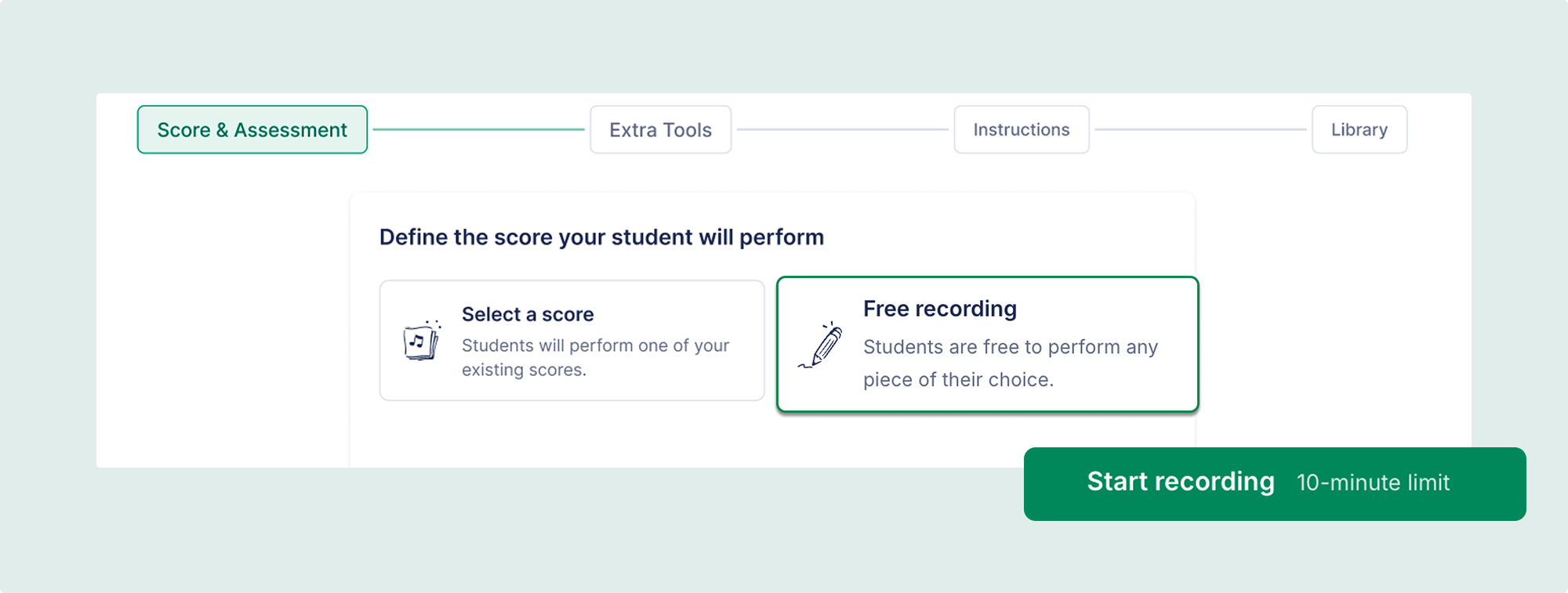
Where it earns its place is the assignments that were awkward or impossible before:
- Ensembles and small groups. A jazz combo or a choir sectional records one take you grade as a group, instead of eight separate part submissions.
- Mixed-repertoire playing tests. Set one assignment for the whole class and let each student record the piece they've prepared at their own level. No building thirty near-identical tasks.
- Improvisation. A solo over a backing track has no notation to play from, so a no-score recording is the natural fit.
- Chair auditions. Students submit their excerpt on video and you rank them on your own time, instead of losing rehearsals to live auditions.
- Differentiated classes. When a beginner and a near-portfolio player share a room, each records the repertoire that actually fits them.
The rule of thumb: if the piece is fixed, attach the score and students get the metronome and tuner in the workspace as they practise. If the performance is varied, improvised, or a group take, reach for Free Record.
Performance auto-grading, now in beta
Here's the one that gives you your evenings back, and it's rolling out this term.
You can now switch on auto-grading when you create a performance assignment, and choose how strict the analysis should be. When a student hands in a recording of the attached score, the engine listens and flags how closely the performance matched, so you're reviewing and confirming rather than marking every submission cold. You stay in control of the final grade. It just does the first pass for you.
This is in beta and being refined with teachers right now, so expect it to sharpen over the term. If you run a lot of scale checks or set-piece playing tests, it's worth turning on early and seeing how close its first pass gets to yours.
👉 If you are interested in trying out the beta, please email us at edu@flat.io
Import music from a PDF, or a photo
If you've ever retyped a piece into notation software because you only had a printout, this one saves you that hour.
The import flow was rebuilt on a new recognition engine over the summer, and it now takes more than PDFs. You can bring in a PDF, an image file, or a photo you scanned with a camera, and get editable notation you can transpose, adjust, and assign. Snap the octet arrangement from your filing cabinet, import it, clean it up, and it's ready for parts.
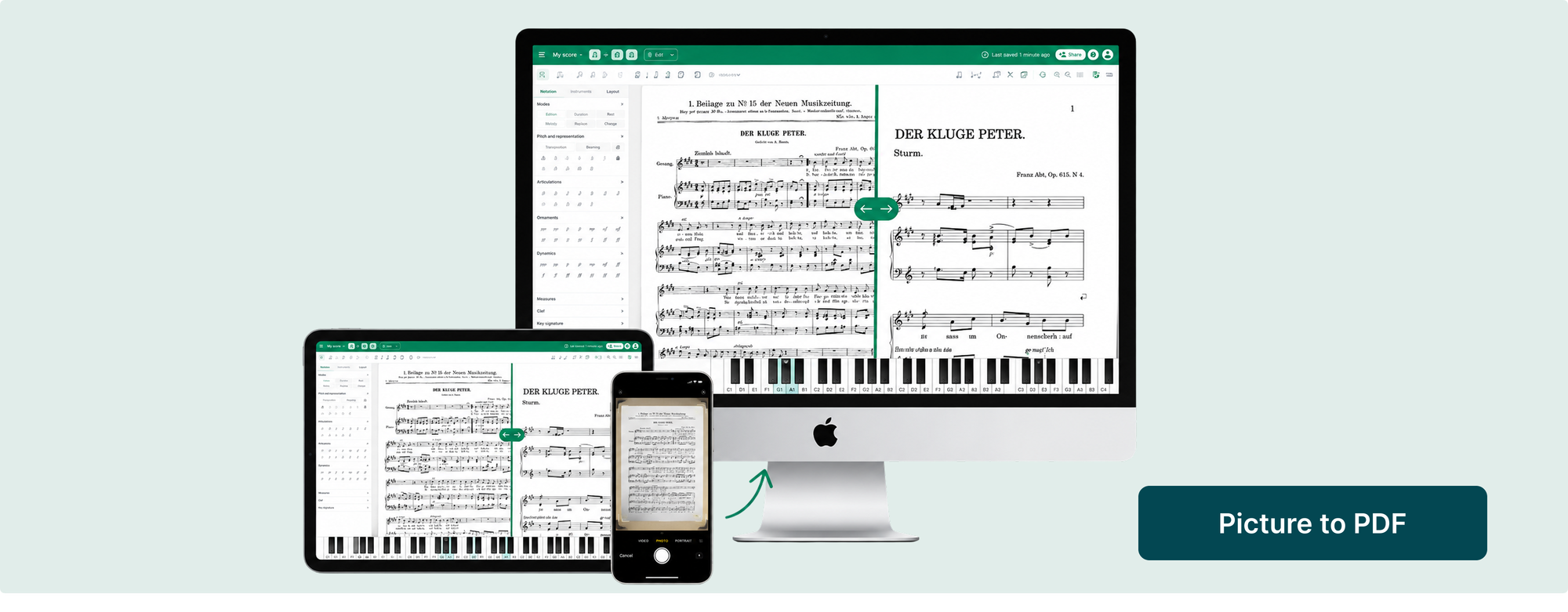
One note for your classes: in Flat for Education, this import is available to teachers and admins, not students. So it's a prep tool for you rather than something students trigger themselves.
A cleaner editor toolbar
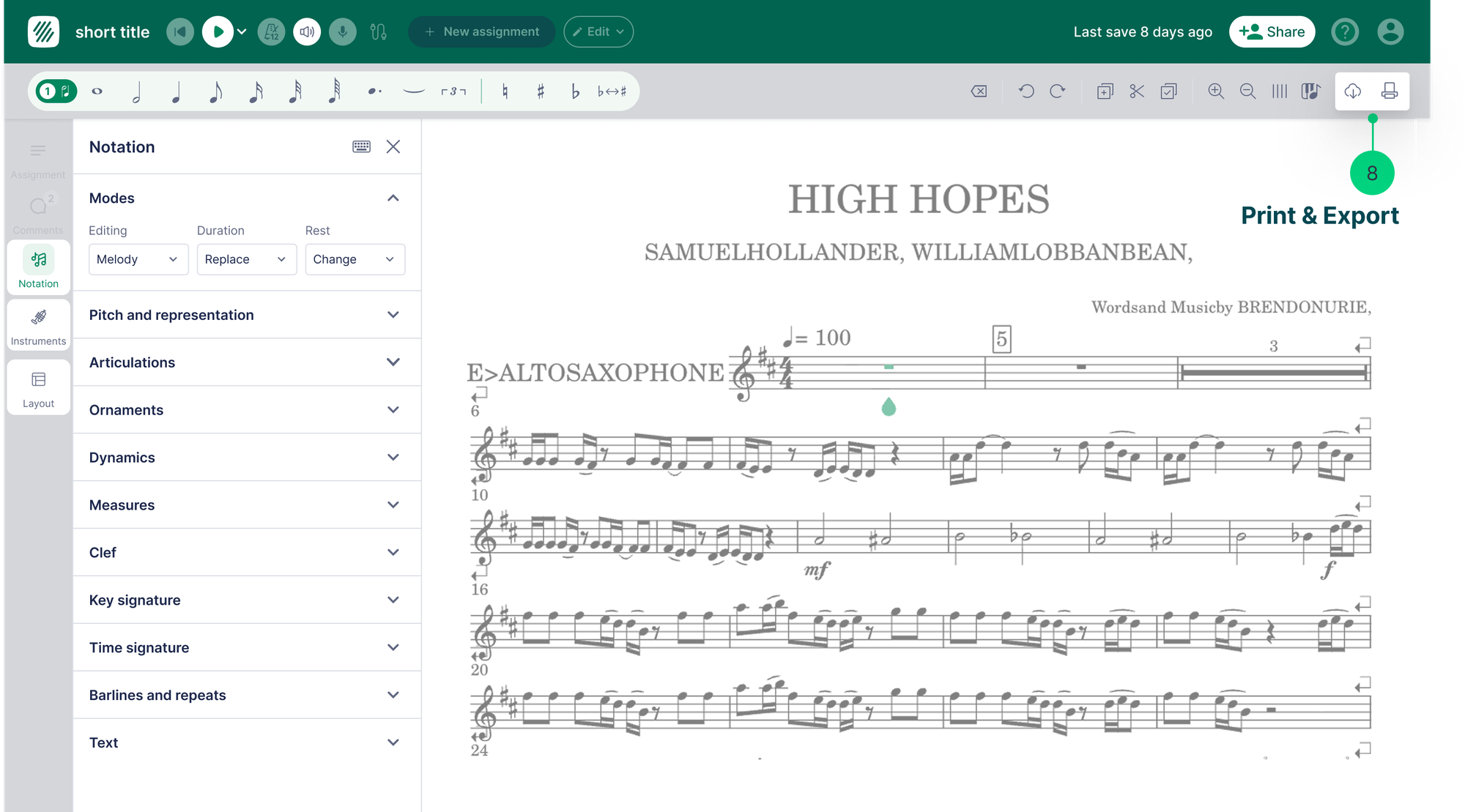
The editor your students write in is getting a tidy-up, and it's built to give assignments more room to breathe.
The changes are about layout, not relearning where everything lives. The tool tabs move to a vertical rail down the side, which frees up space for the extra tabs an assignment needs. Comments move into their own tab, so an assignment with a lot of feedback no longer pushes the score down the page every time you scroll. And instructions become detachable: they stay in the Assignment tab, but a student can pull them out and pin them next to the score, so the brief stays in view while they compose.
The Flat for Education desktop app
One more that's here!
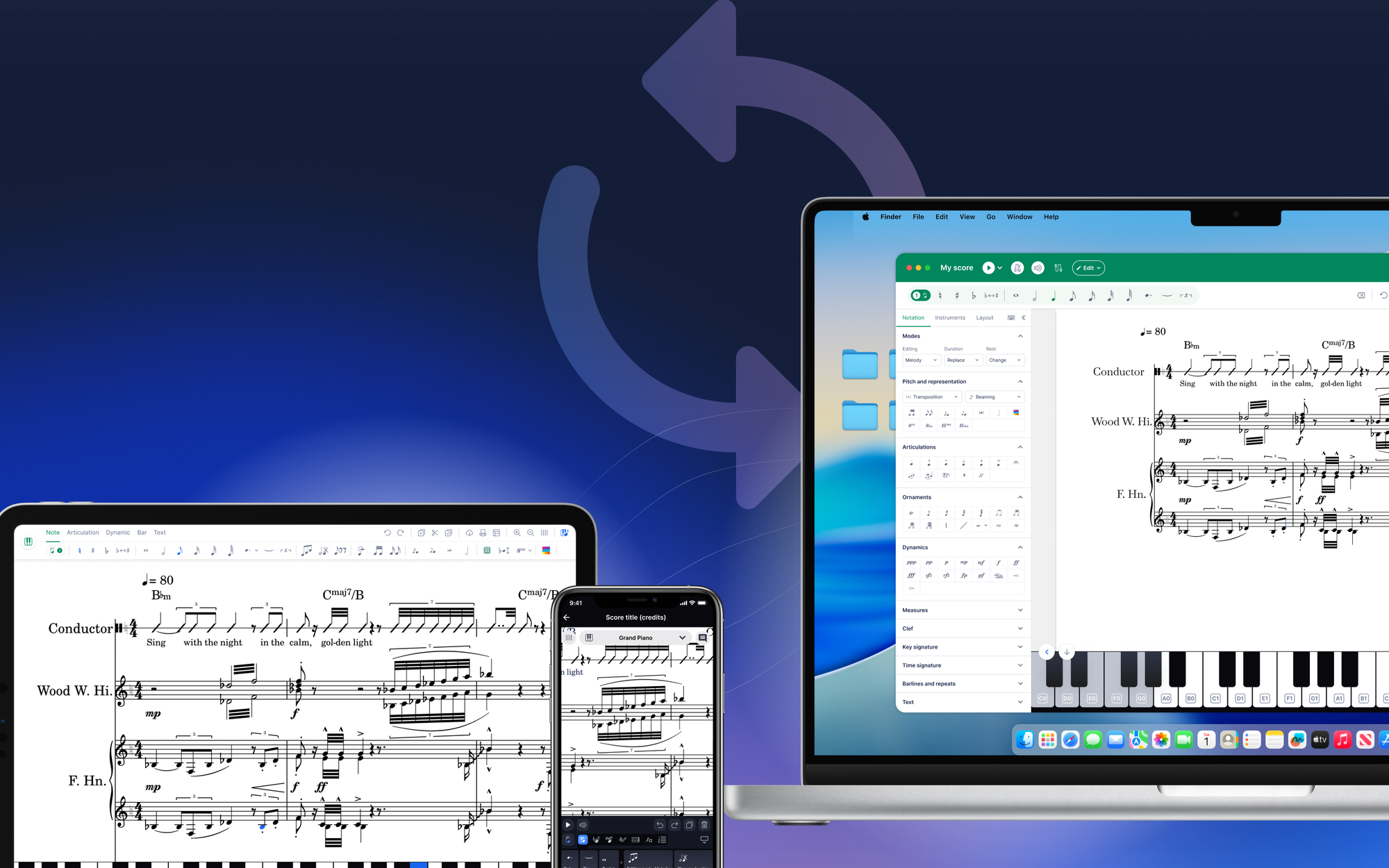
A desktop app for Flat for Education. It's the notation editor you already know, repackaged to run as an installed app, and it solves the two problems classrooms complain about most. It works offline, so students keep composing and editing even when the classroom Wi-Fi drops mid-lesson. And their work syncs across devices through their account, which matters when a student moves between a lab machine, a cart Chromebook, and a computer at home.
Two things to set expectations. At launch it's the notation editor only, so assignments still live in the browser. And it's an extra option, not a replacement: the web platform stays exactly where it is, and nobody has to download anything to keep working the way they do now.
Get set up before the rosters land
None of these updates need a rollout plan. Pick the one that fixes your biggest headache from last year, set it up in the first week, and let it earn its place. If you want a clean start, our 30-minute class setup guide walks you through classes, rosters, and your first assignment.

If you're not on Flat for Education yet, there's a free 30-day trial and setup takes a few minutes.
FAQ
What's new in Flat for Education for the 2026 school year?
The biggest classroom-facing updates are key and time signature control in the sight-reading generator, a student practice mode for sight-reading, the Free Record performance assignment type, and PDF and photo import rebuilt on a new recognition engine. Performance auto-grading, a redesigned editor toolbar, and a desktop app for the notation editor are all rolling out during the term.
Can students practise sight-reading on their own now?
Yes. Students can open the sight-reading generator from their own tools page and generate as many exercises as they want, at their own level. You don't need to create or grade the practice for it to help, which makes it a strong standing task for independent work at home.
What is Free Record in Flat for Education?
Free Record is a performance assignment type where students record themselves, on audio or video, with no score attached, and hand the take in for you to review. It's built for playing that doesn't fit a single score, like ensembles, mixed repertoire, and improvisation, and submissions land in the same review screen as your other assignments.
Does Flat for Education grade performances automatically?
Performance auto-grading is in beta and rolling out this term. You can enable it when you create a performance assignment and set how strict the analysis is, and the engine gives a first-pass assessment of a student's recording against the attached score. You confirm the final grade. Sight-reading recordings stay teacher-reviewed and are not auto-graded.
Can I import a photo of a score, not just a PDF?
Yes. The rebuilt import flow accepts a PDF, an image file, or a camera photo of a score and turns it into editable notation. In Flat for Education this import is available to teachers and admins rather than students.
Is the Flat for Education editor changing?
A redesigned editor toolbar is rolling out this term. It moves the tool tabs to a vertical rail, gives comments their own tab, and lets students detach the instructions and pin them next to the score while they compose. It's a layout update, and the current editor stays in place until the new one reaches your account.