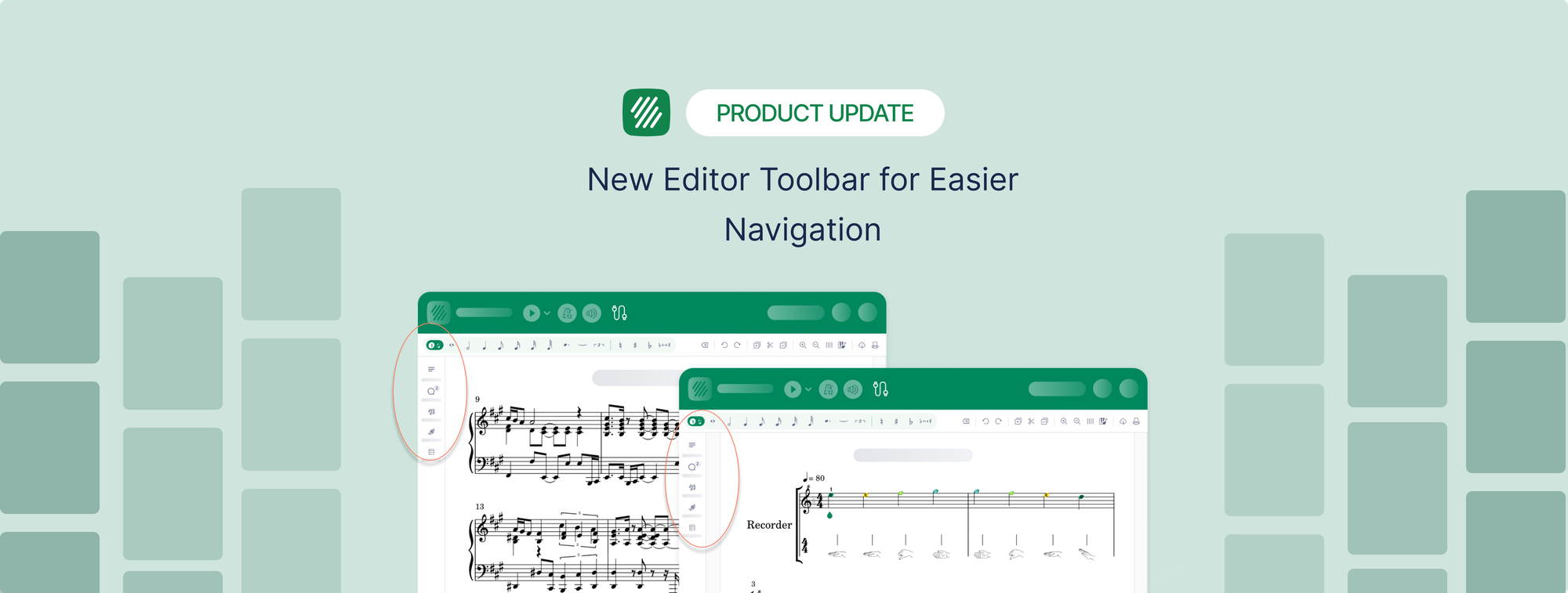
If you teach with the notation editor, the first thing you'll notice this term is down the side of the screen. The tools you use to write and edit music have moved into a sidebar, and the whole Flat for Education editor is easier to work in because of it. Less scrolling. More room for the score. A clearer place for everything.
Nothing was taken away. The same notation tools, the same keyboard shortcuts, and the same scores are all here. They're just organized in a way that makes more sense once you have thirty students and a stack of assignments to get through. Here's what changed and where to find things.
Your tools moved to a sidebar
The row of tabs that used to sit across the top of the editor is now a vertical rail down the side. Same tools, new home. Putting them in a column frees up width for the music and gives assignments the room they always needed.
The rail collapses when you want it out of the way. Click to fold it in and the score gets the full screen, which is what you want when you're reading from the projector or checking a layout. Click again and it expands to the panel you last had open. There's a keyboard shortcut for it too, so you can hide and show your tools without reaching for the mouse.
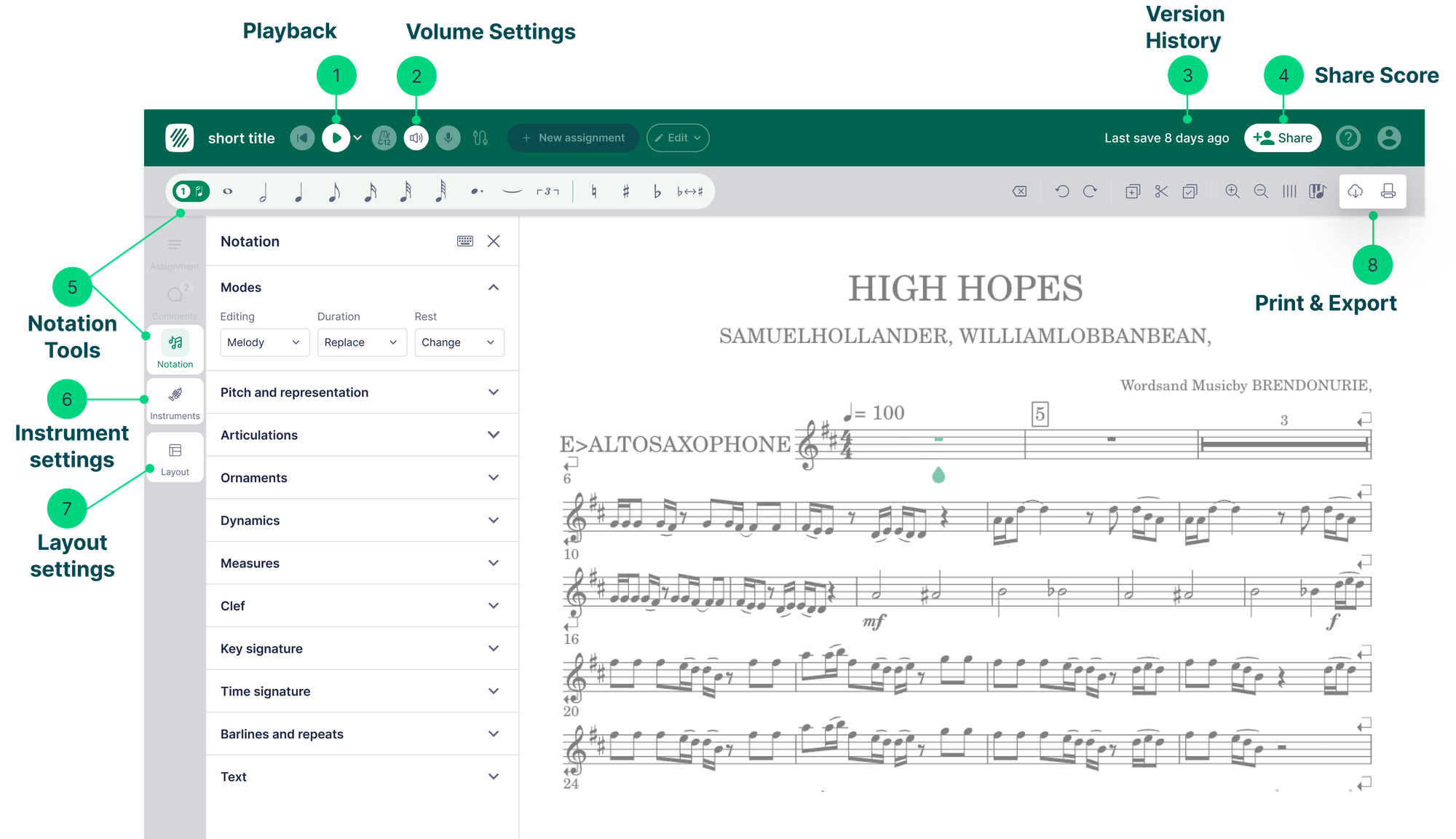
Notation, Instruments, and Layout
In the main editing view, the rail holds three panels.
- Notation. Everything you reached for before: modes, pitch and representation, articulations, and the rest. Nothing was removed, it's all grouped under one panel now.
- Instruments. Add, remove, and manage the instruments in a score from one place.
- Layout. Page and layout settings, kept separate from the note-writing tools so you're not hunting past them mid-phrase.
Click a panel, and it opens in place. Click another, and it swaps in. If you've built a custom toolset for a class, say a stripped-back palette for beginning composers, it carries straight over to the new sidebar and works exactly as it did before.
New: find any tool in a second with Quick Search
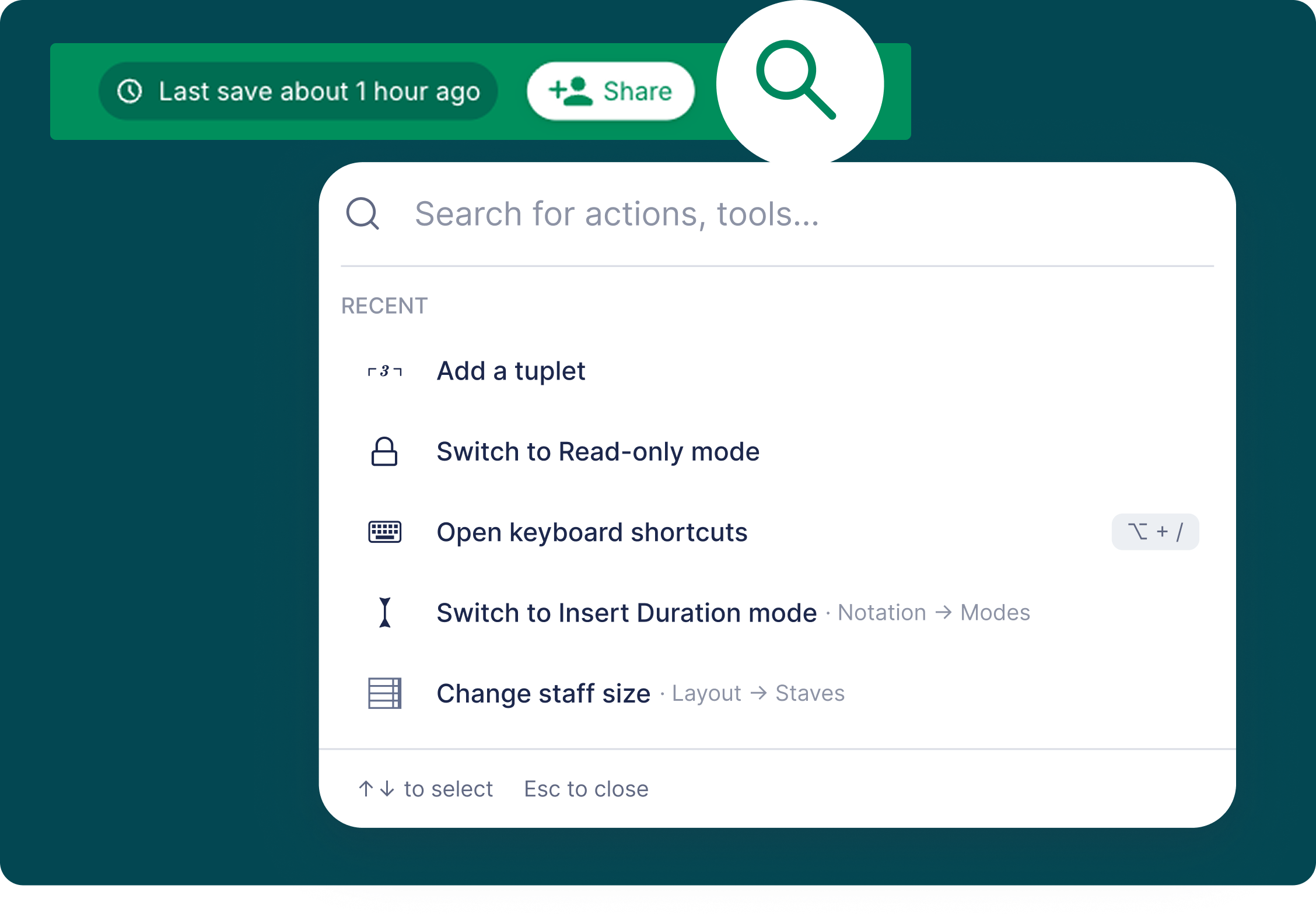
This is the new feature worth learning first, because it makes everything else easier to find. Quick Search lets you look up any notation tool, instrument setting, or layout option by name, without hunting through the sidebar at all.
Press / anywhere in the editor and a search box opens. Start typing what you want in plain language, like "fermata", "swing", or "repeat barline", and matching tools appear as you type. Press Enter or click a result and the tool fires, and you're straight back in the score. Each result also shows the keyboard shortcut for that tool, so you pick up the shortcuts you use most just by searching for them.
A few things that make it click in a classroom:
- Open it without typing and it shows the tools you reached for most on that score, so your common actions are one keystroke away.
- Filter tabs split the results into Notation, Instruments, and Layout, the same three areas as the sidebar.
- Prefer the mouse? The search icon in the toolbar opens the exact same box.
If you're new to the editor, this is the fastest way in: you don't have to memorize where anything lives, you just describe it. If you've taught with it for years, it's the shortcut to the tools you only need once a month.
Where to find a few teacher favorites
Some tools come up in almost every music classroom. Here's what each one does and where to look for it in the new sidebar. If you can't remember the exact spot, press / and search for it by name.
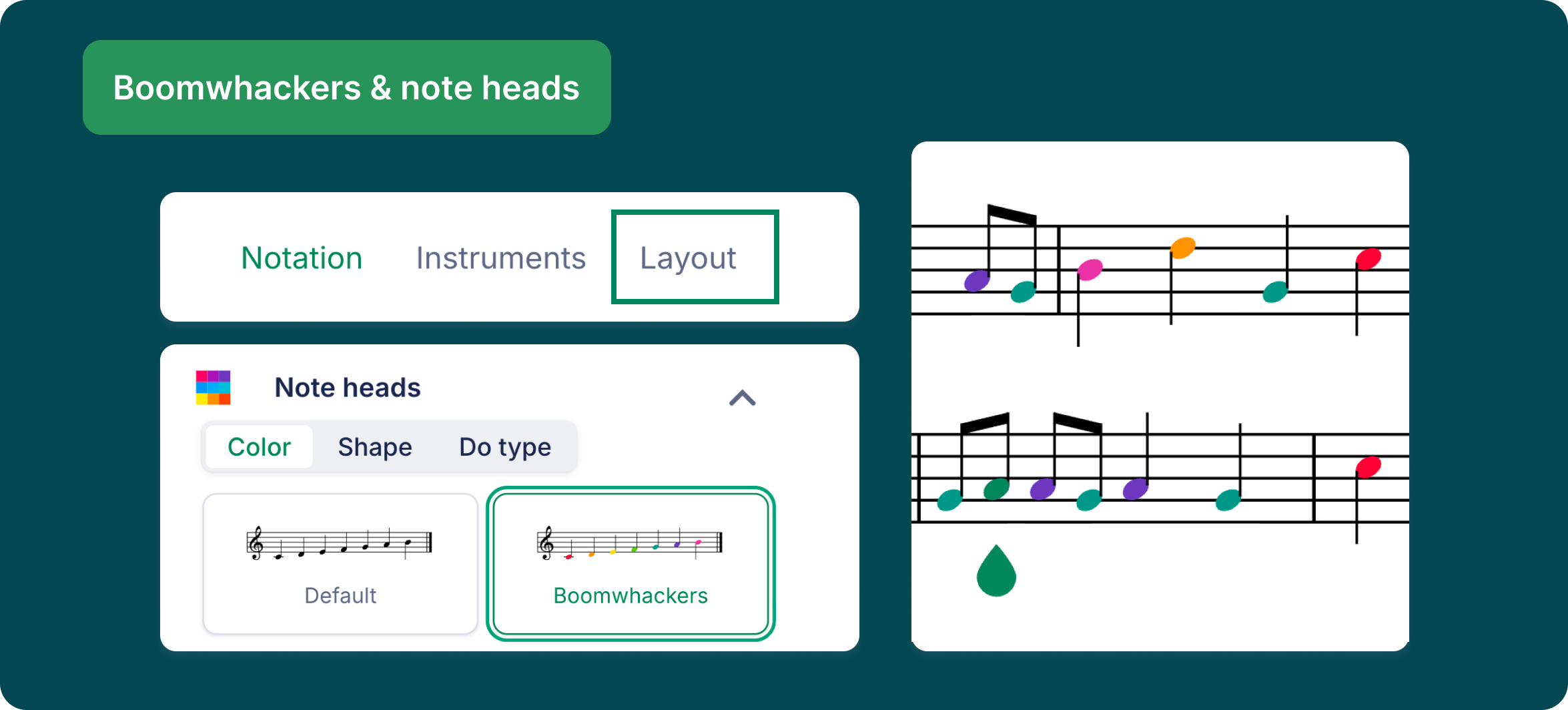
Boomwhackers and colored noteheads
Color-coded noteheads that match the Boomwhacker tubes on your classroom shelf, so a whole class can play along on day one. The color is tied to the pitch, so a C is always the same color across every score, and you can use the built-in Boomwhacker palette or set your own colors. It lives with the score's display settings, and there's a full walkthrough in our guide to the pedagogical notation tools in Flat for Education.
To access Boomwhackers:
- Click on Layout
- Noteheads
- Pick between color options (Boomwhackers), shape options (note names inside of notes or shape-note Aiken), or Do type (fixed or movable do)
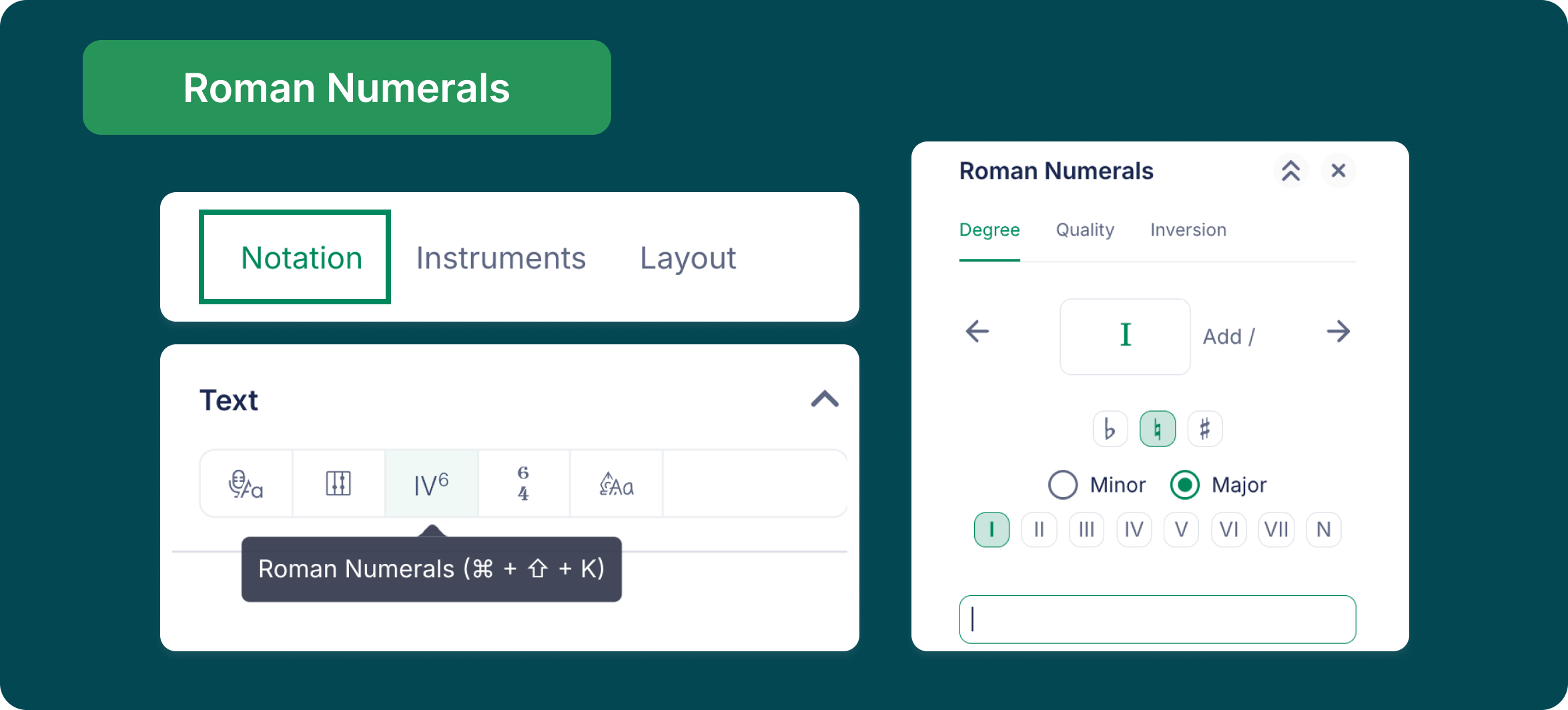
Roman numerals
Label chords with their harmonic function right under the staff, so your theory students can see how a progression works while they hear it play back. Because the analysis sits in the same score as the notation, the numeral, the chord, and the sound all line up in one place.
To access Roman Numerals:
- Click on Notation
- Text
- Click on the 3rd icon to open the Roman Numerals panel
Transposition
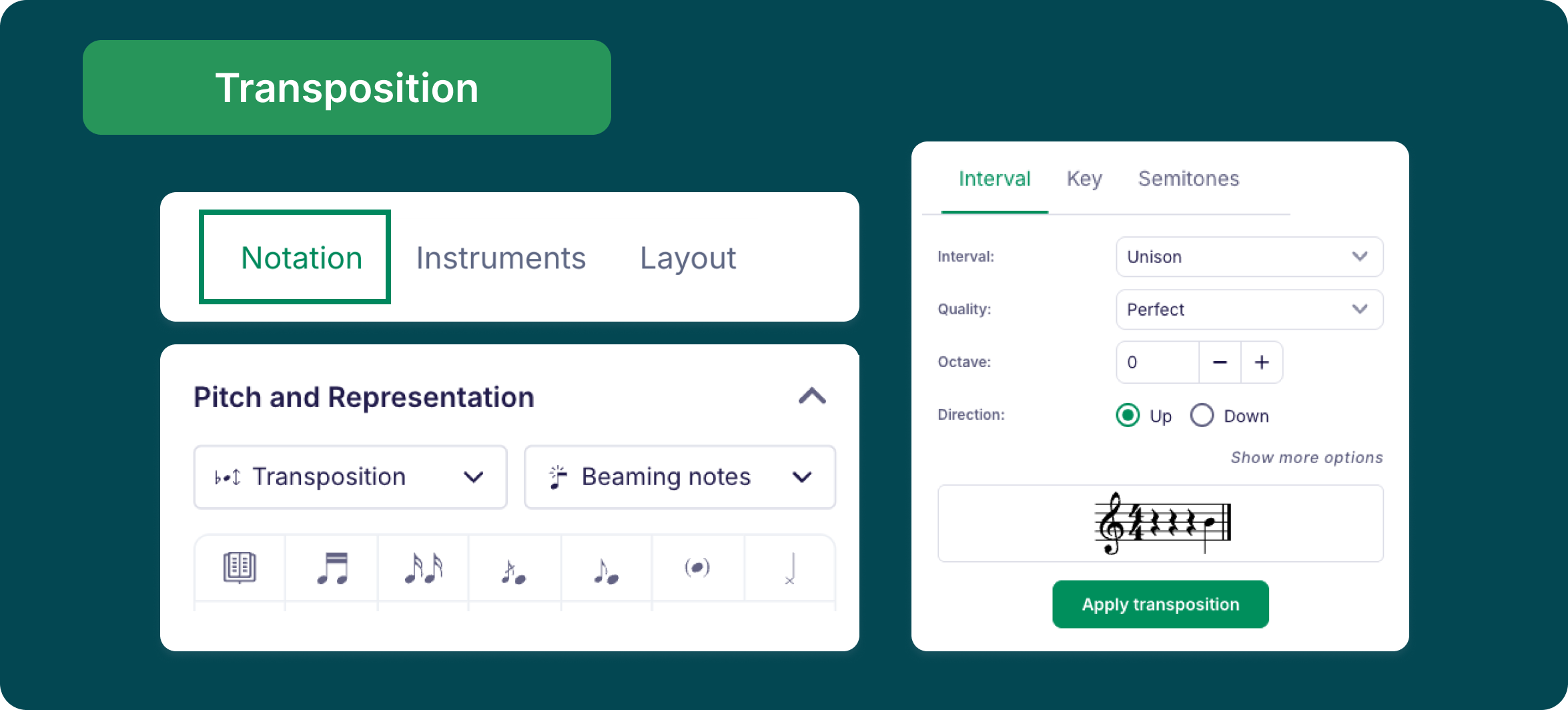
Move a piece into a key your players can actually handle, or switch between concert and written pitch for your transposing instruments. It's what you reach for when a song sits a third too high for your singers, or you need a B-flat part from a concert-pitch score.
To access the transposition tool:
- Click on Notation
- Pitch and Representation
- Transposition
Keyboard shortcuts
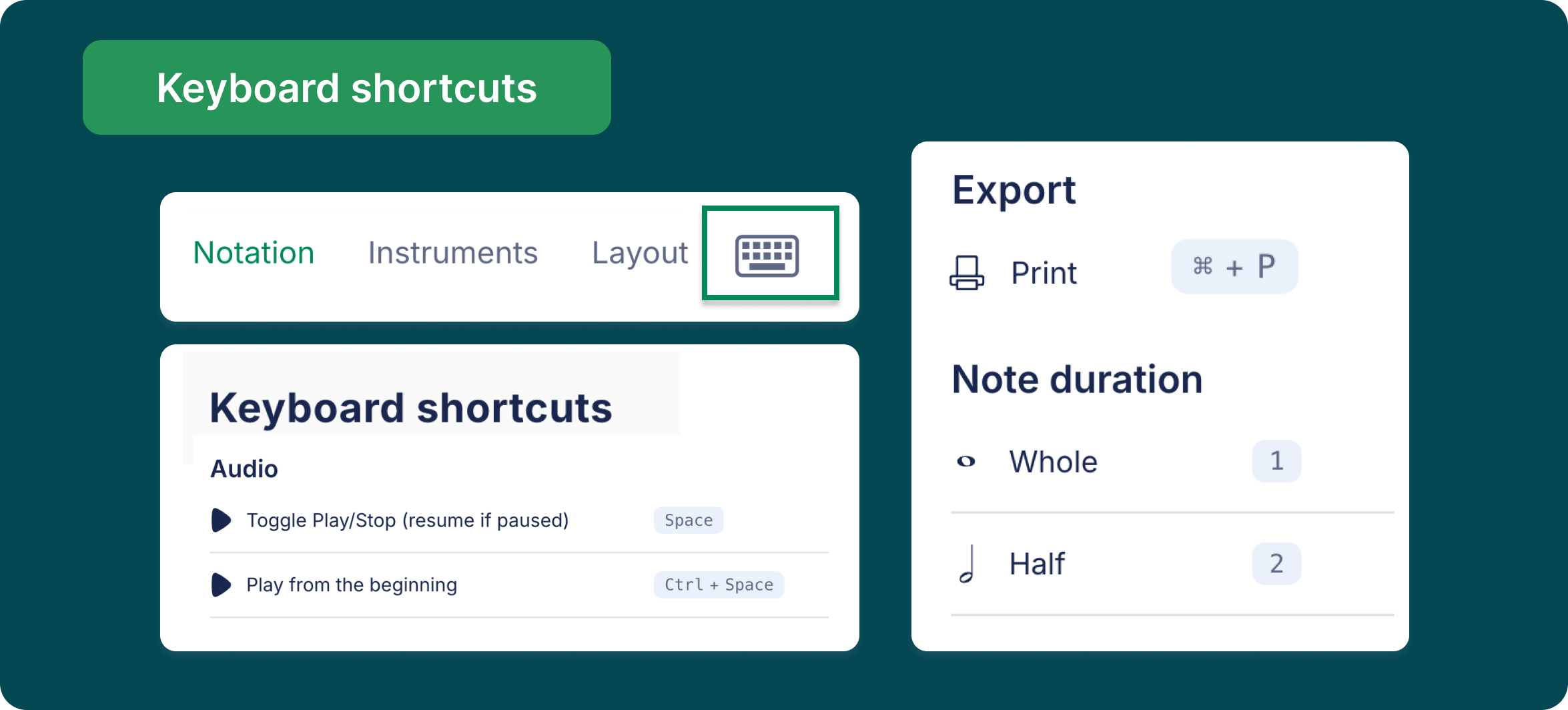
Every tool you use often has a keyboard shortcut, and the quickest way to learn them is to notice them as you work. Quick Search shows the shortcut next to each result, so you build muscle memory just by searching, and you can set your own custom shortcuts for the tools you reach for daily. The sidebar itself collapses and expands with a shortcut too, for when you want the full screen for the score.
To access Keyboard Shortcuts:
- Click on the keyboard icon next to "layout"
How will students experience the updated assignment panel?
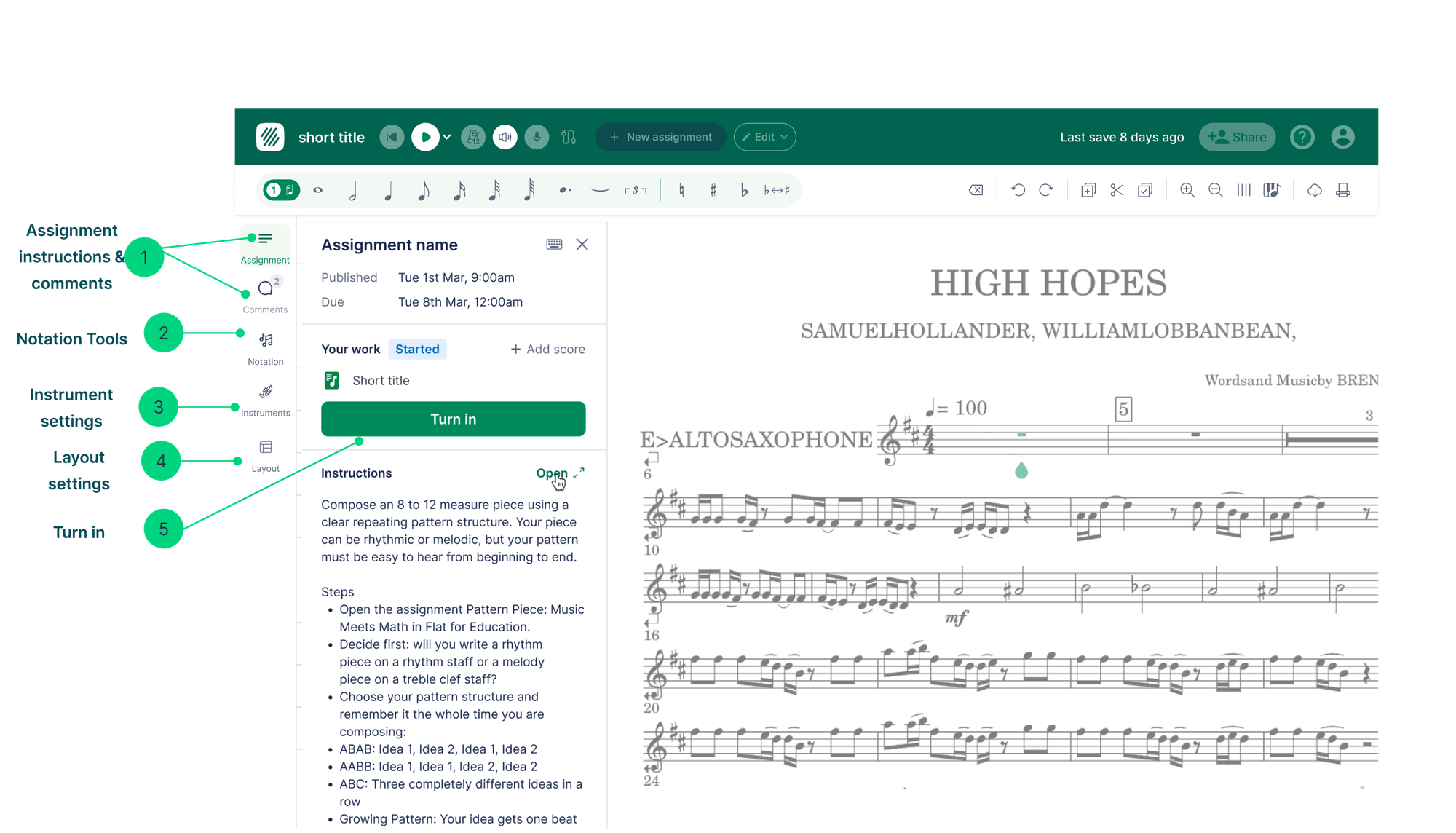
We’ve reorganized the workspace so instructions, comments, and notation elements are now grouped together on the left side, keeping everything students need in one place.
Students can now detach the instructions panel and move it anywhere on their screen, making it easier to follow directions while completing an assignment.
We’ve also added a dedicated Comments tab, making feedback easier for students to find and review.
Finding your way around the new editor
- Open any score. The sidebar runs down the side of the editor.
- Click Notation, Instruments, or Layout to open that panel. Click another to switch.
- Collapse the rail to give the score the full width, or use the keyboard shortcut. Expand it to bring your tools back.
- Can't find a tool? Press
/and search for it by name. - In an assignment, use the Assignment panel to read the brief and turn work in, and the Comments panel for feedback.
- As a student, detach the instructions and drag them over your score so the task stays in view while you write.
Try it with your classes
The new sidebar is live in the Flat for Education editor now, so the next score you open will have it. Give it a lesson or two and it stops feeling new, it just feels like more room to work.
If you're not on Flat for Education yet, there's a free 30-day trial and setting up a class takes a few minutes. Start at flat.io/edu.
FAQ
What changed in the Flat for Education editor?
The notation tools moved from a row of tabs into a vertical sidebar with Notation, Instruments, and Layout panels. Assignments and comments now have their own panels, students can detach the instructions into a floating panel, and a new Quick Search lets you find any tool by name. The tools themselves are unchanged, just reorganized.
How do I find a tool in the new editor?
Press / anywhere in the editor to open Quick Search, then type the tool name in plain language, like 'fermata' or 'swing'. Results appear as you type with their keyboard shortcut, and pressing Enter activates the tool. A search icon in the toolbar opens the same box if you'd rather use the mouse.
Where did the notation tools go?
They live in the Notation panel of the new sidebar. The modes, pitch and representation, articulations, and other tools you used before are all still there, grouped under one panel instead of spread across tabs.
Can students keep the instructions visible while they compose?
Yes. A student can detach the assignment instructions into a floating panel and drag it over the score, so the brief stays in view while they write. If they close it, a toast lets them reopen it.
Do my custom toolsets still work in the new sidebar?
Yes. Existing toolsets carry over to the new sidebar and work exactly as before, including any simplified palettes you set up for a class.
Do I need to relearn the editor?
No. The tools and keyboard shortcuts are the same and your scores open unchanged. The sidebar works the same way for teachers and students, and Quick Search means you can find any tool by name if you're unsure where it moved.