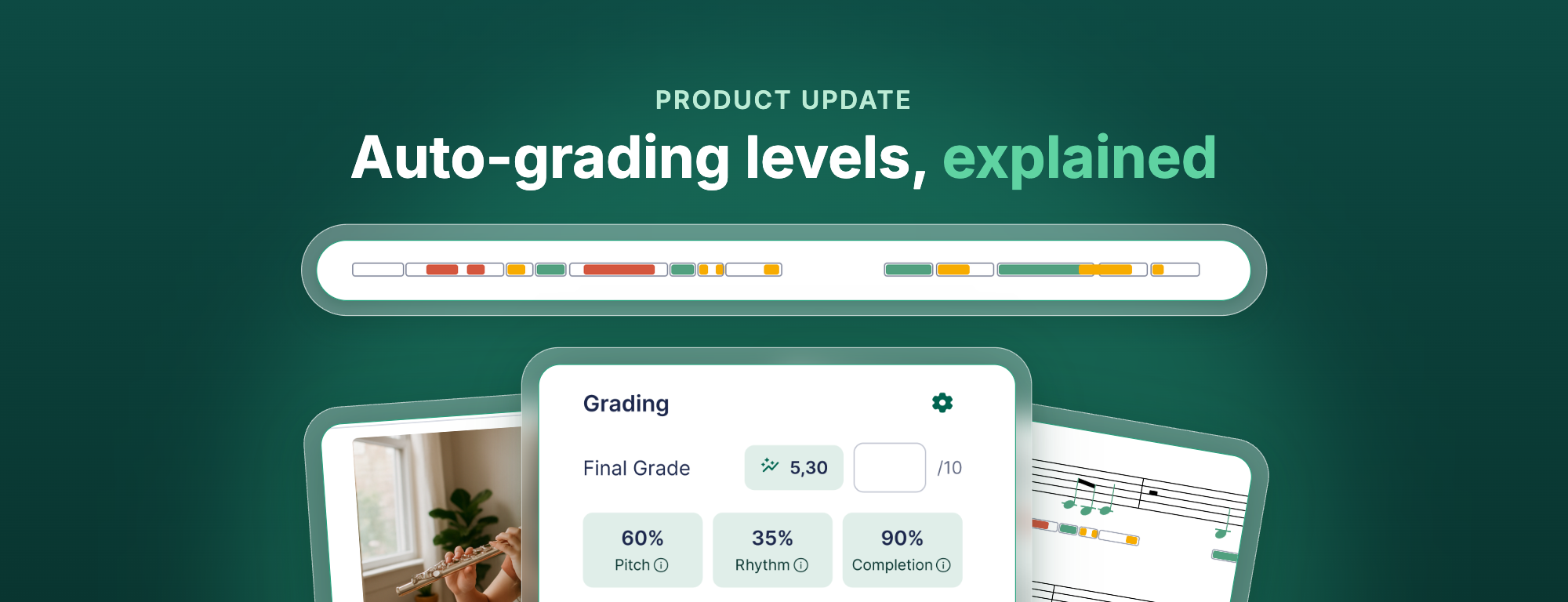
Grading thirty recordings of the same eight measures takes a whole evening. Automatic music performance assessment in Flat for Education does the first pass for you: a student records a performance assignment, and every note is checked against the score for pitch, rhythm and length. You get pitch, rhythm and completion scores, a grade, and a note-by-note breakdown of what went wrong.
How strict that check is depends on the grading level you choose. Flat for Education has three: Beginner, Intermediate and Advanced. They're named after the student you're assessing, and each one spells out, in seconds and percentages, exactly when a note counts as correct.
What is automatic music performance assessment?
Automatic music performance assessment is software that listens to a student's recording, lines it up with the written score and grades each note. In Flat for Education, it measures three things: whether each note is the right pitch, whether it starts on time and lasts the right length (rhythm), and how much of the written part the student actually played (completion). The overall grade weighs pitch, rhythm and completion about equally.
The three grading levels for automatic performance assessment
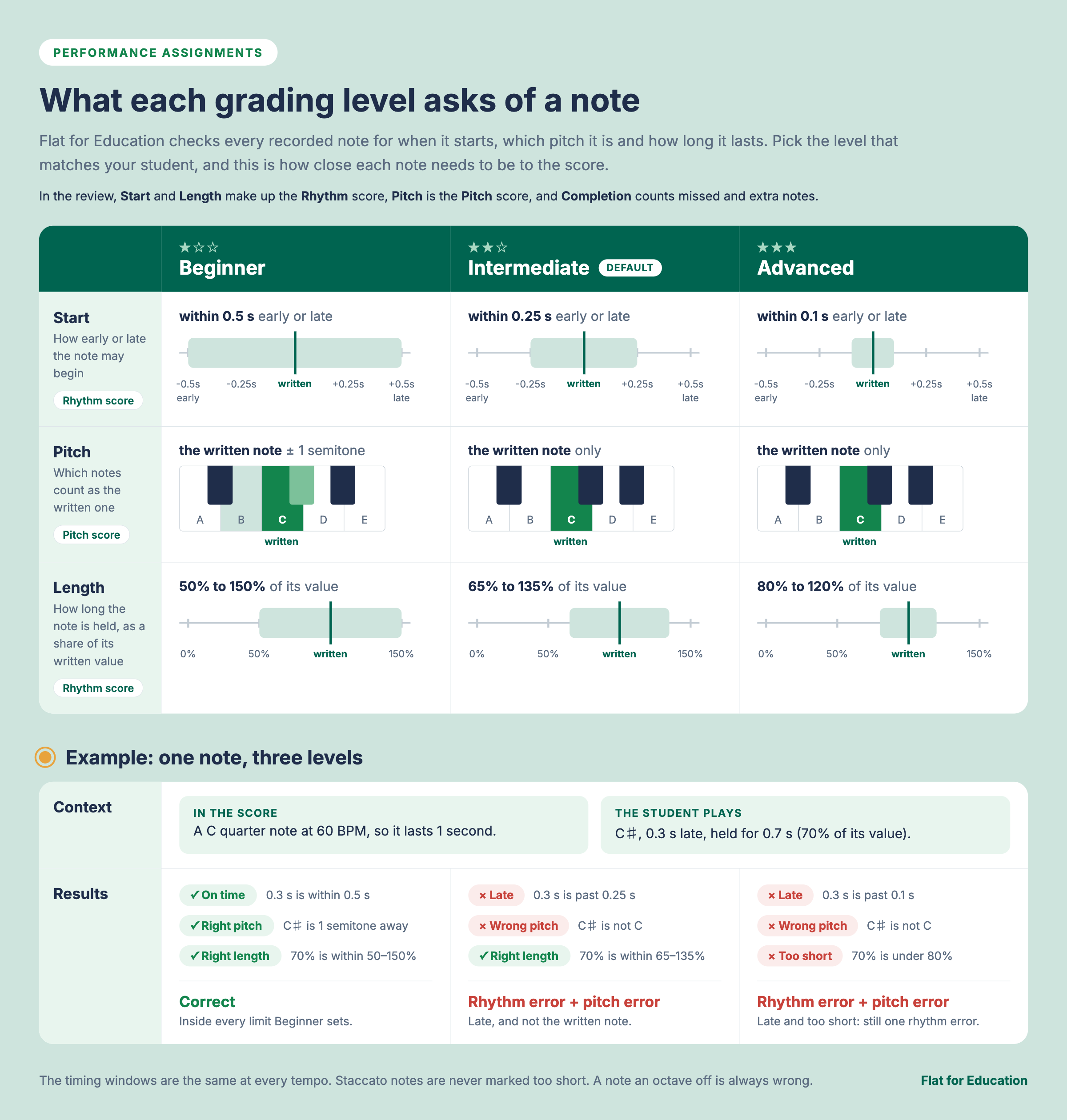
Every grading level checks the same three things about each note. Only the tolerances change.
| A note counts as… | Beginner | Intermediate | Advanced |
|---|---|---|---|
| On time, if it starts within | 0.5 s early or late | 0.25 s | 0.1 s |
| The right pitch, if it is | the written note, or a semitone above or below | the written note | the written note |
| The right length, if it is held | 50% to 150% of its value | 65% to 135% | 80% to 120% |
Intermediate is the default when you create a performance assignment.
Beginner
A note is correct if it is the written note or one semitone above or below, starts within 0.5 s of where it should, and lasts 50 to 150% of its written length. It still grades rhythm and note length, with room for the wobbles every beginner has. Use it for students in their first year or two on an instrument, beginning band and orchestra, and general music classes playing recorder or keyboard.
Intermediate
A note is correct if it is the written note, starts within 0.25 s of where it should, and lasts 65 to 135% of its written length. It fits most middle school and high school ensemble students working on their parts.
Advanced
A note is correct if it is the written note, starts within 0.1 s of where it should, and lasts 80 to 120% of its written length. Use it for playing tests, chair placements, auditions and solo and ensemble preparation.
How pitch, rhythm and note length are graded
Pitch is the share of notes played at the written pitch, however long they lasted. At Beginner, a note one semitone above or below also counts. A note an octave off is a wrong note at every level.
Rhythm is the share of notes that start on time and last the right length. A note that is both late and too short counts as one rhythm error, not two. Staccato notes are never marked too short.
Completion is the share of the written notes the student played. Missed notes lower it, and so do extra notes held for half a second or more.
Pitch never depends on length. A right note played too briefly is a rhythm error, not a pitch error, so you always know which skill the student needs to work on.
One note graded at three levels
Take a C quarter note at 60 BPM, so it lasts one second. The student plays a C sharp, starts it 0.3 s late and holds it for 0.7 s.
| Beginner | Intermediate | Advanced | |
|---|---|---|---|
| Started 0.3 s late | On time | Late | Late |
| Held 70% of its value | Right length | Right length | Too short |
| Played a semitone too high | Right pitch | Wrong pitch | Wrong pitch |
| Result | Correct | One rhythm error, one pitch error | One rhythm error, one pitch error |
The timing windows are in seconds, whatever the tempo. At 120 BPM a quarter note lasts half a second, so Beginner's window is as long as the whole beat. For a fast piece, consider going up a level.
Why grading levels matter in performance assessment
An automatic grade saves time only if it's close to the grade you'd give yourself. Holding a sixth grader three months into band to the same 0.1 s window as a high school junior preparing a solo produces grades you'll end up overriding. Matching the level to the student keeps the automatic grade useful.
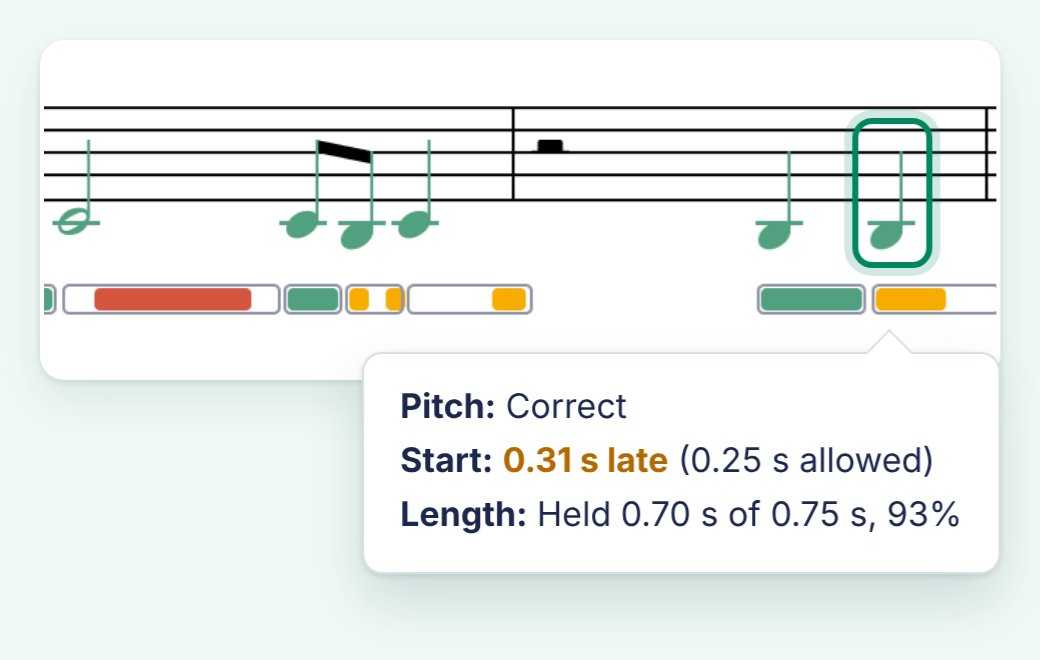
Clear criteria also make the grade easy to act on. You see which level graded the recording, the rubric hints quote that level's numbers, and each note shows how far it was from the limit, for example "0.31 s late (0.25 s allowed)" or "held 0.62 s of 1.00 s, 62% (65 to 135% allowed)." That's a practice target you can pass straight on to the student, not just a score.
How to set up auto-graded performance assignments
- Create a performance assignment in Flat for Education and choose the score your students will play.
- In the assessment step, turn on auto-assessment and open Grading level.
- Pick Beginner, Intermediate or Advanced. The line under each level says exactly when a note counts as correct.
- Publish the assignment. Students record their performance and submit it.
- Review each submission: the pitch, rhythm and completion scores, the colored notes on the score, and the note popups.
- To change the level after students have submitted, choose Change grading level in the review screen. Every submission to that assignment is graded again at the new level.
A quick way to get a feel for the levels: assign a short passage at Intermediate, then switch it to Beginner once a few recordings are in and compare the note-by-note feedback.
Flat for Education integrates with Google Classroom, Microsoft Teams, Canvas, Schoology, and MusicFirst, so you can send performance assignments through the platform your school already uses.
For running a whole class of playing tests without the scheduling, see how to run individual music performance assessments for a full class. For more ways to assess your students, see our roundup of music assessment tools for music teachers and our guide to recording practice so feedback leads somewhere. The step-by-step setup is in the performance assignments help article, and if you're building a performance assessment around national standards, the National Core Arts Standards are a good reference for what to assess at each grade.
Try auto-graded performance assessment
Pick the grading level that matches your students, assign a short piece and see whether the automatic grade lands where you'd put it yourself.
Not using Flat for Education yet? There's a free 30-day trial, and setting up a class takes a few minutes. Start at flat.io/edu.