Most notation software is built for one job: producing a clean, professional score. That's the right goal when the reader is a working musician. It's the wrong goal when the reader is eight years old and learning which line is G.
Teaching music means meeting students where they are, and for decades that has meant methods that adapt notation itself: color-coding pitches so beginners can match a note to a Boomwhacker, using shape notes to make intervals visible, adding solfège or hand signs to connect sound to symbol. The problem has always been production. If your software only speaks professional engraving, you end up drawing on printouts by hand or gluing screenshots together.
Flat for Education takes a different approach. The pedagogical notation tools are built into the editor, so the same score your students compose and play in can also carry the visual scaffolding a specific teaching method needs. Here's every one of those tools, what it's for, and how to put it to work.
Colored noteheads and Boomwhacker colors
Color is often the first bridge a young student crosses between a printed note and a sound. Flat for Education supports colored noteheads, including Boomwhacker colors that match the color-coded percussion tubes used in elementary classrooms everywhere.
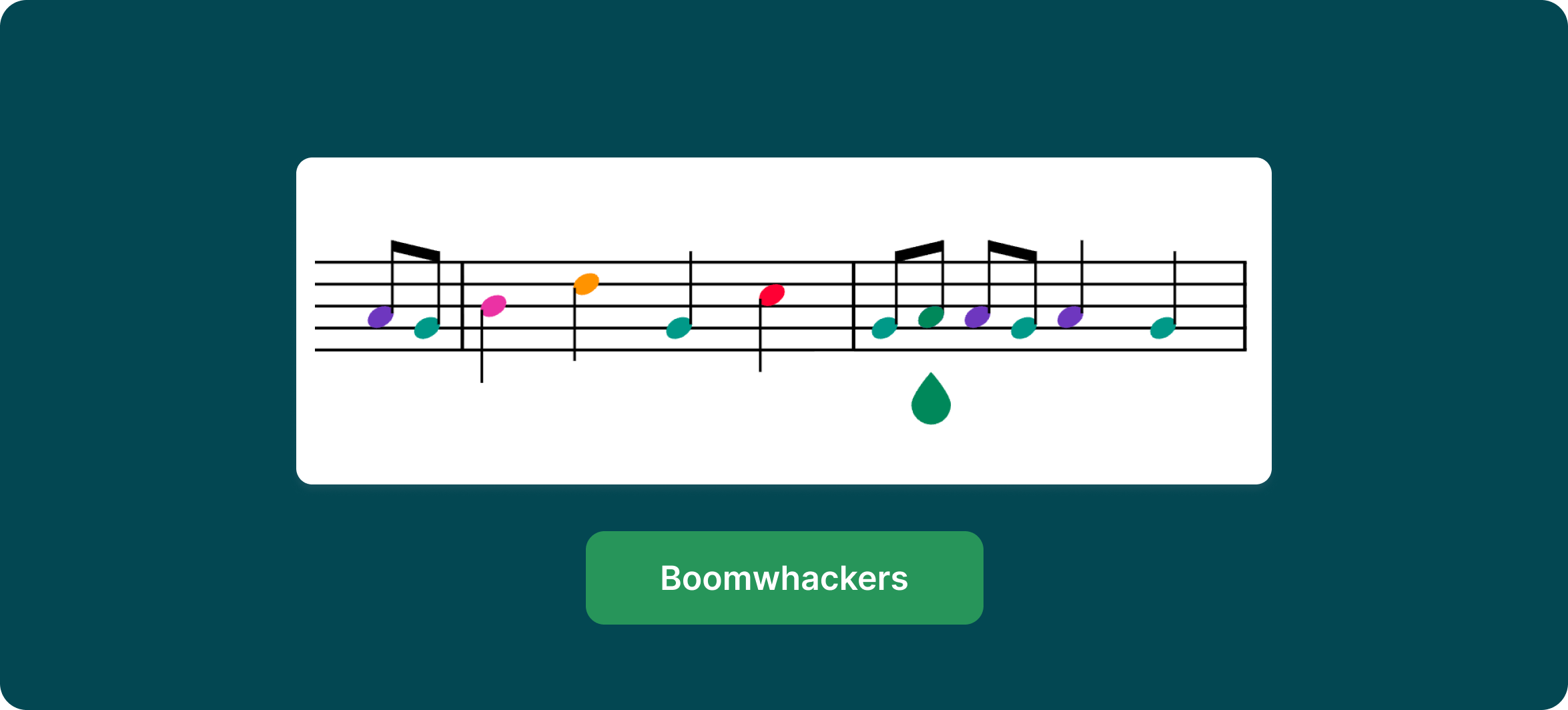
The color is tied to the pitch, so a C is always the same color, in every measure and every score. That consistency is what makes it teachable: a student learns that red means C once, and it holds everywhere. Because the coloring lives in the score rather than on a printout, you can build a color-coded arrangement, play it back, and hand out parts that line up exactly with the physical Boomwhackers in the room.
You aren't locked into the default palette either. Alongside the automatic Boomwhacker colors, Flat for Education lets you create custom notehead colors, so if your classroom already uses a particular color system, you can match it exactly.
Where it earns its place: whole-class play-alongs with young students, differentiated parts for students not yet reading fluently, support for students with special educational needs who benefit from multi-sensory cues, and any activity where matching a color to an instrument gets everyone playing on day one.
Shape notes: making intervals visible
Shape note notation assigns a distinct notehead shape to each scale degree, so the shape itself tells the singer where the pitch sits in the scale. It has deep roots in American choral and sacred music traditions, and it remains a genuinely effective way to teach relative pitch and sight-singing, because the eye learns to associate a shape with a scale-degree function.
Flat for Education can render shape notes directly in the editor. Instead of teaching students to calculate intervals from staff position alone, you give them a second visual cue that reinforces the same information. For choral programs and any classroom that teaches movable-do sight-singing, it's a tool that does real pedagogical work.
Pitch-in-notehead: names and solfège inside the note
For the earliest readers, even a colored note is one abstraction away from the answer. Pitch-in-notehead notation puts the pitch directly inside the notehead, so the student reads it, plays it, and over time absorbs the position on the staff that goes with it.
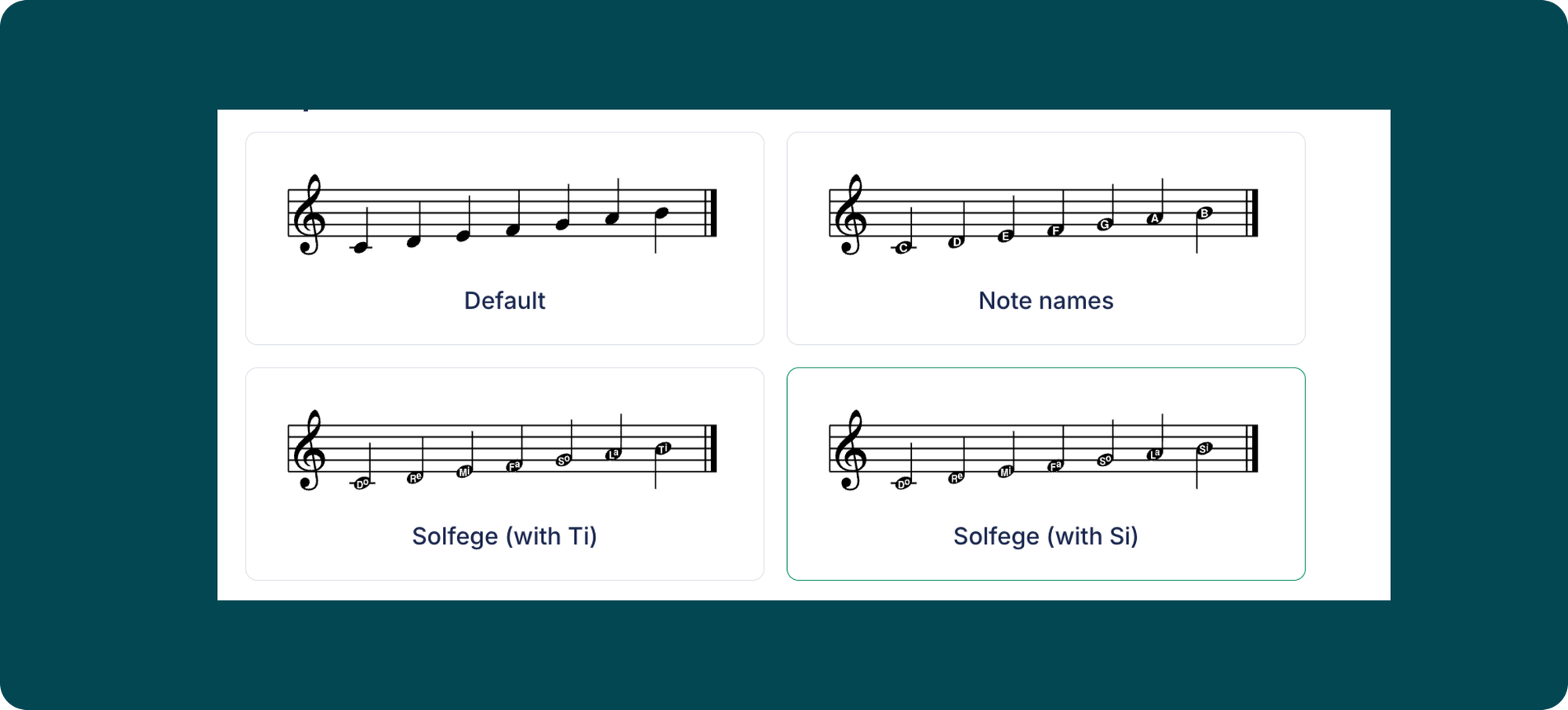
You can put note letters inside the noteheads, or solfège syllables, with a choice between Fixed Do and Movable Do so the display matches the system you teach. That single setting covers two very different classrooms: the letter-name approach common in instrumental beginners, and the solfège approach at the heart of Kodály and most choral sight-singing.
The point isn't to keep students dependent on the labels. It's to lower the barrier at the very start, when the gap between seeing a note and producing a sound is widest, and then to remove the scaffolding as fluency grows. Because it's a display setting on the score, you can produce a labeled version for week one and a clean version for week six from the same source, without re-entering a single note.
Roman numerals for harmonic analysis
At the other end of the age range, harmony students need to see how a progression functions, not just what the chords are. Flat for Education supports Roman numeral analysis, letting you label chords with their harmonic function directly beneath the staff.
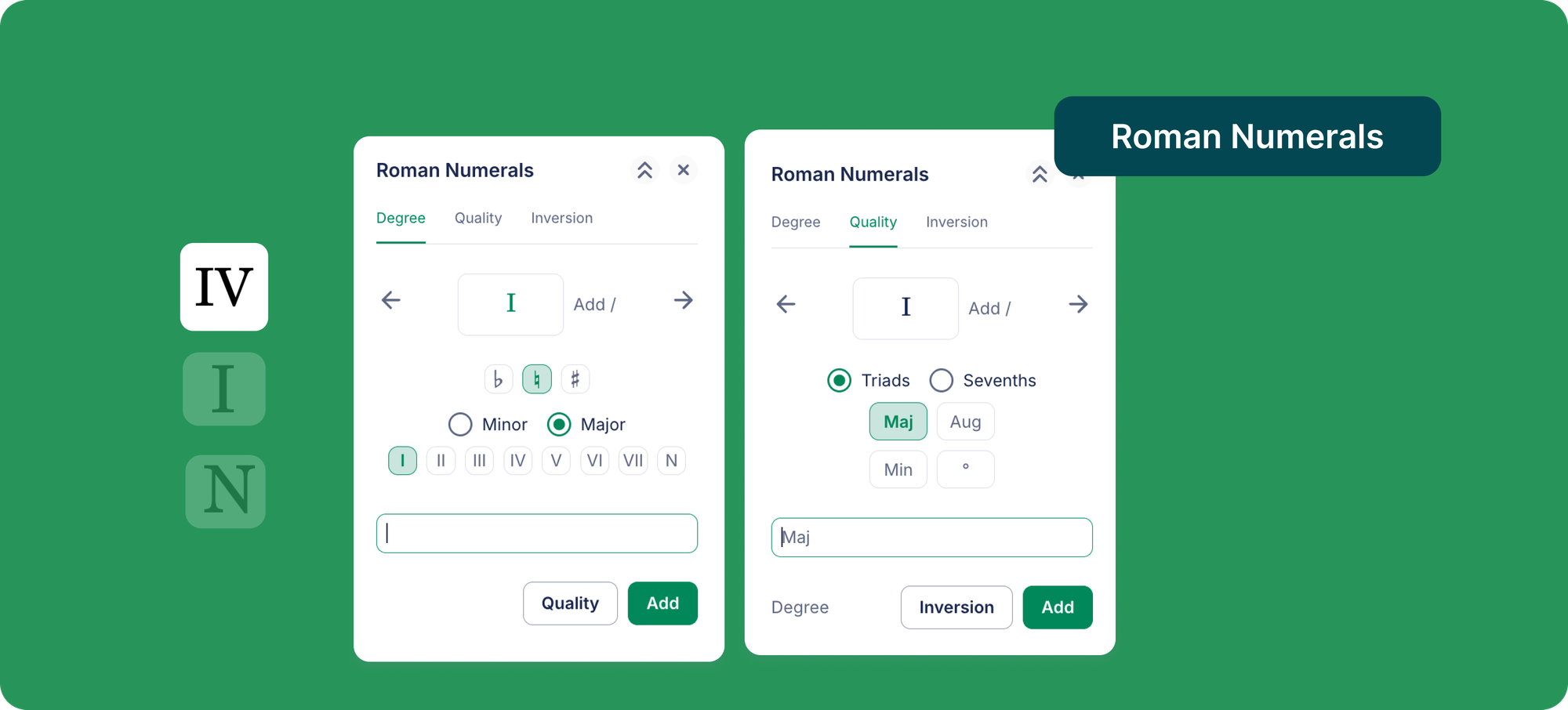
What makes it work as a teaching tool is that the analysis lives in the same score as the notation and the playback. A student can see the numeral, read the chord it points to, and hear the progression, all in one place. That closes the loop between the abstract label and the actual sound in a way that a worksheet full of isolated chord symbols never quite manages. Pair it with a composition assignment and students move from analyzing a progression to writing their own.
Kodály notation and hand signs, auto-generated
The Kodály method connects each pitch to a physical hand sign, giving students a kinesthetic anchor for solfège. Reproducing those hand signs in written materials has always been tedious: hunting down images, aligning them under the right notes, redoing the whole thing when the melody changes.
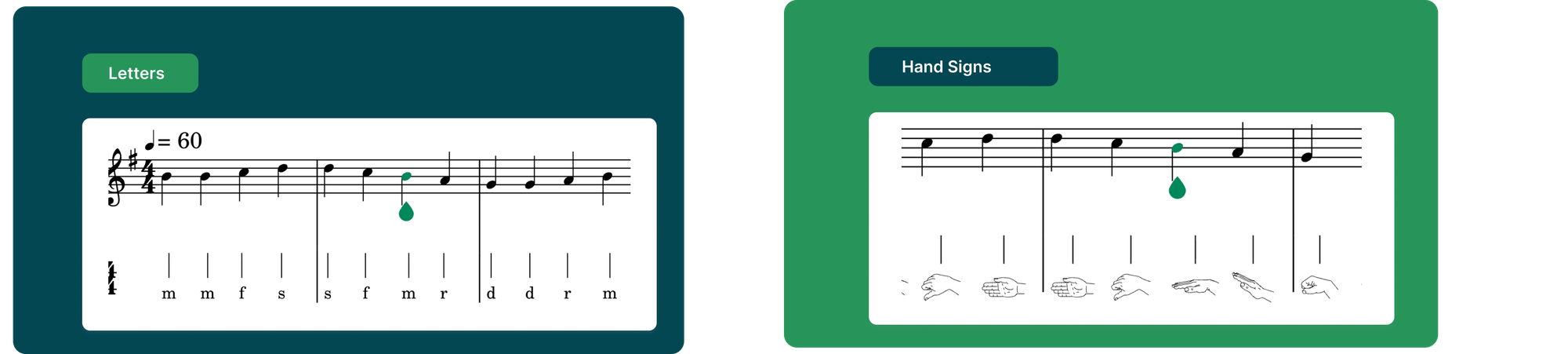
Flat for Education auto-generates Kodály notation on single-staff scores. Enable it in the instrument settings and you can display each pitch as a solfège letter (do, re, mi) or as a hand sign, in either a Fixed Do or Movable Do system. Change a note and the display updates with it. For a Kodály-based classroom, that turns an afternoon of assembling a handout into a few seconds, and it means your written materials always match what you're signing at the front of the room.
Recorder fingerings in the notation
Recorder is one of the most widely taught first instruments in the world, and the hardest moment for a beginner is the one between seeing a note and knowing which holes to cover. Flat for Education can display recorder fingerings directly in the notation, showing the fingering diagram for each note above or below the staff.
You set it up in the instrument settings, choosing between a Soprano recorder (in C) or an Alto recorder (in F), and for soprano, between the widespread Baroque hole layout and the less common German layout used in some educational settings. The diagrams then generate automatically from the notes on the staff.
This builds the first real bridge between the written note and the physical action of playing it. Instead of flipping between a fingering chart and the music, the student has both in one line of sight. For a class full of first-year recorder players, that removes the single biggest source of stop-and-start friction in early lessons.
Brass fingerings for trumpet
The same idea extends to the band room. Flat for Education can generate brass fingerings for trumpet, showing the valve numbers for each note directly in the notation. Enable it in the instrument settings and the valve combinations sync automatically to the pitch of each note.
For a first-year trumpet player, the gap between reading a note and knowing which valves to press is exactly the kind of friction that slows a beginning band to a crawl. Putting the valve numbers right under the notes lets students keep playing instead of stopping to look up every new pitch, and like every other tool here, it's a display setting you can remove as they gain fluency.
Tablature for guitar, bass, and ukulele
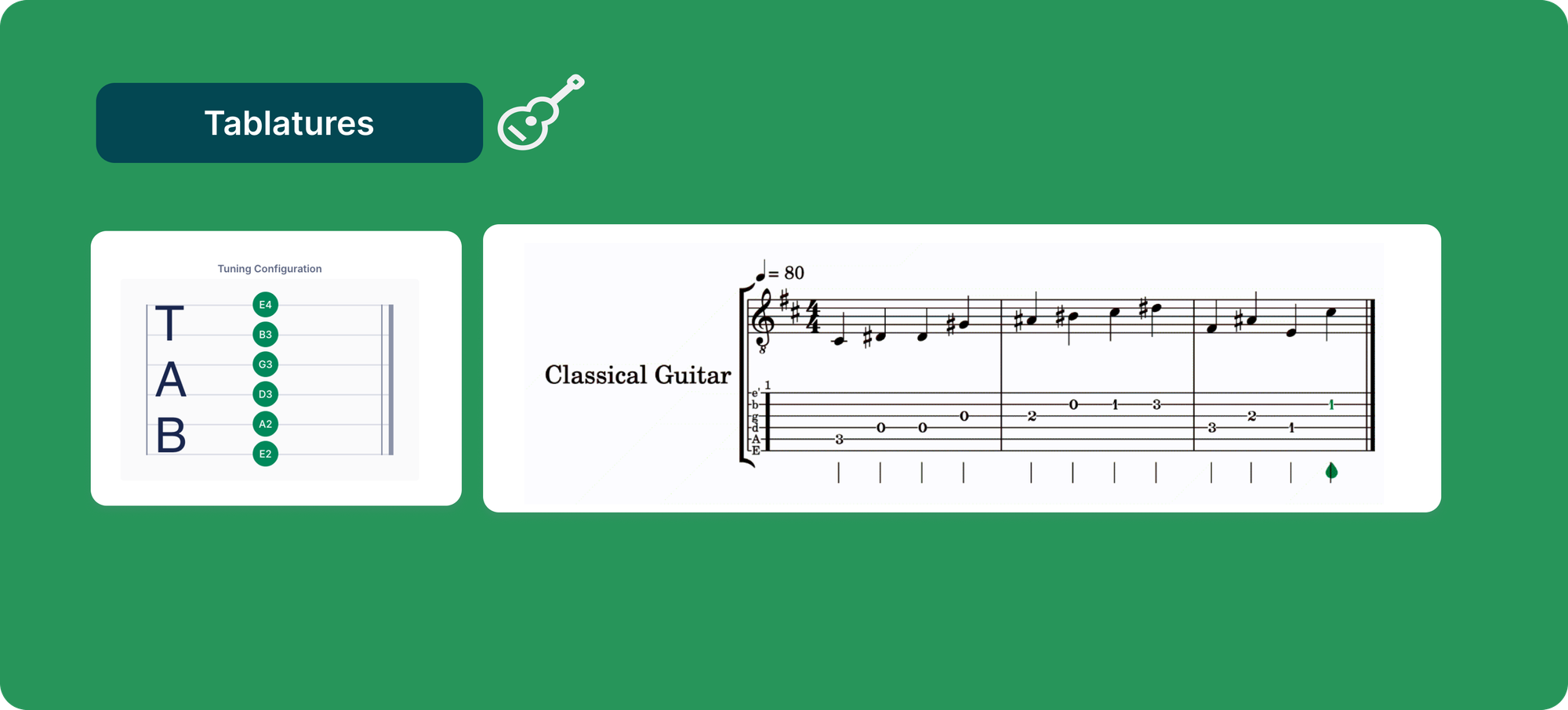
For fretted-string beginners, standard notation is often the wall they hit before they ever play a note. Tablature removes that wall: each line is a string, each number is a fret, and a student can play a riff on day one without reading a single pitch on the staff. It's how most guitarists, bassists, and ukulele players actually learn.
Flat for Education generates tablature automatically. Enable it in the instrument settings and, as you input notes on the staff, the matching tab appears underneath, and vice versa. The two staves stay linked, so editing one updates the other. You can set the number of strings, adjust the tuning of each string, and set a capo position, which means the same tool covers standard guitar, bass, seven and eight string guitars, and ukulele.
Where it earns its place: the dual staff layout is a teaching tool in itself. Beginners can lean on the tab to get playing immediately, while the standard notation sits right above it, building staff-reading fluency in the background. As students grow, you lean on the tab less. Same score, same file, gradually removed scaffolding, exactly like the labeled noteheads for younger students.
Chord grids and fretboard diagrams
Rhythm guitar and ukulele playing lives on chord shapes, and a chord symbol alone (Cmaj7, F#m) doesn't tell a beginner where to put their fingers. Chord grids do. Also called chord diagrams or chord frames, they show a small fretboard picture above the staff with exactly which strings to play and which frets to press.
In Flat for Education, chord grids are generated from the chords in the part. Turn on Use chord grids in the instrument settings and a grid appears for every chord, updating as you add new ones. You can edit any grid by clicking it and either typing the fret numbers or clicking directly on the fretboard, and the grids support anything from 3 to 14 strings with any tuning, so they work well beyond standard guitar.
Where it earns its place: classroom guitar and ukulele units, where a song sheet with chord grids gets a whole class strumming together without anyone needing to decode a chord chart first. For the full walkthrough, see the help guide on chord grids in Flat for Education.
How to turn these tools on
All of these live in the score's layout and instrument settings inside the notation editor. In broad strokes: open a score, go into layout or instrument settings, and enable the notation style you want, whether that's a notehead style, Kodály notation, fingerings, tablature, or chord grids. Several of them, including Kodály notation and recorder fingerings, work on single-staff scores, which suits the melodic exercises they're designed for.
Because every one of these is a display choice on the score rather than a separate document, they all share the same advantage: you build the musical content once and produce whatever pedagogical version each student needs. A colored, labeled version for your beginners and a clean version for your advanced readers come from a single file.
Notation that teaches, not just prints
The thread running through all of these tools is the same. Professional notation software optimizes for the finished score. Flat for Education optimizes for the student in front of you, which means the notation can bend to fit the method you teach: color for the youngest players, shapes and syllables for sight-singers, hand signs for Kodály classrooms, recorder and trumpet fingerings for beginning wind and brass players, tablature and chord grids for guitar and ukulele classes, and Roman numerals for your harmony students.
If you want to see how these fit into a full teaching workflow, our practical guide to music technology in the classroom puts them in context, and the 30-minute setup guide walks through getting your classes running.
If your school already uses Flat for Education, these tools are in the editor now. Not on Flat for Education yet? You can start a free 30-day trial and set up your classroom in minutes.
FAQ
What pedagogical notation tools does Flat for Education have?
Flat for Education includes several notation tools built for teaching rather than professional engraving: colored noteheads (including Boomwhacker and custom colors), shape notes, pitch-in-notehead with note names or Fixed and Movable Do solfège, Roman numeral harmonic analysis, auto-generated Kodály notation and hand signs, recorder fingerings, brass (trumpet) fingerings, tablature, and chord grids. Each one turns standard notation into a form that matches how a specific method teaches reading.
Can you make Boomwhacker or colored noteheads in Flat for Education?
Yes. Flat for Education supports colored noteheads, including Boomwhacker colors that match the color-coded tubes used in elementary classrooms, plus custom colors you define yourself. You apply them from the layout settings, and the color is tied to the pitch, so a C is always the same color across every score. This lets you create color-coded exercises that line up with the physical instruments your students play.
Does Flat for Education have Kodály hand signs?
Yes. Flat for Education auto-generates Kodály notation on single-staff scores. You enable it in the instrument settings and can display each pitch as a solfège letter (do, re, mi) or as a hand sign, in either a Fixed Do or Movable Do system. The display updates automatically when you change a note.
Can Flat for Education show recorder and brass fingerings?
Yes. Flat for Education displays recorder fingerings (Soprano in C or Alto in F, with Baroque or German layouts for soprano) and brass fingerings for trumpet, showing valve numbers, directly in the notation. Both generate automatically from the notes on the staff and are enabled in the instrument settings, so students can see the fingering for each note without a separate chart.
Does Flat for Education support tablature and chord grids?
Yes. Flat for Education generates tablature automatically from staff notation for fretted instruments, with configurable string count, tuning, and capo, covering guitar, bass, and ukulele. It also generates chord grids (fretboard diagrams showing finger positions) for the chords in a part, supporting 3 to 14 strings with any tuning. Both are enabled in the instrument settings.
Does Flat for Education support Roman numeral analysis?
Roman numeral analysis in Flat for Education lets you label chords with their harmonic function directly under the staff. It's used in music theory teaching to show how a progression works, and because it sits in the same score as the notation and playback, students can see the numeral, read the chord, and hear it at the same time.