Most music technology guides start with the tools. This one starts with the problems.
Secondary music teachers don't need a list of apps. They need answers to specific questions: How do I give every student feedback on their playing without 30 one-on-one sessions? How do I get students composing without spending two weeks teaching software? How do I handle the fact that half my class is on Chromebooks and the other half on iPads?
Music technology in the secondary classroom works when it solves those problems. It doesn't work when it's introduced for its own sake, when students spend more time logging in than making music, or when the tool requires a 45-minute tutorial just to get started.
This guide covers the practical approaches that actually hold up in a real secondary music classroom: what music technology is worth using, how to introduce it without losing a lesson to setup, and which tools connect to the work students are already doing.
What Music Technology Actually Means for Secondary Teachers
Music technology is a broad term. For the purposes of this guide, it means digital tools that support music-making, theory learning, or music education workflow in a secondary school context. That includes notation software, ear training tools, practice aids like tuners and metronomes, and platforms that handle assignment distribution and feedback.
It does not mean using a YouTube video as a lesson filler or asking students to Google something. Those are fine occasionally but they're not music technology in any meaningful instructional sense.
The clearest sign that music technology is working in a classroom is that students are making more musical decisions per lesson than they were before. If the technology is adding friction instead of removing it, something needs to change.
The Three Problems Music Technology Actually Solves
Start with what's hard. Most secondary music teachers run into the same three problems repeatedly.
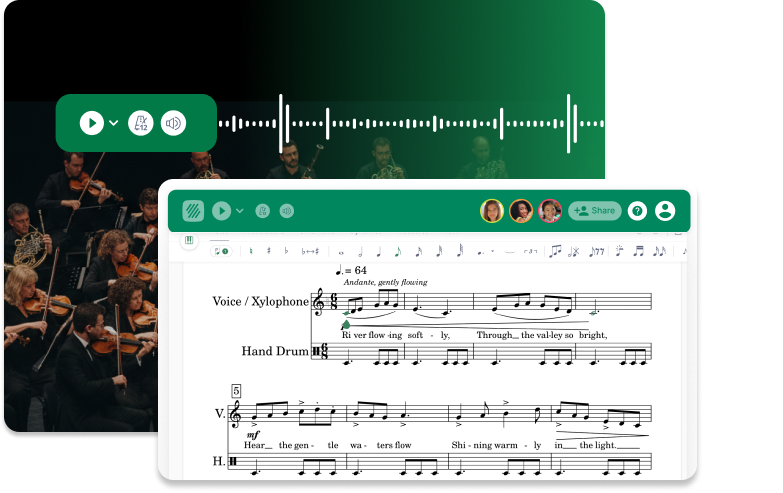
Individual feedback at scale. You have 28 students. You need to know whether each of them can play the opening eight bars of the concert piece with accurate rhythm and intonation. Listening to each one individually takes two full lessons and produces no written record. Performance assignment tools that let students record their own playing and submit it for teacher review solve this directly. You listen when you have time, you leave timestamped comments, and you have a record of each student's progress across the semester. Some performances don't fit a single score, so Free Record lets students record with none attached, for ensembles, mixed repertoire, or improvisation.
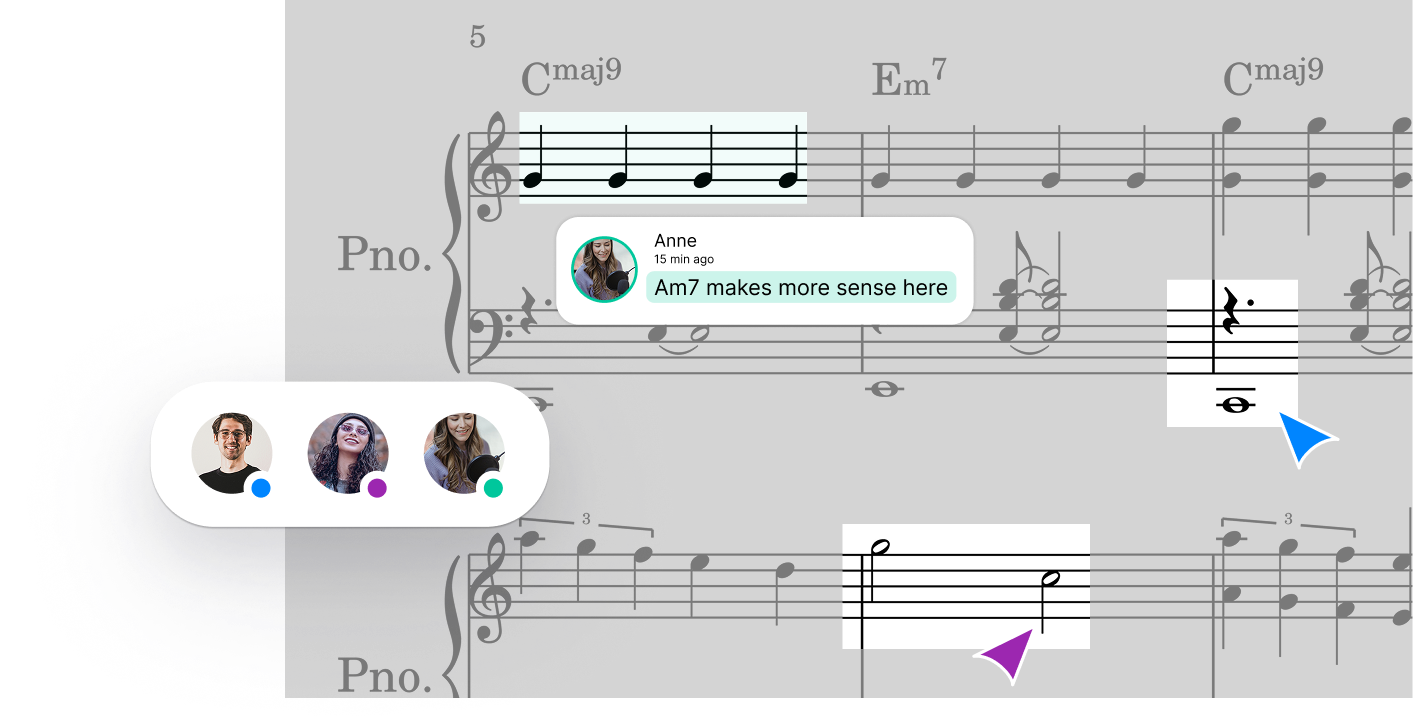
Composition without chaos. Asking a class of 30 to compose without any structure produces noise, frustration, and submissions that range from four bars to completely unplayable. Software that handles notation, playback, and submission in the same place removes most of those friction points. Students hear their ideas back immediately, which is worth more than any teacher explanation of why a rhythm doesn't work the way they think it does.
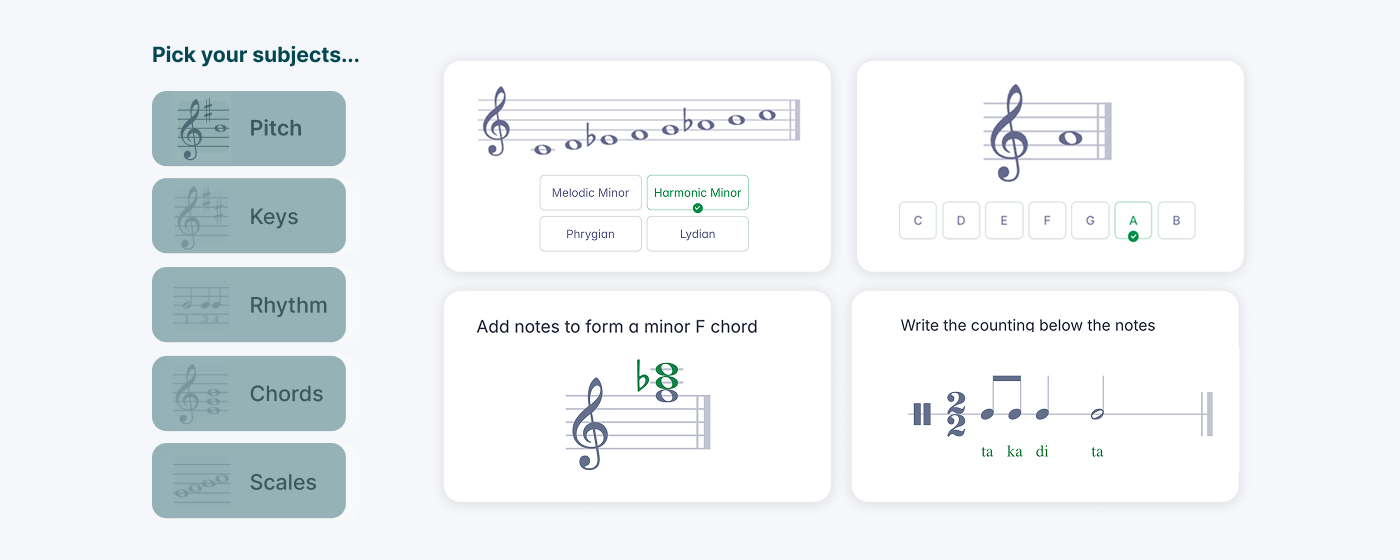
Theory that sticks. Written theory exercises on paper are fine. The problem is the feedback loop: students complete the worksheet, hand it in, get it back with corrections a week later, and no longer remember what they were thinking when they wrote the answer. Digital tools that give immediate feedback on ear training and notation exercises close that loop. Students get told right away whether their answer was correct, which makes the practice genuinely useful rather than just something to hand in.
Choosing Tools That Work on Any Device
This is not a minor consideration. Secondary schools often have mixed device environments: some students on Chromebooks, some on iPads, some on Windows laptops, some using their phones. A music technology tool that requires a desktop app, a specific operating system, or a download is a tool you'll spend 15 minutes every lesson troubleshooting.
Browser-based tools solve this. If it runs in Chrome or Safari, it runs everywhere. Students can switch devices mid-project without losing work. You don't need IT support to deploy it across a class.
Flat for Education is browser-based, works on Chromebooks, iPads, Windows, and Mac, and doesn't require any download. For secondary teachers managing mixed device environments, that's the most practical thing you can know about it before evaluating anything else.
Using Notation Software as a Teaching Tool, Not Just a Publishing Tool
A lot of secondary teachers who use notation software use it for one thing: producing printable parts for their ensemble. That's useful, but it's the least instructionally interesting thing the software can do.
What notation software actually enables, when students use it rather than just teachers, is immediate playback feedback. A student writes a melody, presses play, and hears whether it sounds the way they intended. That feedback loop doesn't exist on paper. It's one of the most powerful things about digital notation tools in a classroom context, and it's worth building into your lessons deliberately rather than treating it as a side feature.
Practical applications for secondary classes:
- Constrained composition tasks where students write within specific parameters (see composition projects for band students)
- Arranging exercises where students adapt a melody for different instruments and hear whether it works in range
- Score analysis where students annotate a provided score with markings, then submit for teacher review
- Countermelody writing, where playback of both staves simultaneously shows problems that written feedback would take three rounds to fix
Practice Tools That Belong in Every Secondary Music Classroom
These are the tools students use independently, either in class or at home, to build skills that can't be developed only in ensemble rehearsal.
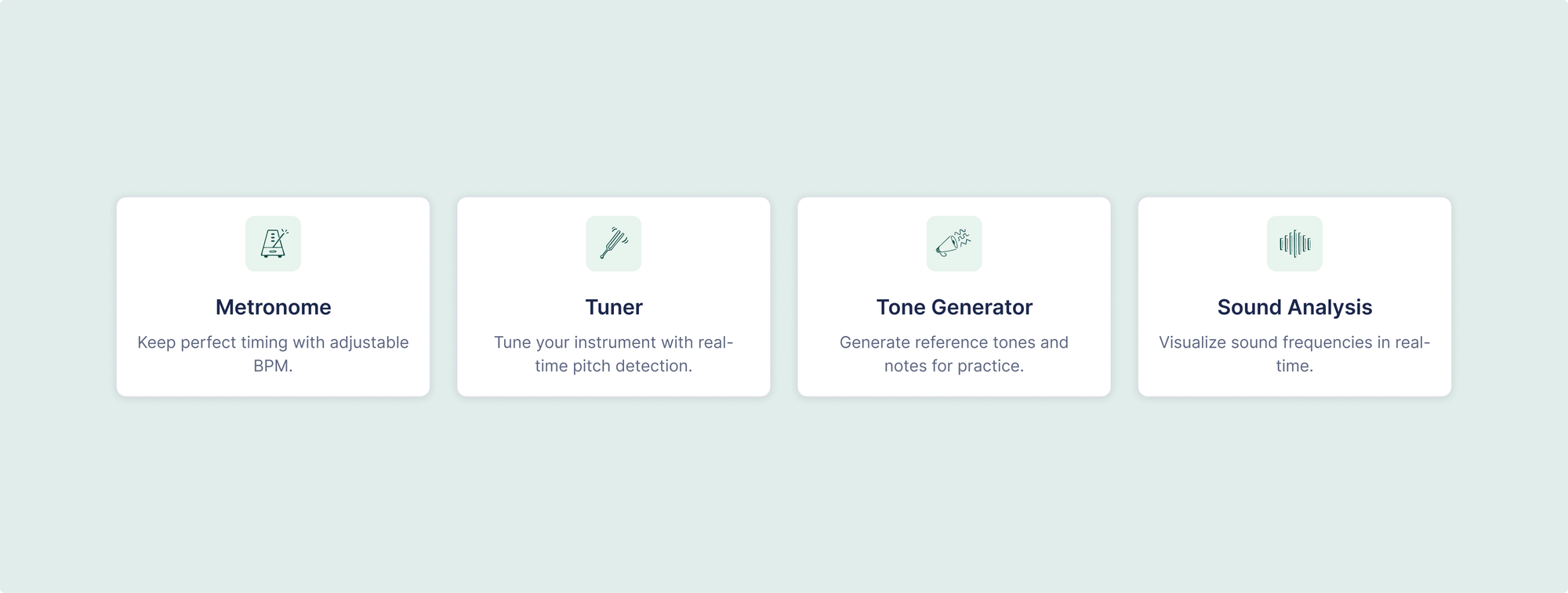
Chromatic tuner. Intonation awareness is a skill that has to be developed consciously. Students who can see a tuner reading while they play develop pitch accuracy faster than students who rely only on ensemble listening. The tuner inside Flat for Education works on any device with a microphone, which means it works on phones and Chromebooks, not just the expensive gear in the instrument room.
Metronome. This one needs no explanation to any band director, but it's worth noting that a visual metronome (one that students can see as well as hear) tends to produce better results for students who are rhythmically unstable. The visual click gives them something to anchor to beyond just sound.
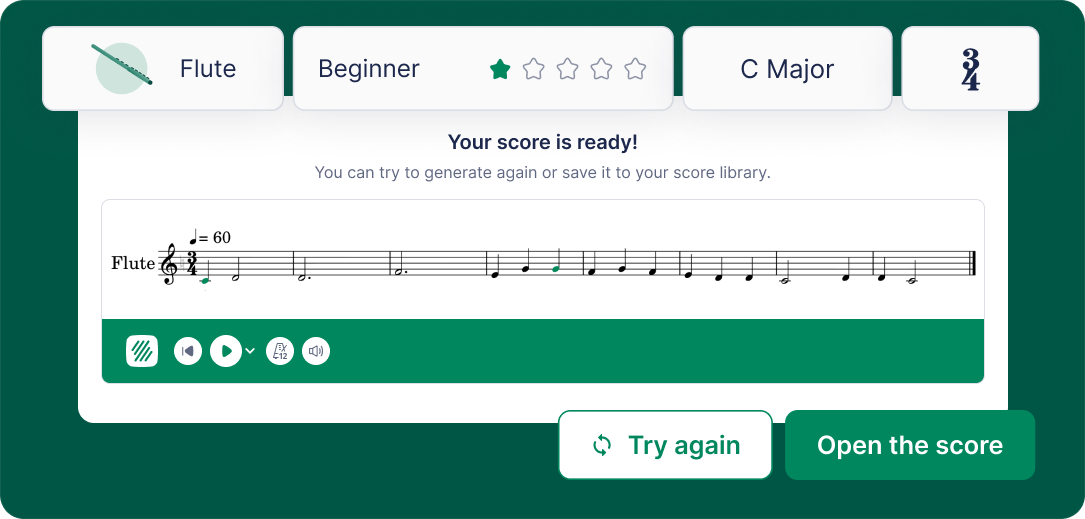
Sight-reading generator. Randomly generated sight-reading exercises that can be calibrated to a specific key, time signature, and difficulty level are genuinely useful for building reading fluency. The Flat for Education sight-reading generator lets teachers set parameters and assign exercises directly to students, which means sight-reading practice can be assigned as homework with a submission record rather than just hoped to happen.
How to Introduce Music Technology Without Losing a Lesson to Set Up
The reason music technology often fails in secondary classrooms isn't the technology. It's the introduction.
If the first lesson with a new tool is the teacher at the front explaining how to use it while students follow along on their devices, you'll spend 40 minutes covering features and the students will have forgotten most of it by the next class. That's not how people learn to use software.
A better approach: give students a small, specific task on day one that requires them to use one feature of the tool. Not a demo lesson. An actual task. "Create a four-bar melody using only stepwise motion, press play, and submit." That's it. Students figure out how to navigate the interface because the task requires it. The ones who get stuck help the ones who are more stuck. You walk around and fix the three things that 80% of them are confused about, and you've covered it.
With Flat for Education specifically, the setup step is: students log in with their existing Google, Microsoft, or [LMS] account. There's no new password to create, no profile to build. They're in the editor in under two minutes. For secondary classes where lesson time is genuinely scarce, this matters more than any individual feature.
Connecting Music Technology to Your LMS
Whatever platform your school uses for lesson delivery and assignment management, music technology works better when it's connected to that system rather than running in parallel to it.
Flat for Education integrates natively with Google Classroom, Microsoft Teams, Canvas, Schoology, and MusicFirst, with roster sync, assignment distribution, and grade return all handled inside the platforms teachers are already using. For a secondary music teacher who is already managing their class through one of those systems, adding Flat for Education doesn't mean adding another login or another gradebook to maintain. It means students see their music assignments in the same place they see everything else.
That matters for student completion rates. Music homework submitted through the same channel as English and maths homework gets treated as equally important by students. Music assignments that exist on a separate platform students have to remember to check get completed by the students who were already engaged and skipped by the ones you most need to reach.
If you want to see how this looks in practice, Flat for Education offers a free 30-day trial. It takes about five minutes to set up a class, and you don't need to commit to any particular approach before seeing how your students respond to it.
FAQ
Do I need any technical background to use music technology in my classroom?
No. The tools that work best in secondary classrooms are designed to be used by students, which means they have to be intuitive enough for a 12-year-old to navigate without instructions. If a tool requires teacher training to deploy, it is probably not the right tool. Start with browser-based tools students can access without downloads, and introduce one feature at a time through an actual task rather than a demonstration.
How do I manage students who go off-task when using devices?
Keep the task narrow enough that there is nothing obviously more interesting to do. "Open Flat for Education and complete the sight-reading exercise assigned to you" leaves less room for distraction than "use the internet to research music theory." In-lesson submission deadlines, where you can see who has submitted from your teacher dashboard, also keep students accountable without you monitoring every screen.
What is the difference between music technology and music software?
Music technology is the broader category: any digital tool used in music education, including hardware like electronic keyboards and recording equipment. Music software is a subset, referring specifically to programs used for notation, production, ear training, or music education delivery. In secondary contexts the terms are often used interchangeably because most schools don't have conservatoire-level hardware budgets.
How do I assess students' work in music technology tools?
The most practical approach is criterion-referenced assessment against specific observable outcomes: did the student include the required number of bars, use at least one dynamic marking, submit a recording that demonstrates the passage at tempo? Those are assessable without subjective judgement of "musical quality," which is hard to standardise. Most platforms including Flat for Education let you leave comments directly on the submitted work, creating a feedback record more useful than a grade alone.