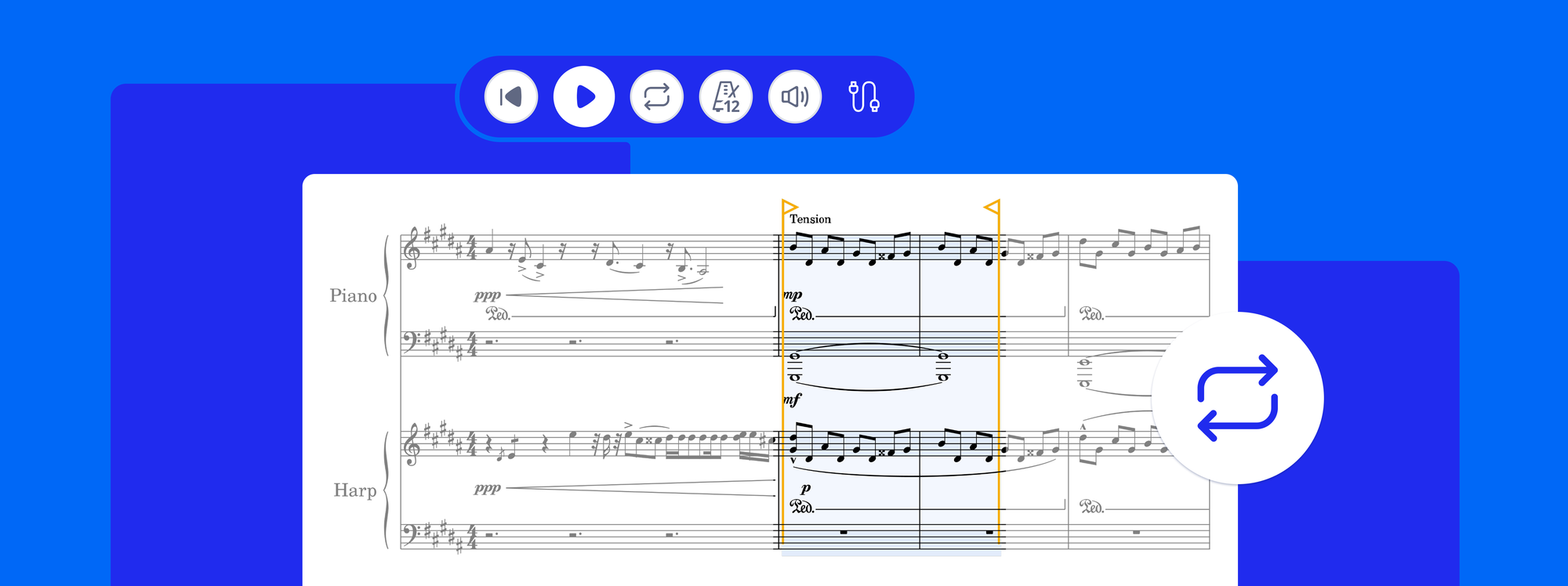
Playback is one of the most essential features in any notation software. It is how you hear your ideas lift off the page, and how you know what they will actually sound like when someone plays them. And while you are writing, you rarely listen just once. You play the same eight bars over and over, changing one thing between passes, because that is how writing works.
So lately we have been working on making our playback better, based on your feedback and requests. Loop mode is here, along with a handful of playback improvements.
Let's take a look at what's new!
Loop mode
Loop mode repeats a passage you choose until you tell it to stop. You set the range once, and the music keeps coming round while you work inside it.
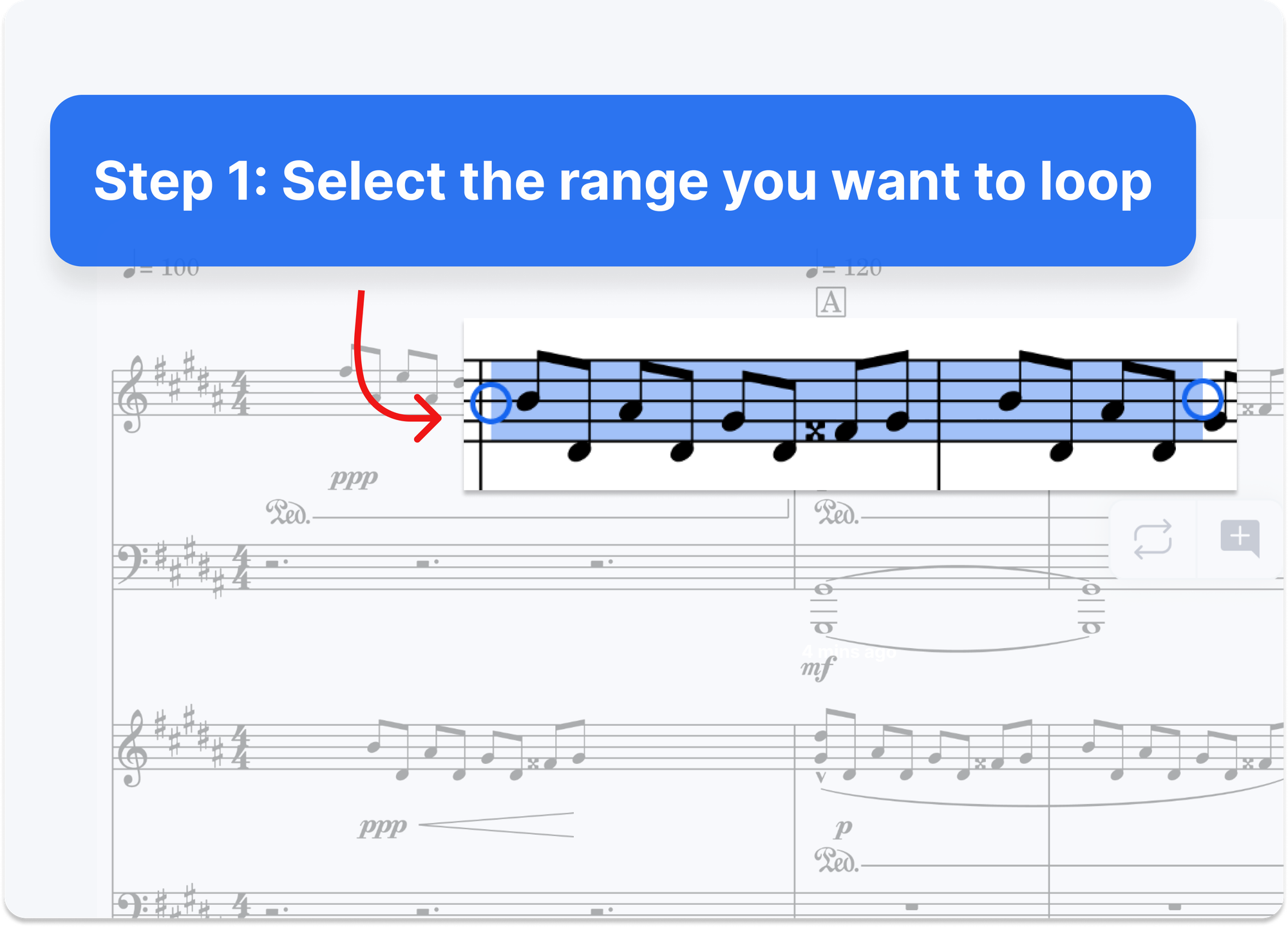
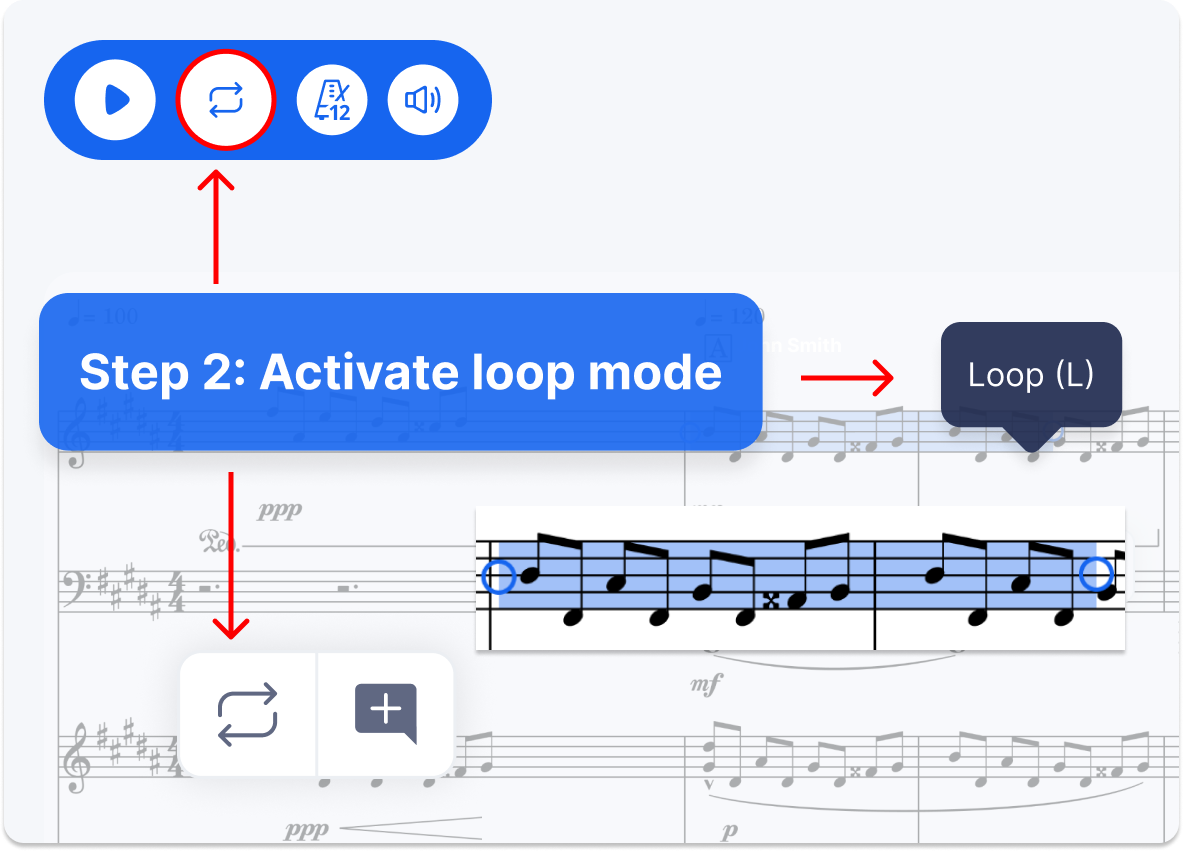
To start a loop, you have three options:
- Select the bars and press
L. - Select the bars and choose Loop from the menu that appears alongside your selection.
- Press the loop button in the header with nothing selected. Flat loops one bar: the one your cursor is in. To loop more, drag the handles outwards.
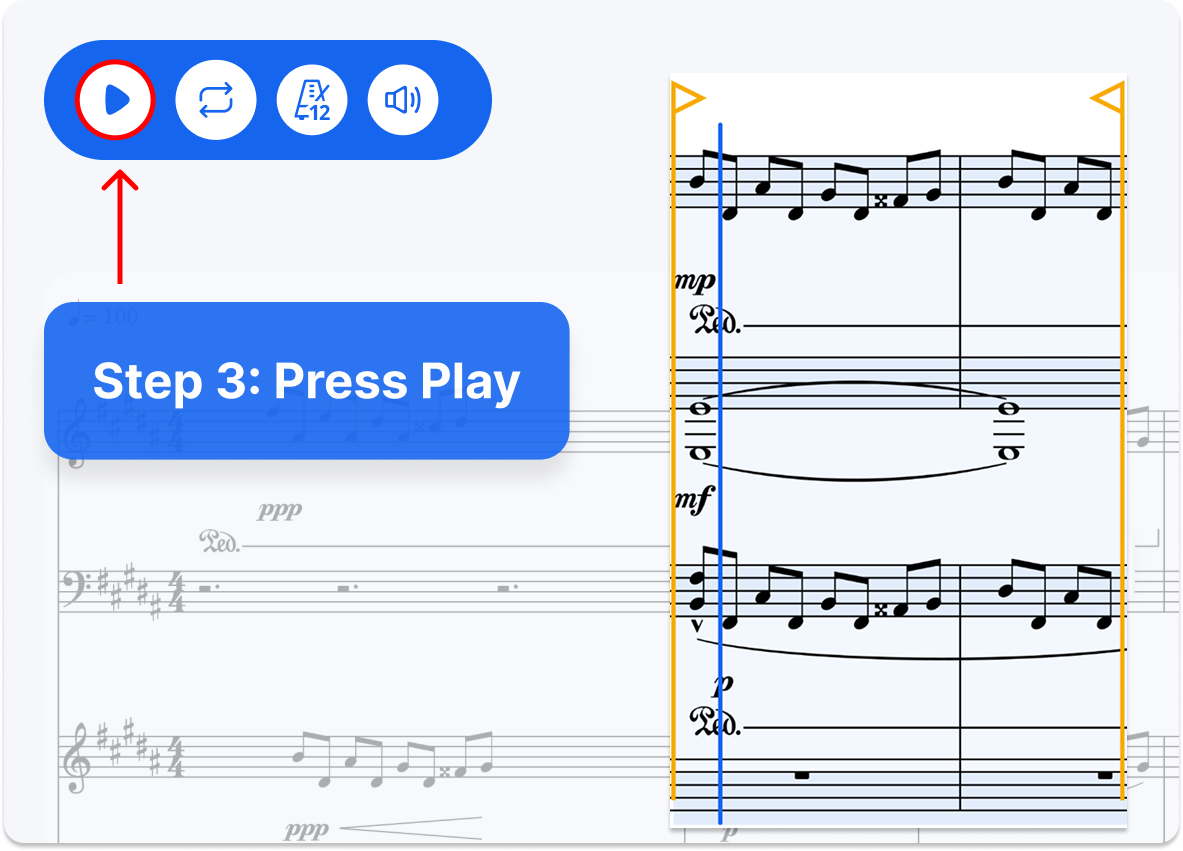
Once the loop is running:
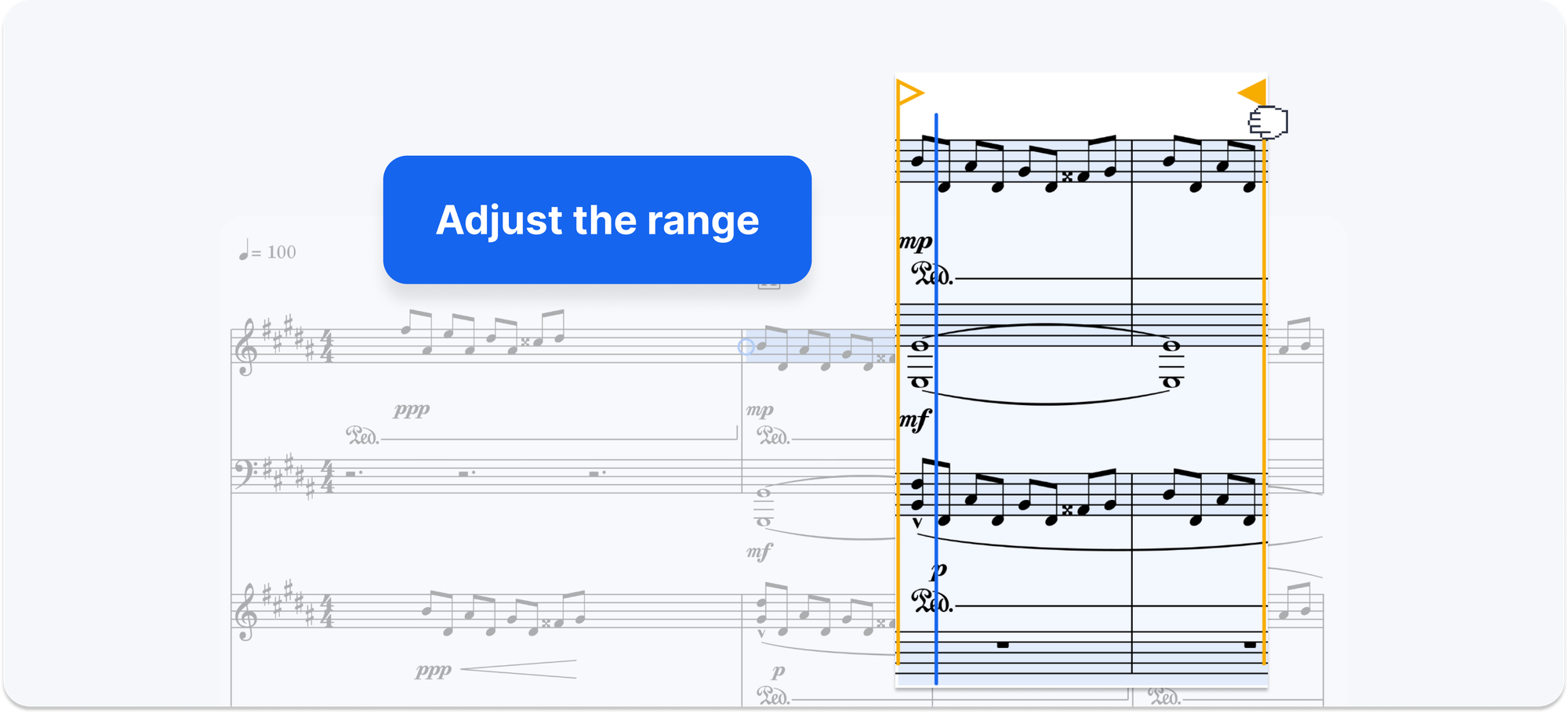
- Both ends of the range are marked with handles, and the bars between them sit on a lighter background, so you can see exactly what is repeating.
- The notes stay editable. Click a note as it plays, select it, and edit it as you normally would. The loop keeps going, your range stays put, and you hear the change the next time it comes round.
- Drag either handle to widen or tighten the range, even while the music plays.
- Press
Lagain, or the header button, to stop. Your selection stays where it was and playback returns to the whole score.
Loop mode also works with a synced recording. If your score has a YouTube or Vimeo video, a SoundCloud track or an uploaded file attached to it, the loop repeats over that audio as well.
The best part of this update: loop mode is free on every plan.
Five ways to use loop mode while you write
1. Getting a chord voicing right. You have written a four-part chord. On the page it is correct, but played back it sounds thick and the melody is buried in it. Select that bar and press L. While it repeats, move the alto up an octave and listen to the next pass. Put it back, then drop the tenor instead and listen again. Inside a minute you have heard three versions of the same chord and you know which one lets the top line through. Without a loop, each of those attempts costs you a stop, an edit and a restart.
2. Making a transition work. Two sections can each sound fine on their own and still collide where they meet. Select the last two bars of the first section and the first two of the second, then loop that range. The join is now the only thing you hear, and it comes back round every few seconds while you work on it: a different chord going in, a rest before the downbeat, a rhythm that leans forward rather than stopping dead. You will hear the pass where it starts to work.
3. Writing a melody over a progression. If you have the harmony but no tune yet, loop the four bars of chords and leave them running. Add your melody one note at a time, and each note is heard against the chord underneath it as you place it. That is a different experience from writing eight bars in silence and discovering afterwards that bar three fights the harmony.
4. Notating from a recording. Sync a YouTube video or an audio file to your score, loop the first four bars, and write down what you hear while the audio keeps coming round. When those bars are done, drag the loop forward to the next four and carry on. This removes the part of transcribing that actually takes the time, which is scrubbing back to find your place again after every attempt.
5. Practising a passage you cannot play yet. Set the loop over the difficult bars, pick up your instrument, and leave the computer alone. The passage repeats for as long as you need it to, without you reaching over to press play between attempts.
Playback improvements
Three things behave differently now: where Play starts from, how you pick the music back up after stopping, and what happens when you go back to the start.
Play, or the Space bar. Playback starts from your cursor rather than the beginning of the score. Click a note in bar 62, press play, and you hear bar 62.
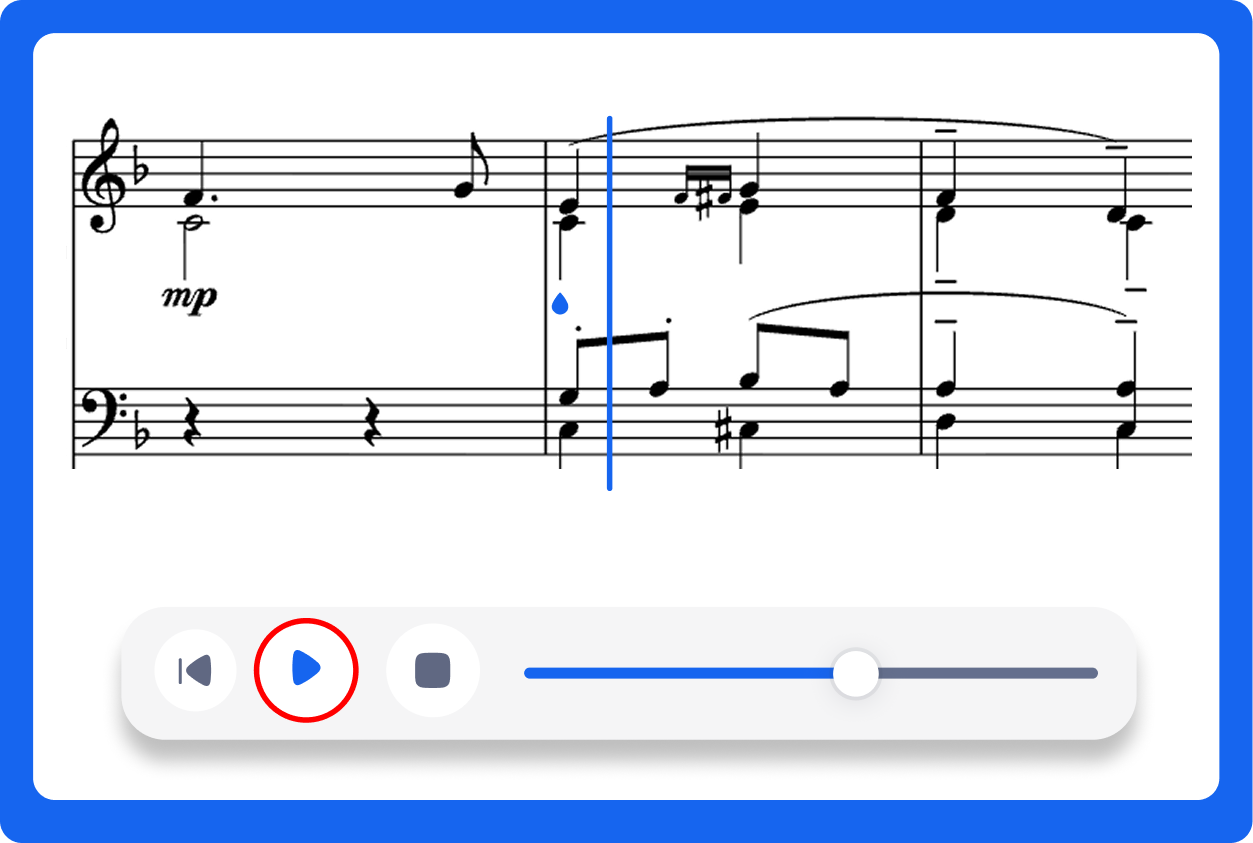
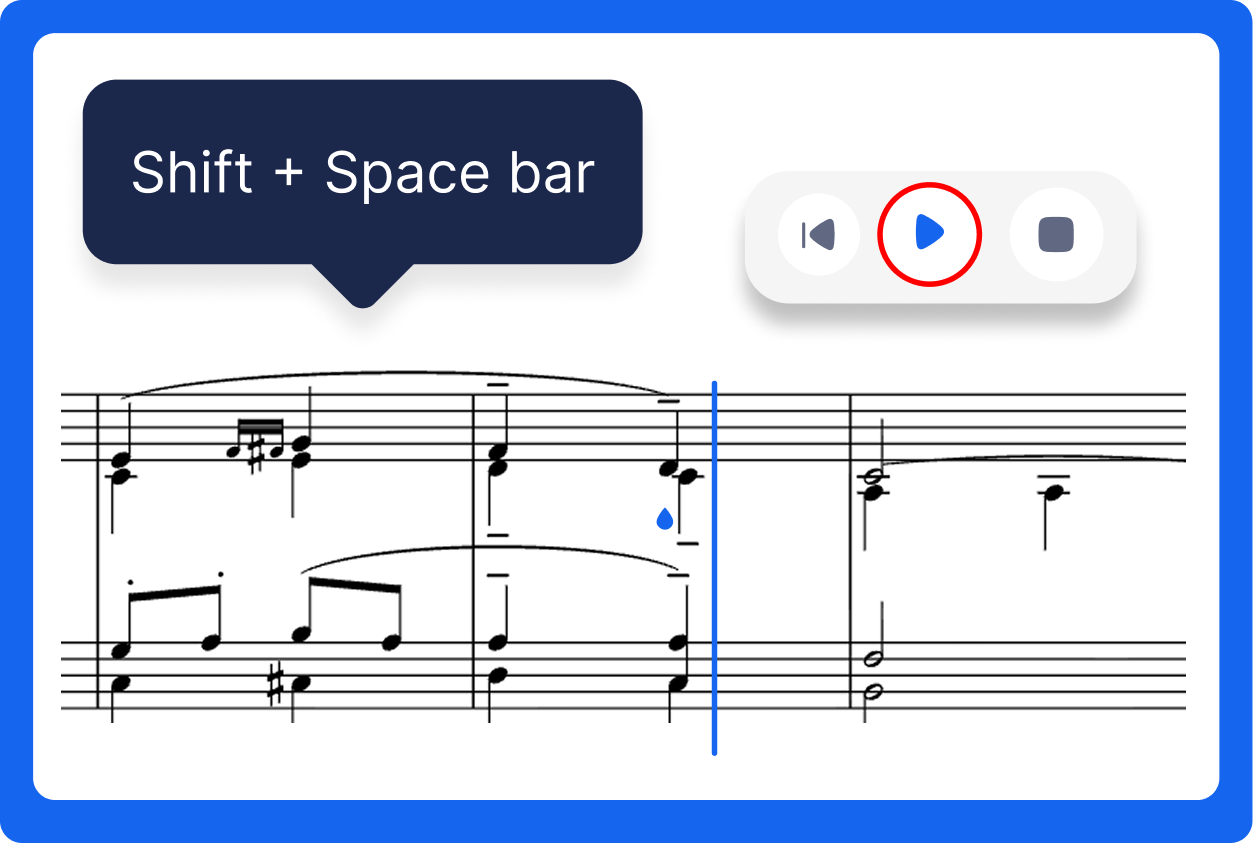
Stopping. Playback stops, and Flat holds on to the point where it stopped. You then have two ways to start again, and they do different things:
- Play, or
Space, starts from your cursor. Shift+Spacepicks up from the exact point where the music stopped. On mobile, press and hold Play instead.
So you can stop mid-phrase, fix the note that made you stop, and carry on from that same note rather than hunting for your place.
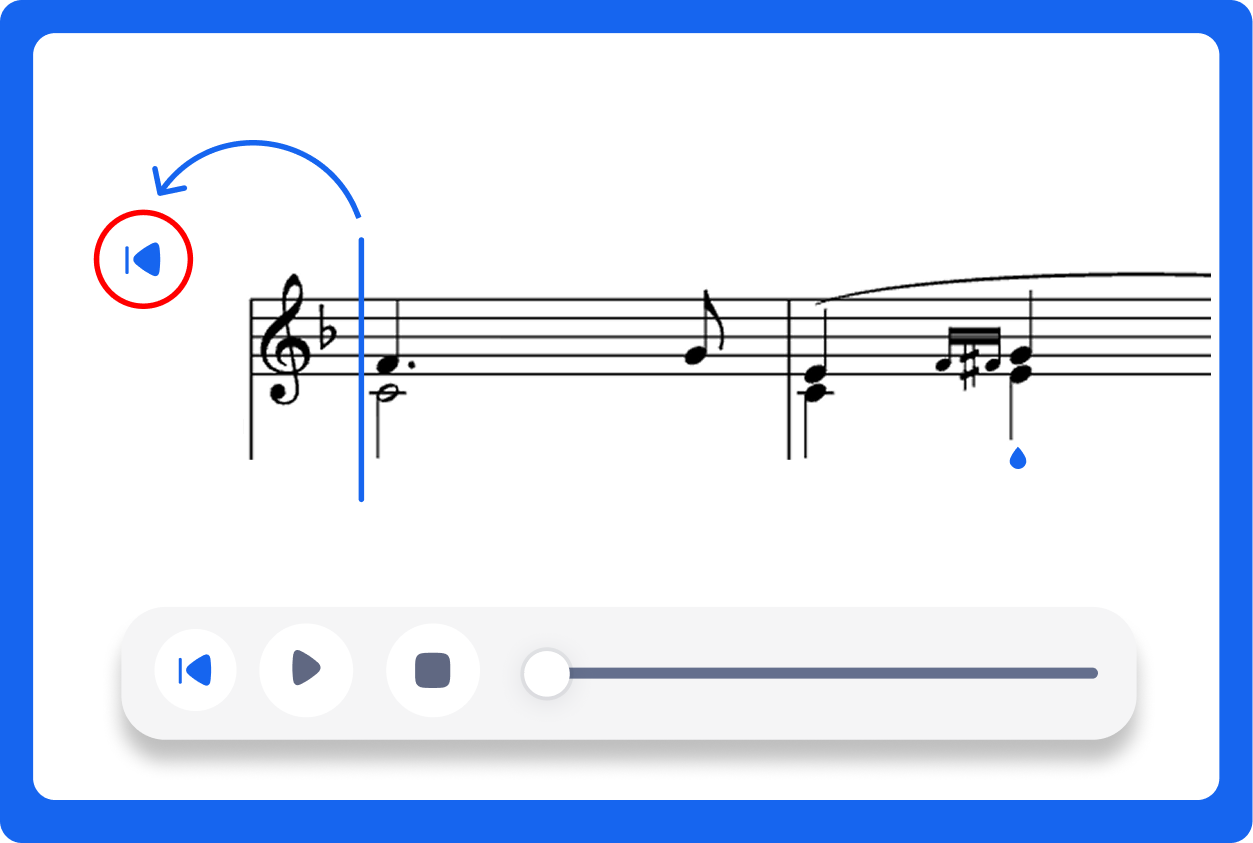
Going back to the start. With the music stopped, this moves your cursor to the beginning of the score, so the next press of Play begins from the top. With the music playing, the slider jumps back to the start and playback carries on instead of cutting out.
Put together, that means fewer clicks between hearing something and changing it.
Where you can use it
Loop mode and the new controls are available in the new editor, and on the new mobile toolbar on Android. Support on iOS arriving next. If you are still on the old editor, switching over is what gets you access, and it is also where Quick Search lives.
Loop works inside embedded scores too, controlled through the embed API rather than the on-score button, so you can build your own loop controls around a score on your site.
This follows a run of playback work over the last few releases, including more expressive dynamics playback and 16th-note swing. Full detail on the controls lives in our audio playback help page.
Try it
Open a score, select a few bars, and press L. Pull the left edge back a bar so you hear the approach into the passage as well, then change one note each time it comes round.
Open a score in your browser, no download needed.