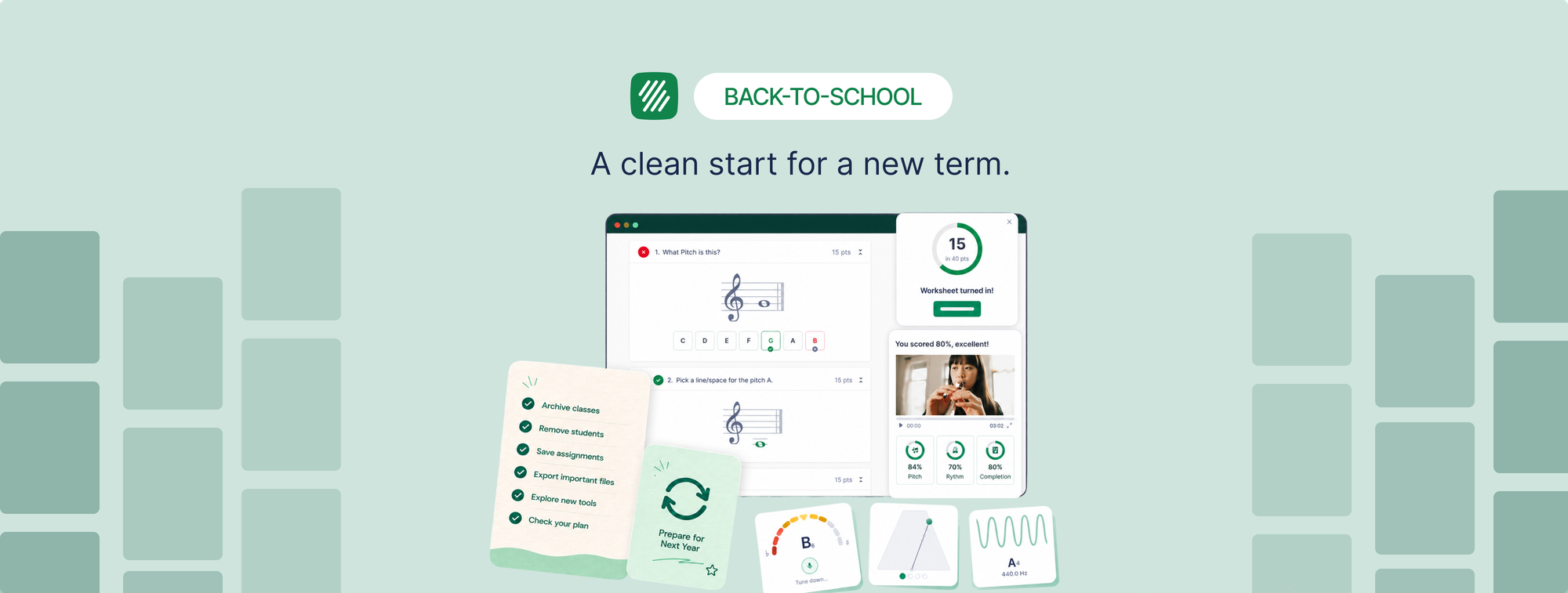
The last few weeks of the school year are chaotic. Performances, exams, grades, and a hundred administrative tasks all land at once. Flat for Education is probably the last thing on your mind.
But 30 minutes of end-of-year cleanup now saves you hours when new classes start again. Students who aren't removed stay in your class roster. Old assignments stay visible and clutter your dashboard. A class that wasn't archived makes it harder to find what you need when you're building your fall curriculum in August.
This guide covers exactly what to do before summer, in the order that makes the most sense, so you start next year with a clean setup rather than last year's leftovers.
Step 1: Archive Your Classes
Archiving a class in Flat for Education removes it from your active dashboard without deleting anything. All the assignments, student submissions, and scores are preserved. You can access an archived class at any time. It just stops showing up in your daily view.
To archive a class:
- Go to your teacher dashboard and open the class you want to archive.
- Click the class settings (the gear icon or the three-dot menu depending on your view).
- Select Archive class.
Do this for every class from this school year. If you use Google Classroom, Microsoft Teams, Canvas, Schoology, or MusicFirst, archiving in Flat for Education is separate from archiving in your LMS. Do both if your LMS also has an archive function.
What archiving does not do: it does not remove students from your account or free up licence seats. That's the next step.
Step 2: Remove Students Who Are Leaving
If students are moving to a different school, graduating, or otherwise leaving your program, remove them from your Flat for Education account. Keeping inactive students in your account uses licence seats and clutters your class lists.
- Go to the class the student is in.
- Open the student roster.
- Select the student and choose Remove from class.
If you sync rosters through Google Classroom, Microsoft Teams, or another LMS, removing students there will update your Flat for Education roster automatically at the start of next year when you sync again. Check your LMS sync settings to confirm this behaviour for your specific integration.
For students who are staying in your program next year, you don't need to remove them. They'll carry forward into your new class when you set it up in September.
Step 3: Save Your Best Assignments to the Resource Library
If you're on a School or District Plan, this is the most valuable 10 minutes you'll spend before summer. Go through the assignments you ran this year and save the ones you'd use again to your Resource Library.
The Resource Library is your personal and shared bank of assignments. Anything you save there is available to assign to a new class next year without rebuilding it from scratch. Good sight-reading exercises, strong composition briefs, well-designed worksheets: all of these are worth saving now rather than recreating in August.
To save an assignment to your Resource Library:
- Open the assignment from your class.
- Click Save to Resource Library from the assignment options.
If you're on a Teacher Plan, your assignments are already saved in your personal account and will be accessible next year. You don't need to do anything extra.
Step 4: Export Anything You Want to Keep Offline
Some teachers like to keep offline copies of key scores or arrangements, either for their own records or in case they switch schools. If that's you, now is the time.
From any score in Flat for Education, you can export to PDF, MusicXML, MIDI, or audio. PDF is best for printed records. MusicXML is best if you want to open the file in another notation program.
You don't need to export everything. Focus on arrangements you created yourself, custom worksheets you'd want to reuse outside the platform, and any student work you're keeping for portfolio or documentation purposes.
Step 5: Try the New Tools Before September
If you haven't explored the tools added to Flat for Education in 2026, summer is the best time to do it. No class pressure, no 40-minute deadline. You can try things at your own pace.
The seven new tools, available on the Teacher Plan and School Plan, are worth knowing before your students are in front of you:
- Sight Reading Generator: creates unique 8-measure exercises for Piano, Flute, Clarinet, Alto Saxophone, Trumpet, Trombone, Guitar, and Vocals instantly. Try generating a few at different difficulty levels so you know what to expect when you use them in a warm-up.
- Ear Training Worksheets: auto-graded interval identification exercises. Assign yourself a worksheet and complete it as a student would, so you understand the submission experience before your students see it.
- Fingering Worksheets: auto-graded recorder fingering exercises for Soprano Recorder (Baroque) and Alto Recorder (Baroque). Useful to check before your recorder unit in the fall.
- Tuner, Metronome, Tone Generator, Sound Analysis: all available in the student workspace. Open them and see where they live so you can point students to them on day one.

If you're still on a legacy plan and don't see these tools, they're part of the Teacher Plan and School Plan. You can explore them during a free trial or contact edu@flat.io to understand your options before September.
Step 6: Check Your Renewal
If your Flat for Education plan renews in summer or early fall, take five minutes now to check what you're renewing into. Log in, go to your account settings, and look at your current plan and renewal date.
If you're on a legacy plan, your current features and pricing will renew automatically as they are. The new tools are not included on legacy plans. If you want the sight-reading generator, ear-training worksheets, and the other 2026 additions in your class from September, you'll need to be on a Teacher Plan or School Plan. Switching is worth thinking about now rather than in August when you're already setting up classes.
If you're already on a Teacher Plan or School Plan, your renewal includes everything. Nothing to do except confirm the date.
What a Clean September Setup Looks Like
When you come back in August or September with this done, your Flat for Education dashboard will have no active classes from last year cluttering the view, no licence seats used by students who are no longer in your program, and your best assignments already saved and ready to assign to a new class.
Setting up a new class in September takes about 10 minutes: create the class, sync your roster from Google Classroom, Microsoft Teams, Canvas, Schoology, or MusicFirst, and assign the first activity. If you've saved assignments to your Resource Library, that first assignment takes one click.
That's the version of September you want.
Flat for Education offers a free 30-day trial with full access to all tools. Start at flat.io/edu.
Related articles:
- The Tools Music Teachers Keep Open in Other Tabs Are Now Built Into Flat for Education
- How to Use Flat for Education with Canvas LMS
- Flat for Education and Google Classroom: The Complete Guide
- Are You Using the Right Tools to Assess Your Music Students?
FAQ
Does archiving a class delete student work?
No. Archiving removes the class from your active dashboard view but preserves everything inside it: assignments, student submissions, scores, and grades. You can access an archived class at any time by filtering for archived classes in your dashboard. Nothing is deleted.
Do I need to remove students every year?
Only students who are leaving your program permanently. Students who will be in your class again next year can stay in your account and be added to your new class in September. For students graduating or moving to a different school, removing them now keeps your roster clean and frees up licence seats for incoming students.
What happens to my assignments if I archive a class?
Assignments inside an archived class remain accessible inside that class. If you want an assignment available to reuse next year without going back into an archived class, save it to your Resource Library before archiving, which makes it much easier to use again in the future.
Can I try the new tools over summer before committing?
Yes. Flat for Education offers a free 30-day trial with full access to all tools including the sight reading generator, ear training worksheets, fingering worksheets, and all built-in practice tools. If you are currently on a legacy plan and want to explore what's new before deciding, starting to migrate your account over the summer is the lowest-pressure way to do it.
How do I set up a new class in September?
Create a new class in Flat for Education, then sync your student roster from your LMS (Google Classroom, Microsoft Teams, Canvas, Schoology). Students receive an invitation and join with their existing school login. If you saved assignments to your Resource Library at the end of the year, you can assign them to the new class immediately without any rebuilding.