You know the routine if you build your own materials. You need a clean C major scale for a worksheet, so you open notation software, write it out, screenshot it, crop the screenshot, paste it into your Google Doc, and then it pixelates the second you resize it. One worksheet, fifteen minutes of fiddling. Plan a full unit and you've lost an afternoon to formatting that has nothing to do with teaching.
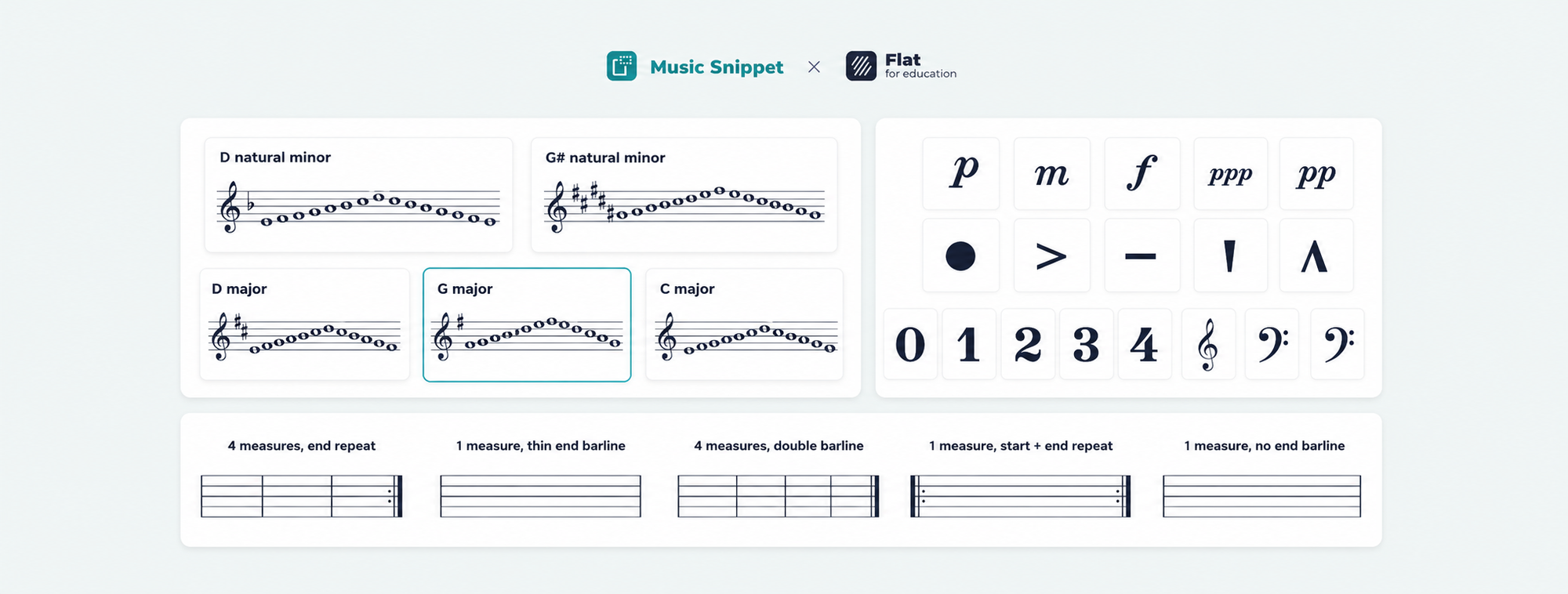
That part of the job just got shorter. Music Snippet, the free Google Docs and Slides add-on that comes with Flat for Education, shipped three updates that retire the workarounds music teachers have leaned on for years: a scale generator, blank staves you drop straight into your document, and a searchable music symbol library. If you make your own worksheets, handouts, sub plans, slides, or curriculum, this is the update worth reading to the end.
Here's what each tool does and how to put it to work in your classroom this week.
What is Music Snippet, and how does it connect to Flat for Education?
Music Snippet is a free add-on that puts a music notation editor directly inside Google Docs, Google Slides, Microsoft Word, and PowerPoint. You write notation in a side panel, click once, and it lands in your document as a clean image. No second app, no screenshots, no leaving the page. It's used by over 9 million people.
If you teach with Flat for Education, Music Snippet is already part of your subscription. Connect your account inside the add-on and you unlock the full notation editor, your saved score library, and custom export options. Think of Flat for Education as where your students compose, get assigned work, and submit it, and Music Snippet as the fastest way to pull that same notation into the documents and slides you build for them.
The old way vs. the new way
For years, the honest answer to "how do I add a blank staff to Google Docs?" was "you fake it." Teachers wrote a few notes, turned them transparent with the color palette, and called it a blank staff. Need a scale? Type every note by hand. Need a single sharp next to a sentence? Dig through Insert > Special characters and hope it was in there.
Clever, but fragile. The new tools give you the real thing.
| What you need | Old workaround | New way in Music Snippet |
|---|---|---|
| A scale | Type every note by hand, set the key signature manually | Pick the scale, it generates with the correct key signature |
| Blank staff paper | Make real notes transparent so they vanish | Insert a genuine empty staff from a layout menu |
| A single music symbol | Dig through Insert > Special characters | Search the symbol library and click |
1. The scale generator: every major and minor scale, ready to drop in
If you teach theory, this is the time-saver. Instead of placing notes one at a time, you choose a scale and Music Snippet renders it correctly, key signature already in place.
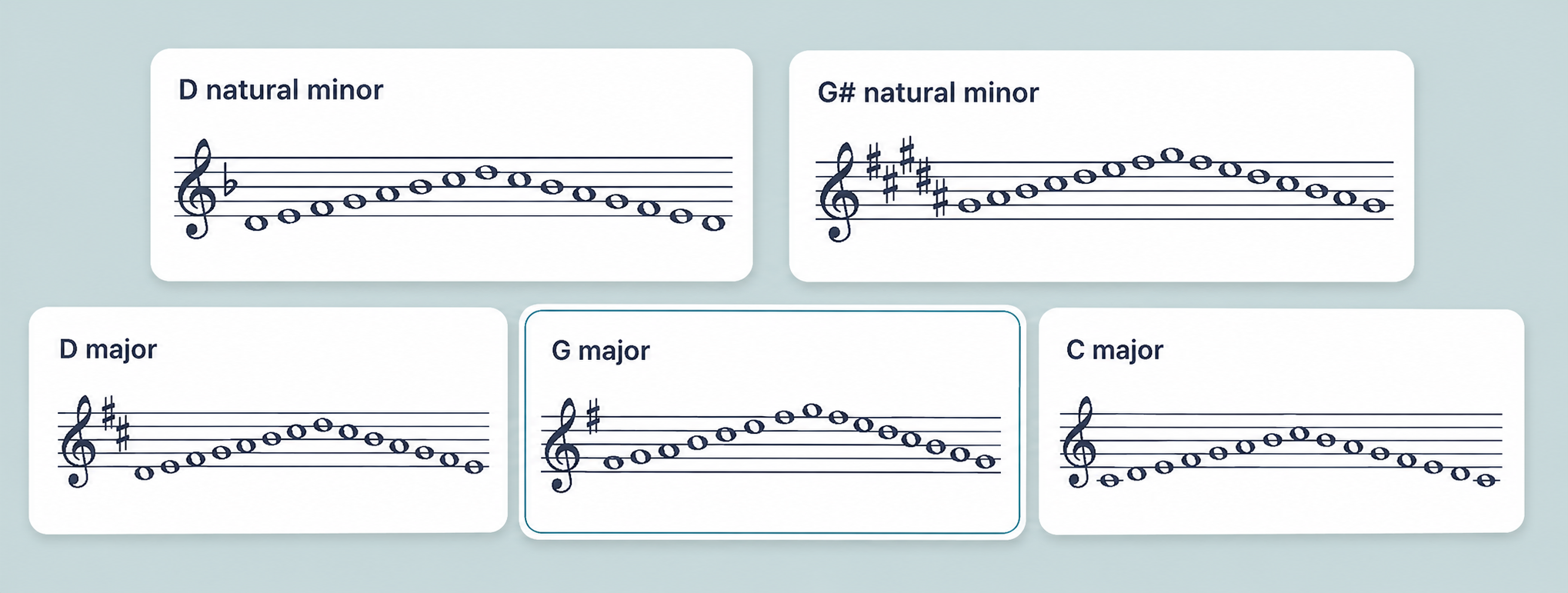
Tab between Major and Minor, pick the key, and the scale appears as notation you can insert right away. C major, G major, D major, the relative minors, all of it. No counting half steps, no second-guessing whether E major has four sharps or five. (It's four.)
Why it matters in younger grades: scales are where a lot of upper-elementary and middle school theory actually lives. Key signatures, the whole-and-half-step pattern, relative major and minor. When a correct example takes two seconds to make, you can put three or four scales side by side and ask students to spot what changes between them. That's a sharper task than copying a hand-drawn scale that may have an error in it, and it shifts the thinking onto the student instead of onto your prep time.
Try this in class: Build a one-page handout with C, G, and D major stacked vertically. Under each, leave a blank line and ask students to write how many sharps the key signature has and to circle the note that moved from the scale above it. Three scales, generated in under a minute, and a task that teaches the pattern instead of just testing recall.
2. Empty staves, added directly to your document
You can now add genuine blank staves to your document in a single step. A layout menu lets you choose exactly what you want: a single measure with no end barline, a measure with a final barline, double barlines, start and end repeats, or a four-measure line for longer exercises.
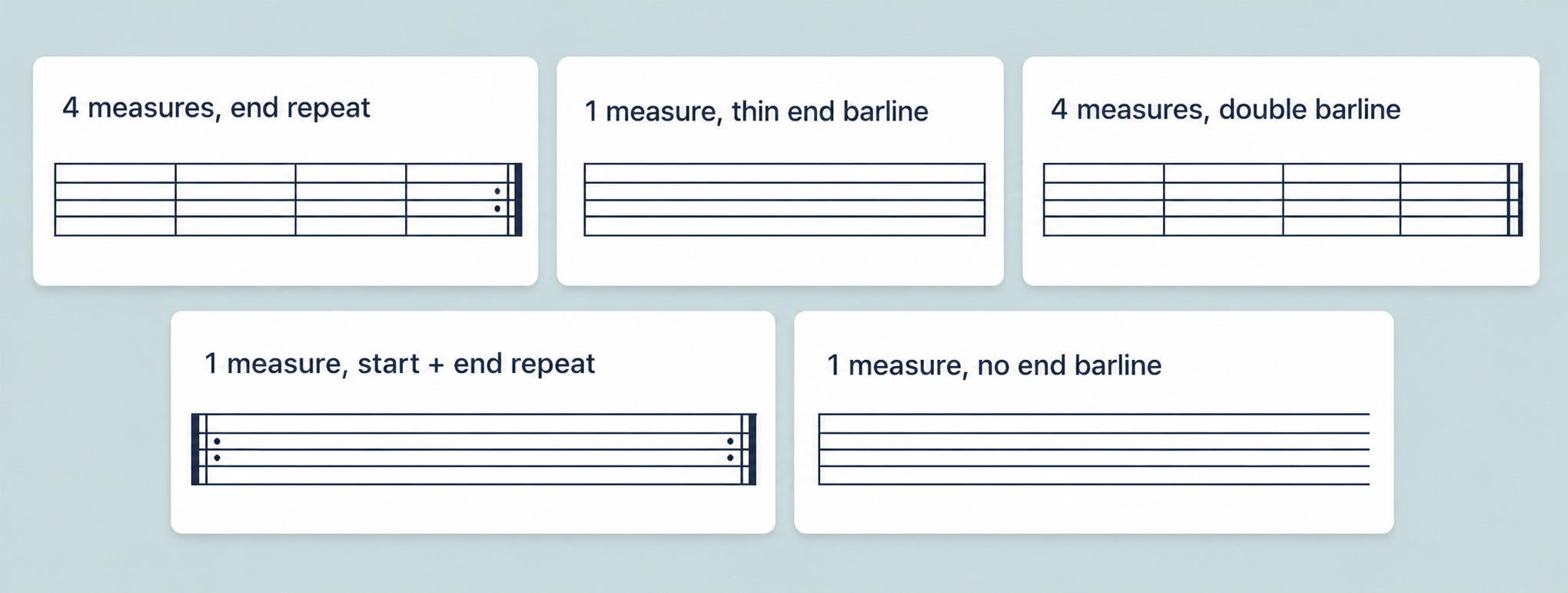
It sounds minor. It isn't. Blank staff paper is the backbone of half the worksheets in a general music room, and until now you had to trick the software into producing it.
A few things you can build with it:
- Dictation exercises, where you play a rhythm or melody and students notate what they hear
- Composition prompts with a fixed number of measures, so students know exactly how much to write
- Fill-in-the-blank tasks, where you give the first measure and students complete the phrase
- Plain manuscript paper, formatted the way you want it, ready to print
Because you pick the barlines and measure count, you've designed the structure of the task before a student writes a note. Want a four-bar answer? Give them four bars. Teaching students to write a proper final barline? There's a stave for that. If you want those same staves to do double duty as composition assignments, the prompt is already half-built.
3. The music symbol library: clefs, accidentals, time signatures, notes, and rests
Sometimes you don't need a whole staff. You need one treble clef mid-sentence, a sharp sign next to a vocabulary word, or a 6/8 time signature in a quiz question. The new symbol library is a searchable, browsable set of music symbols sorted by category: clefs, accidentals, time signatures, and notes and rests.
Browse by category or search by name, then click to insert. That's it. Compare that to Google's Insert > Special characters, which has a "Musical" set that's missing many of the glyphs you actually want and can't put a note on a staff at all.
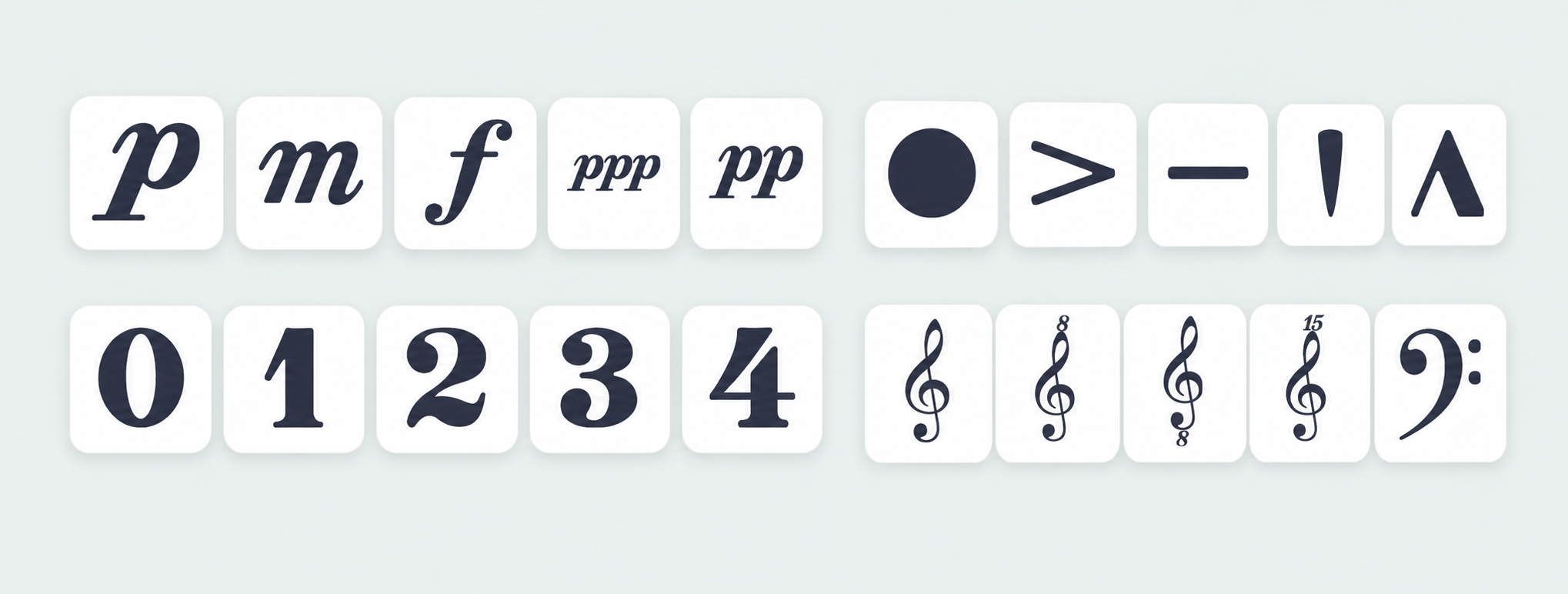
Where it earns its place: writing about music. If you write a curriculum or a method book, you reference symbols inside the body text constantly. A clean, consistent flat or fermata inside a paragraph reads like a real publication; a screenshot wedged between two lines reads like a patchwork. Consistency across a hundred pages is the difference between a resource you're proud to share and one you keep apologizing for.
How to add music notation to Google Docs with Music Snippet
- Open any Google Doc or Google Slides file.
- Go to Extensions > Add-ons > Get add-ons, search for Music Snippet, and install it.
- Reopen the menu at Extensions > Music Snippet > Open Music Snippet.
- Choose what you need: generate a scale, pick an empty staff layout, or open the symbol library.
- Click Add to document to insert it as an image.
Flat for Education users: open the menu in the top left of the panel and choose Connect your Flat account to unlock the full editor and your score library. New to the platform? Our guide on setting up your music class in 30 minutes covers the basics first.
Who these updates are really for
Elementary and general music teachers (K–5). Most of your written work is rhythm reading, simple note identification, and first steps onto the staff. The empty-stave tool and the symbol library cover nearly everything you'll put on a worksheet. Keep it visual, keep it clean, print and go.
Middle school theory (grades 6–8). This is scale-and-key-signature country, and the scale generator was built for it. Side-by-side scale comparisons, key signature drills, relative minor exercises. You can assemble a unit's worth of practice in an afternoon. It pairs naturally with the music theory worksheets you're already running.
Curriculum designers and method-book authors. You produce volume, and consistency is everything. Generated scales are always correct, symbols always render the same, and staves follow a layout you control. No more one-off screenshots that look dated the moment you revise a page. It all lives in the same Google Doc you're writing in.
Build it by hand, or let it grade itself
One distinction worth drawing. Building printable materials in Google Docs with Music Snippet gives you full control over layout, and it's ideal for anything you'll print or hand out offline. But when you want exercises that mark themselves, Flat for Education has a built-in worksheet generator that creates auto-graded music theory worksheets.
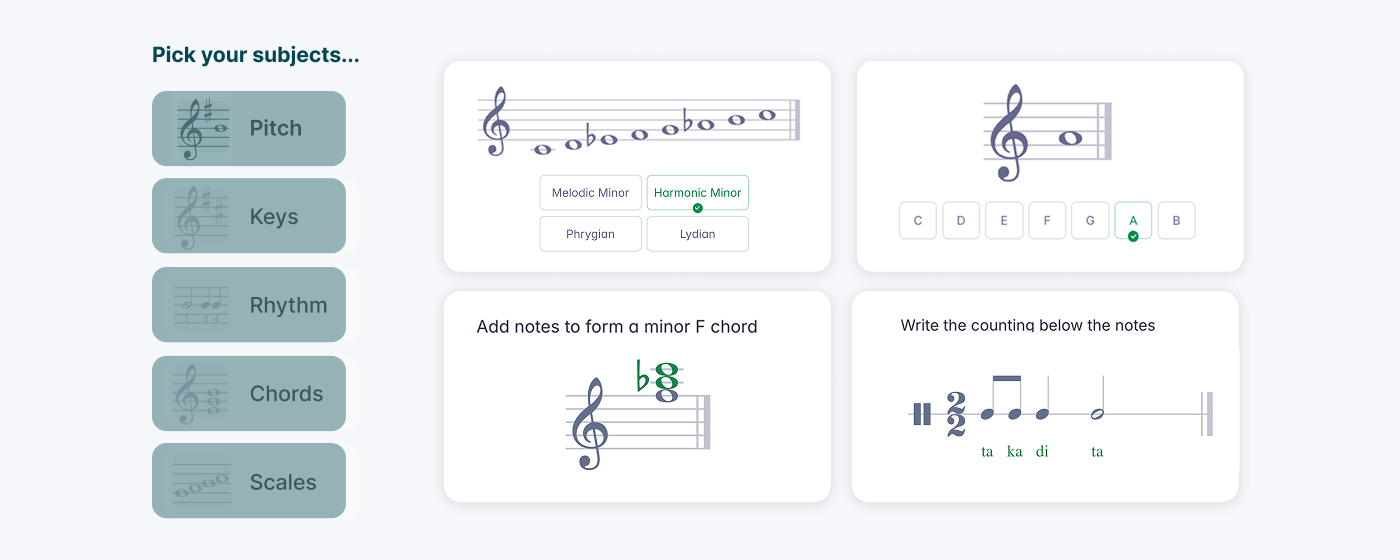
The same goes for the sight-reading generator, which produces a unique exercise in seconds. Music Snippet is for the materials you design yourself; the generators are for the practice you want to automate. Most teachers end up using both, and they fit together cleanly.
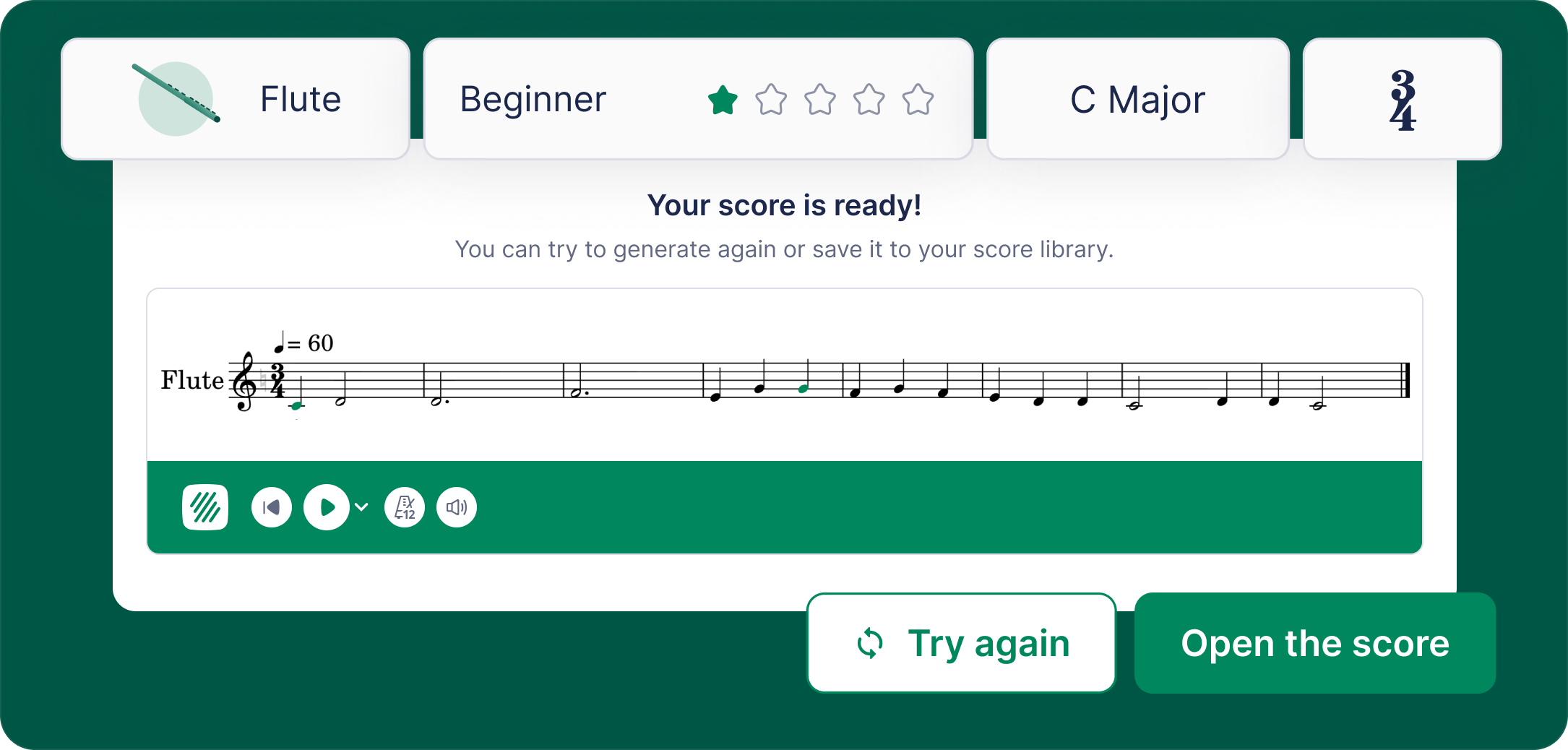
If you're thinking more broadly about which tools belong in your room, our practical guide to music technology in the secondary classroom puts all of this in context.
Stop screenshotting your scales
The thread running through all three updates is the same: the workarounds teachers invented out of necessity are now built in. Real scales, real blank staves, real symbols, made where you already work. If any part of your week goes to building handouts, quizzes, sub plans, or a full curriculum, the time you get back stacks up fast.
Music Snippet is free and installs in about 30 seconds from the Google Workspace Marketplace. If your school uses Flat for Education, it's already part of your plan: connect your account to unlock the full editor and keep everything you make in one library.
Not on Flat for Education yet? You can start a free 30-day trial and set up a class in minutes.
FAQ
Is Music Snippet included with Flat for Education?
Yes. Music Snippet is the free Google Docs, Slides, Word, and PowerPoint add-on from the Flat for Education team, and it is included with every Flat for Education subscription. You connect your Flat for Education account inside the add-on to unlock the full notation editor, your score library, and custom exports.
How do I add a blank staff to Google Docs?
Open the Music Snippet add-on inside your Google Doc, choose the empty staff option, and pick the layout you want, such as a single measure, a four-measure line, or a stave with repeat barlines. Click to add it to your document. It inserts as a clean image you can resize and it prints sharply, unlike the old method of making notes transparent to imitate a blank staff.
Can I create music theory worksheets in Google Docs?
Yes. With Music Snippet you can write instructional text and embed scales, symbols, notation, and blank staves in the same Google Doc, then print or share it. Flat for Education also has a separate built-in worksheet generator that creates auto-graded music theory worksheets, so teachers often use both: Music Snippet for custom printable materials and the worksheet generator for self-grading exercises.
How do I insert music symbols like sharps and clefs into a document?
Music Snippet includes a searchable symbol library covering clefs, accidentals, time signatures, notes, and rests. You browse by category or search by name and click to insert. It is faster and more complete than Google's built-in Insert > Special characters, which is missing many music glyphs and cannot place notes on a staff.
Does Music Snippet work in Google Slides and Microsoft Office?
Music Snippet works in Google Docs and Google Slides, and is also available for Microsoft Word and PowerPoint. The same editor and tools are available whichever platform your school runs on, and Google Docs and Slides integrate with Google Classroom for assigning and collecting work.